How to Fix Your Safari Extension When It Stops Working
If your Safari extension isn’t working after activation or suddenly stopped functioning, don’t worry—you’re not alone! Here are some simple troubleshooting steps to get it running again.
Safari Extensions are greyed out in Settings
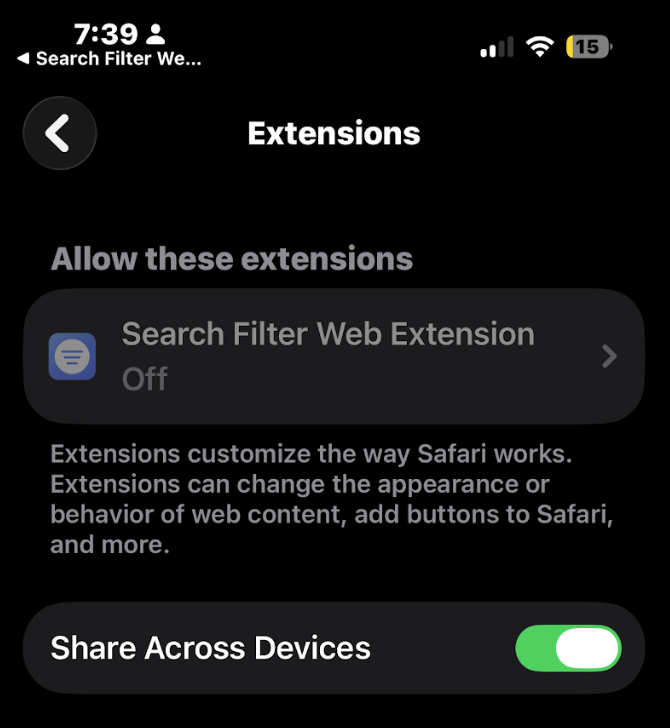
If Safari extensions appear greyed out in iOS Settings > Apps > Safari > Extensions, check whether your iPhone or iPad has any Screen Time restrictions enabled.
Here’s how:
- Go to Settings > Screen Time > Content & Privacy Restrictions. Enter your passcode if required.
- Open App Store, Media, Web, & Games.
- Go to Web Content.
- Set it to Unrestricted Access to activate Safari extensions.
Alternatively, you can turn off Content & Privacy Restrictions entirely.
You should now be able to activate Safari extensions in Settings > Apps > Safari > Extensions.
If these Screen Time restrictions are important to you, you can turn them back on after activating the Safari extension. This will not affect the extension’s current state, because the restrictions only prevent users from changing extension settings.
0. Important: After completing all the installation steps and activating the extension, you must completely close and reopen Safari.
- In some cases, Safari may not recognize the extension immediately, even after it has been installed and activated.
- If this happens, we strongly recommend completely closing Safari and then reopening it, as this often resolves the issue.
- On iOS, simply close Safari and open it again.
- On macOS, right-click the Safari icon and select Quit, instead of using Command + Q, to make sure Safari fully closes.
1. Update Your Device’s Operating System
Make sure your device is running the latest version of iOS or macOS. Apple frequently releases updates that fix bugs affecting Safari extensions.
2. Check for Extension Updates
Ensure you’re using the latest version of our Safari extension. Head to the App Store and check for any available updates, as we continuously improve our app.
3. Uninstall and Reinstall the Extension
If your device’s OS and our Safari extension are both up to date, try removing the extension and reinstalling it from the App Store. This can often resolve unexpected issues.
4. Be Aware of Recent Safari Bugs
Lately, we and other developers have noticed Safari-related bugs that cause Safari extensions to stop working randomly or behave oddly. If this happens, try these quick fixes:
- Close the current tab and open a new one before using the Safari extension again.
- Completely close Safari and reopen it.
These issues affect multiple Safari extensions, not just ours.
If you’re still experiencing issues, feel free to contact our support team for assistance!