
The World of Safari Extensions
Safari has always excelled at being fast, power-efficient, and tightly integrated with Apple hardware. But the browser’s real superpower for many people is how customizable it becomes once you start exploring Safari extensions. A well-chosen Safari extension can turn everyday browsing into something cleaner, safer, and far more efficient—whether that means blocking distractions, automating repetitive tasks, improving accessibility, or adding workflow-friendly tools that feel native to macOS, iOS, and iPadOS.
At their core, Safari extensions are add-ons that extend what the browser can do. They can modify web pages, add buttons and menus, streamline common actions, and remove unwanted clutter from sites you visit every day. For people who live in a browser—researchers, students, developers, marketers, and anyone who uses web apps—this is one of the most impactful ways to tailor Safari to the way you actually work.
So where do you find them? Most users discover Safari extensions through the Mac App Store and the App Store on iPhone and iPad, where extensions are distributed as apps with an extension component. You can also browse dedicated directories that curate what’s available and help you compare options. (If you’re looking to explore what’s out there, this Safari extensions directory is a solid starting point.)
Installing a Safari extension is typically straightforward: you download the app from the App Store, then enable the extension inside Safari’s settings. On macOS, this usually means opening Safari Settings (or Preferences), going to the Extensions tab, and checking the extension on. On iOS and iPadOS, you’ll enable it in Settings under Safari Extensions. From there, Safari may ask you to grant permissions—often site-specific—so the extension can do its job without overreaching.
That last part matters. The best Safari extensions are transparent about what they need access to, and they keep permissions as narrow as possible. If your goal is to improve focus, reduce noise, and make browsing feel more intentional, the right extension can be the difference between an attention-draining feed and a cleaner daily routine.
What is “Hide YT Sponsors for Safari”?
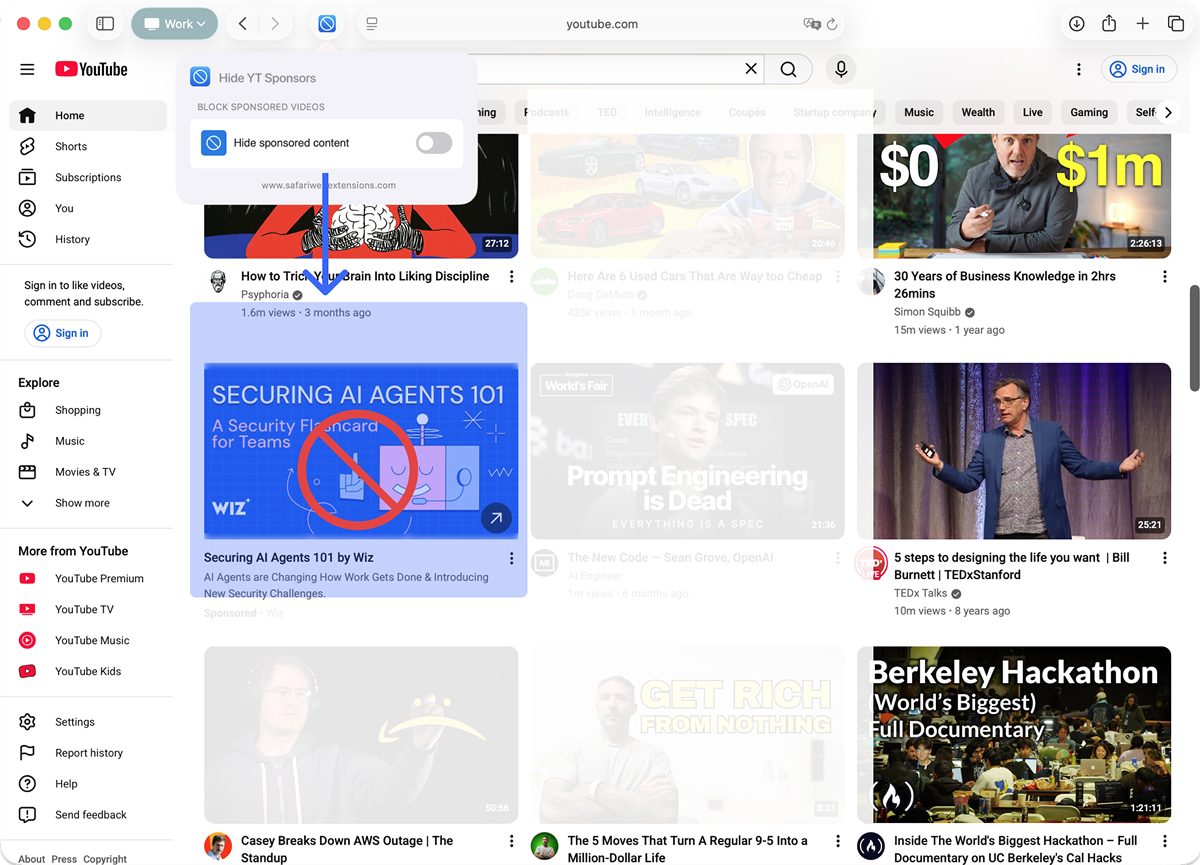
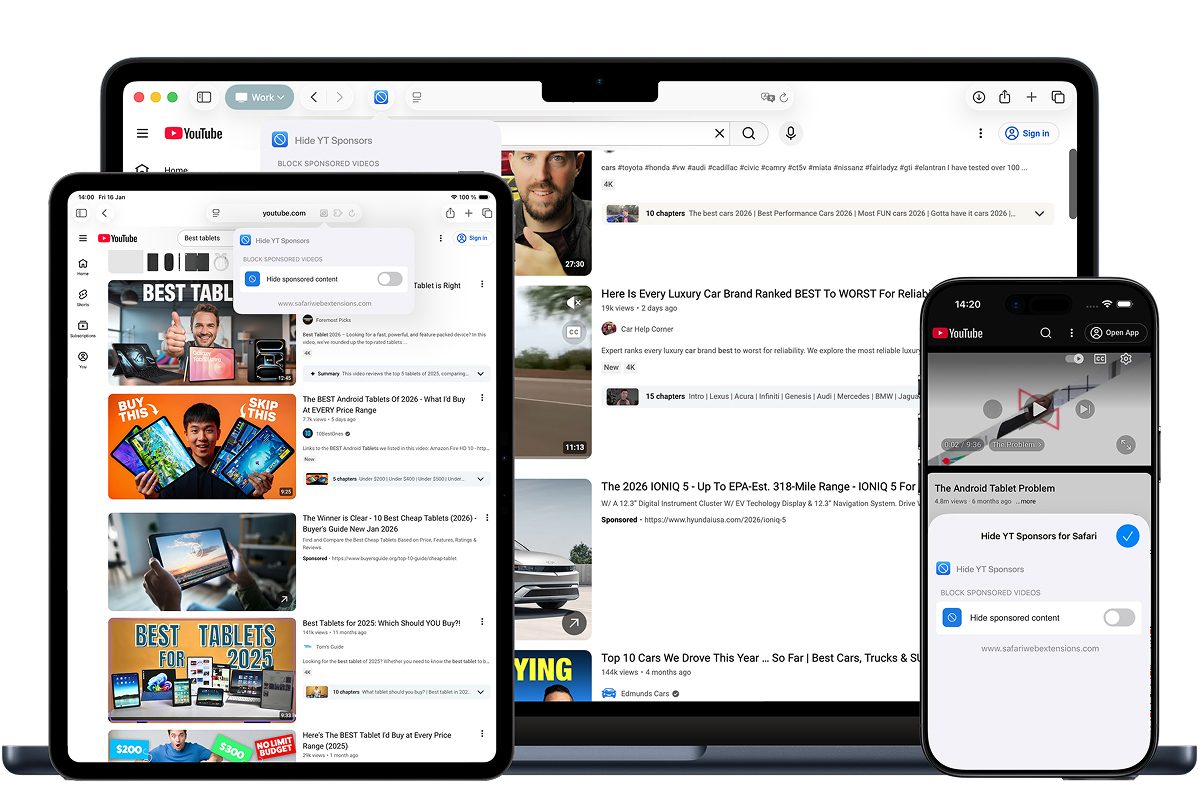
Hide YT Sponsors for Safari is a Safari extension designed to hide YouTube sponsored videos from your YouTube feed, giving you a cleaner viewing experience. If you’ve ever opened YouTube with a specific intention—catch up on subscriptions, find a tutorial, watch a saved playlist—only to be greeted by content labeled as sponsored that crowds out what you actually came for, this extension aims directly at that friction.
The core problem it solves is simple: sponsored content can add noise to discovery and browsing. For users who want to hide YouTube sponsored videos and keep their feed focused on organic recommendations and subscriptions, Hide YT Sponsors for Safari positions itself as a practical, lightweight solution—one that helps block sponsored videos to reduce distractions without turning your YouTube session into a constant exercise in scrolling past promotions.
Why “Hide YT Sponsors for Safari” is a Must-Have for Safari Users
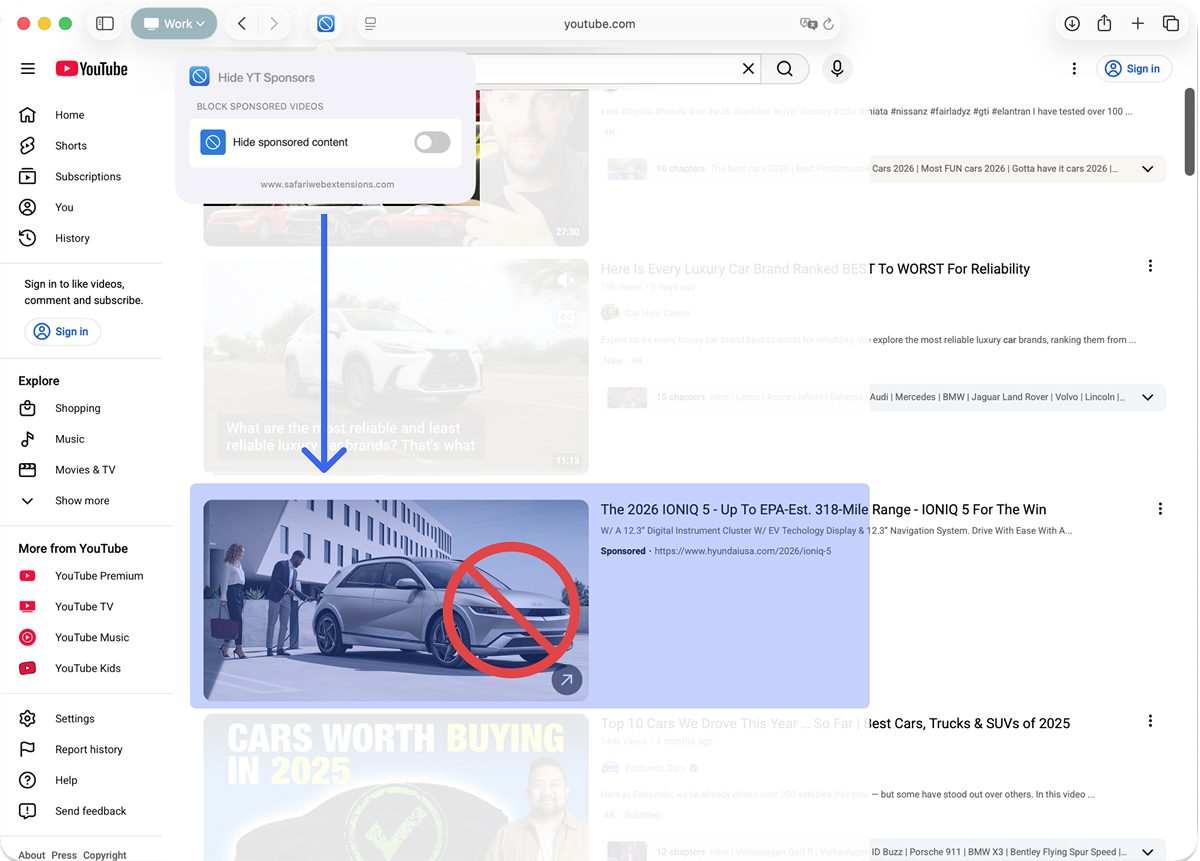
What makes Hide YT Sponsors for Safari compelling isn’t flashy complexity—it’s the everyday value of a tidier feed. Many people use YouTube as a learning platform and a work companion: product walkthroughs, coding explanations, design critiques, language practice, meeting recordings, and how-to guides. In those contexts, the ability to block sponsored videos can feel less like “customization” and more like restoring YouTube to its most useful form.
It also fits neatly into the broader appeal of Safari extensions: small changes that add up to meaningful gains in focus. If your browsing day is already split across tabs, documents, and messages, removing a recurring source of distraction can shorten the path from intent to action—open YouTube, find what you need, watch, move on.
And importantly, the extension is built for Safari across Apple platforms, aiming for seamless Safari integration on macOS, iOS, and iPadOS. For users who switch between a Mac at a desk and an iPhone or iPad on the go, that continuity is part of the convenience: one familiar tool, one consistent outcome, and a more predictable browsing experience.
Top Features of “Hide YT Sponsors for Safari”
Hide YT Sponsors for Safari focuses on doing a few key things well, with an emphasis on cleanliness, privacy, and smooth usability. Here are the headline features and what they mean in practice if your goal is to hide YouTube sponsored videos and keep your feed focused.
- Hide Sponsored Videos: Removes sponsored content from your YouTube feed for a cleaner, distraction-free experience. If you’re trying to block sponsored videos so you can get to subscriptions or search results faster, this is the core utility.
- Privacy-first design: No data collection, tracking, or logging—your browsing stays completely private. For anyone cautious about add-ons, this aligns with what many users want from a modern Safari extension: practical functionality without surveillance.
- Multilingual support: Use the extension in multiple languages for a globally friendly experience. If your device language, YouTube language, or daily workflow spans multiple locales, this can help keep the experience consistent.
- Clean, user-friendly UI: A streamlined design that integrates smoothly into your workflow. The best tools in a browser are the ones you don’t have to wrestle with; a simple interface reduces setup time and ongoing maintenance.
- Seamless Safari integration: Built to work across Safari on macOS, iOS, and iPadOS. This matters if you rely on Apple’s ecosystem and want the same “clean feed” behavior whether you’re at your desk or on your phone.
How to Install “Hide YT Sponsors for Safari”
Installing Hide YT Sponsors for Safari follows the familiar flow for modern Safari extensions distributed through the App Store. The exact wording of menus can vary slightly by OS version, but the steps are consistent.
Step 1: Download Hide YT Sponsors for Safari from the App Store using the official listing.
Step 2 (macOS): Open Safari, then open Safari Settings (sometimes labeled Preferences). Navigate to the Extensions section and enable Hide YT Sponsors for Safari.
Step 2 (iOS/iPadOS): Open the Settings app, scroll to Safari, then look for Extensions. Find Hide YT Sponsors for Safari and toggle it on.
Step 3: Review any permission prompts carefully. Like other Safari extensions, the extension may request access relevant to its function so it can affect how YouTube pages display.
Step 4: Open YouTube in Safari and confirm the experience matches your expectation—specifically that sponsored videos are no longer appearing in the feed areas you use most.
How to Use “Hide YT Sponsors for Safari” for Maximum Efficiency
Hide YT Sponsors for Safari is designed to fade into the background—which is exactly what you want from a tool meant to declutter your browsing. Once installed and enabled, the “maximum efficiency” playbook is mostly about being intentional with where YouTube fits in your day and letting the extension remove the extra noise.
One practical approach: set a specific purpose before you open YouTube. Are you looking for a tutorial, checking subscriptions, or researching reviews? When your feed is less crowded by sponsored items, you can move from landing page to relevant content faster, which is especially helpful if you’re trying to squeeze learning into short breaks. In that sense, to hide YouTube sponsored videos isn’t just an aesthetic preference—it supports a tighter loop between curiosity and completion.
Another tip is to keep your YouTube usage “session-based.” Open YouTube, find what you need, watch it, then close the tab. Sponsored posts and promotional placements can encourage endless browsing; a cleaner feed can reduce the temptation to keep scrolling. This is where a focused Safari extension quietly changes behavior: fewer detours, fewer clicks, more deliberate viewing.
How “Hide YT Sponsors for Safari” Boosts Productivity
Productivity is often framed as big systems—task managers, calendars, automation scripts. But the truth is that micro-frictions add up. YouTube is a prime example: it can be a powerful knowledge engine, but it can also become a source of distraction. If you routinely need to block sponsored videos to stay on track, Hide YT Sponsors for Safari is a small, targeted tool that supports a larger goal: making the browser work for you, not against you.
Consider a few realistic scenarios:
The student or lifelong learner: You open YouTube to review a lecture recap or find a quick explanation of a concept. Removing sponsored feed items can reduce time spent scanning and increase time spent actually learning.
The professional upskilling between meetings: You have 10 minutes to watch a product demo or a troubleshooting guide. A cleaner feed helps you stay in “search and watch” mode rather than “browse and drift” mode.
The creator or marketer doing competitive research: You want to observe organic trends and content styles. While YouTube promotions are part of the ecosystem, sometimes you specifically want to hide YouTube sponsored videos so you can focus on what’s rising naturally in your niche.
In each case, the productivity gain isn’t measured by a single dramatic transformation. It’s measured in reclaimed minutes, reduced attention residue, and a browsing environment that stays aligned with your intent—exactly the kind of benefit people look for when they start exploring Safari extensions.
Who Can Benefit from “Hide YT Sponsors for Safari”?
Hide YT Sponsors for Safari is best suited for people who use YouTube frequently and want a more controlled feed experience. It’s particularly relevant if you’ve actively searched for ways to hide YouTube sponsored videos or block sponsored videos without switching browsers or juggling complicated settings.
It also makes sense for:
Apple ecosystem users: If Safari is your default across macOS, iOS, and iPadOS, having a dedicated Safari extension built for seamless integration can feel more natural than cross-browser workarounds.
People who value minimalism: If you prefer tools that do one thing well—clean the feed, reduce clutter, then disappear—this extension’s focus will likely appeal.
Privacy-conscious users: If you’re selective about what you install in your browser, the promise of a privacy-first design with no data collection, tracking, or logging will stand out.
Security and Privacy of “Hide YT Sponsors for Safari”
Browser add-ons deserve scrutiny, and it’s smart to think about security whenever you install a Safari extension. Hide YT Sponsors for Safari explicitly describes a privacy-first design: no data collection, no tracking, and no logging, with the goal that your browsing stays completely private.
Even with that stated approach, it’s still a best practice to review the app’s App Store listing for the latest privacy details, and to pay attention to any permissions Safari prompts you to grant. In general, the healthiest way to evaluate Safari extensions is to install only what you’ll actually use, grant the narrowest access needed, and periodically audit which extensions are enabled.
Where to Download “Hide YT Sponsors for Safari”
You can download Hide YT Sponsors for Safari directly from the App Store here: Hide YT Sponsors for Safari. If your goal is to hide YouTube sponsored videos on Safari and keep your feed focused, it’s a straightforward install—and a good example of how targeted Safari extensions can meaningfully improve daily browsing.
Conclusion: Simplify Your Workflow with “Hide YT Sponsors for Safari”
The best browser tools don’t demand attention—they remove friction. Hide YT Sponsors for Safari does exactly that by helping hide YouTube sponsored videos and block sponsored videos from your YouTube feed, creating a cleaner, less distracting viewing experience. Combined with a privacy-first design, multilingual support, a clean UI, and seamless Safari integration across macOS, iOS, and iPadOS, it’s a focused addition to the growing ecosystem of Safari extensions.
If you spend a meaningful amount of time on YouTube—whether for learning, work, or focused entertainment—this is the kind of Safari extension that can quietly improve your day. Download Hide YT Sponsors for Safari, enable it in Safari, and see how much calmer your feed feels when the promotional clutter fades away.