
The World of Safari Extensions
Apple’s browser has matured into a serious productivity platform, and Safari extensions are a big reason why. In practical terms, a Safari extension is a lightweight add-on that expands what Safari can do—whether that means speeding up routine tasks, reshaping how you search, cleaning up the interface, or integrating web workflows with the way you already work on macOS, iOS, and iPadOS.
What makes Safari extensions especially compelling is how “small” improvements add up. A few seconds saved when navigating to a site, running a repetitive search, or jumping to a specific page can turn into meaningful time savings over a week. For power users, that’s the real benefit: less friction between intent (“I need this page”) and action (“I’m already there”). For casual users, it’s convenience—features that feel like they should be built into the browser.
Finding Safari extensions is straightforward. Many are distributed through the App Store, where you can read descriptions, screenshots, ratings, and—crucially—privacy disclosures. You can also discover curated directories and roundups, which can be helpful if you’re trying to build a toolkit around a specific goal like speed, focus, or search.
Installing a Safari extension typically follows the same pattern: download it from the App Store, then enable it in Safari’s settings. On macOS, you’ll generally head to Safari Settings (or Preferences), open the Extensions tab, and switch it on. On iPhone and iPad, extensions are enabled through Settings, then Safari, then Extensions. From there, you can often grant permissions and fine-tune behavior so the extension only operates where you want it to.
With the basics covered, let’s look at a category where Safari extensions can make an outsized difference: search. Not “type and hope” search, but targeted, intentional searching that takes you directly to results on the sites you actually use. That’s the promise behind search shortcuts and keyword search—and it’s exactly what Search Shortcuts for Safari is built to deliver.
What is “Search Shortcuts for Safari”?
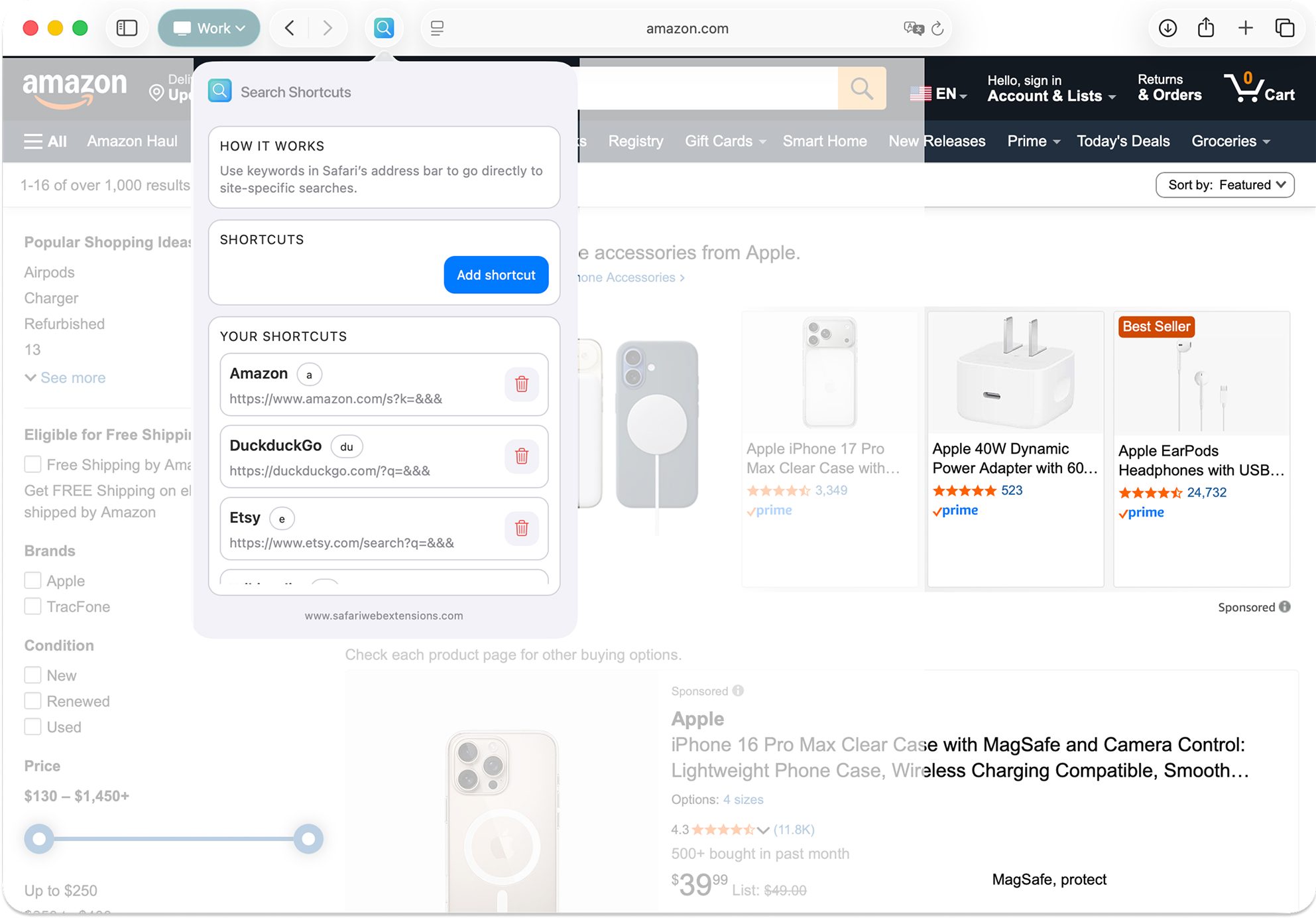
Search Shortcuts for Safari is a Safari extension designed to help you browse faster using custom keyword shortcuts. Instead of going to a search engine, finding the right result, clicking through, and then searching again on the destination site, this tool lets you jump straight to search results on your favorite websites.
The core problem it solves is simple: web navigation often has an extra step. If you already know where you want to search—Amazon, eBay, Wikipedia, or another site—traditional searching can be redundant. With keyword search shortcuts, you can turn that multi-click loop into a single action from the address bar, which is where many users already start their browsing sessions.
This is the practical side of “search shortcuts”: fewer detours, fewer tabs, and faster intent-to-result browsing. For anyone who lives in Safari all day—researchers, shoppers, students, or professionals—those saved steps compound quickly.
Why “Search Shortcuts for Safari” is a Must-Have for Safari Users
If you like Safari’s clean design but wish it were quicker at getting you to the exact place you want, Search Shortcuts for Safari makes a strong case. It focuses on one of the most common browser activities—search—and optimizes it with keyword search that’s tailored to how you actually browse.
The value proposition is all about speed and control. You’re not stuck with a one-size-fits-all workflow where every query funnels through the same search engine results page. Instead, you can create search shortcuts that take you directly to the sites you trust and use the most, using short keywords that feel natural once you build the habit.
It also helps keep you focused. Skipping intermediate pages means less chance of distraction, fewer dead-end clicks, and fewer “wait, what was I trying to find?” moments. In other words: this is a productivity-focused Safari extension that improves convenience without asking you to relearn the web.
Top Features of “Search Shortcuts for Safari”
The feature set in Search Shortcuts for Safari is built around a clear theme: make keyword search fast, flexible, and comfortable enough to use every day. Here’s what stands out—and why it matters in real browsing scenarios.
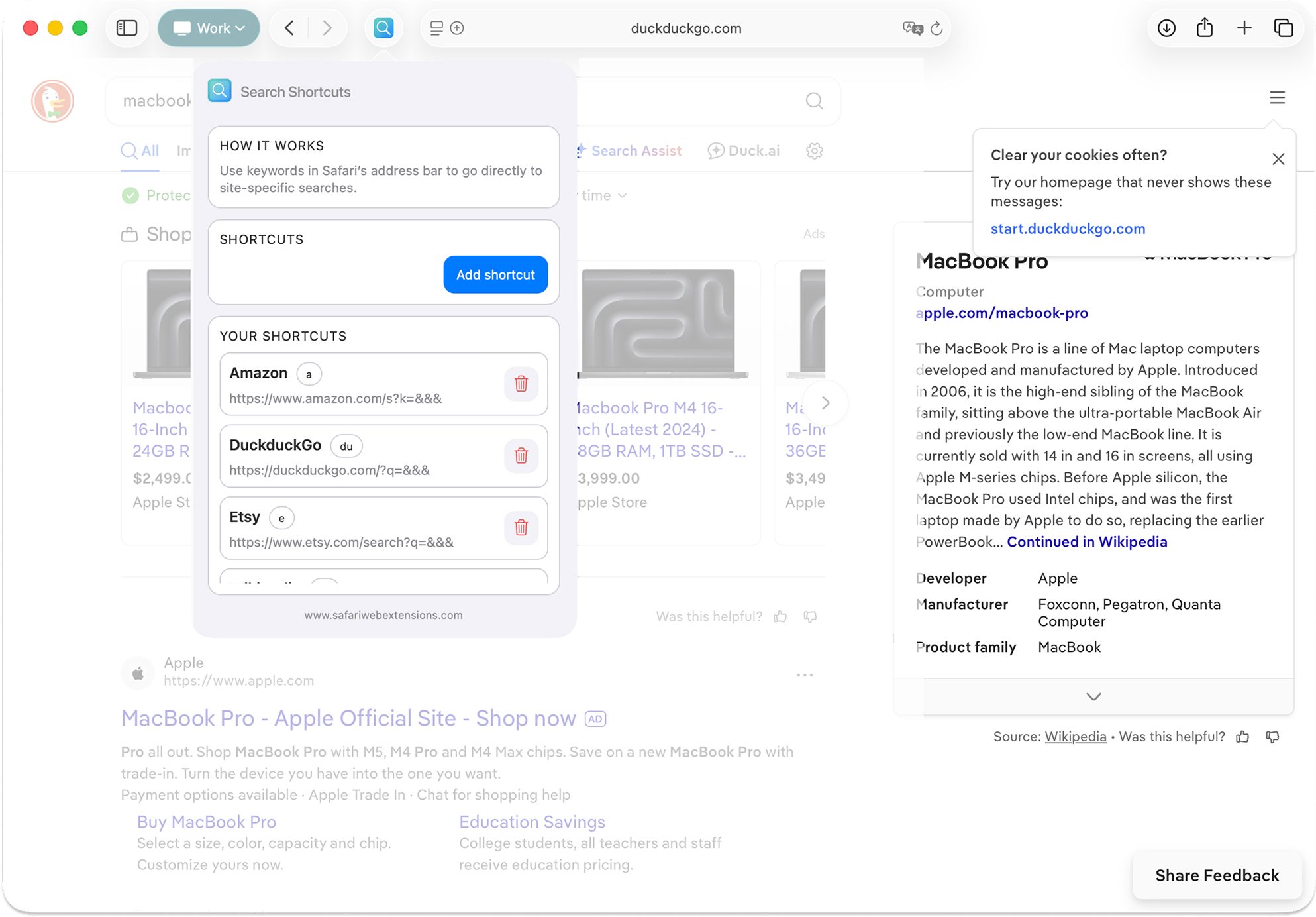
- Keyword Search Shortcuts: Use short keywords in the address bar to jump directly to searches on your favorite sites. The practical impact is immediate: instead of navigating to a site first and then searching, you can trigger the destination search right away.
- Faster Navigation: Skip traditional search engine result pages and go straight to results on sites like Amazon, eBay, Wikipedia, and more. This reduces friction for repeat tasks—product lookups, definitions, quick research, and routine browsing.
- Fully Custom Shortcuts: Create, edit, and delete your own keywords with custom search URLs tailored to your workflow. This is where “search shortcuts” become personal: you can shape the system around your habits, not someone else’s defaults.
- Privacy-first design: No data collection, tracking, or logging—your browsing stays completely private. For users wary of tools that monitor behavior, this is an important promise and a meaningful differentiator among Safari extensions.
- Multilingual support: Use the extension in multiple languages for a globally friendly experience. If you search across different languages or share a device with multilingual users, this can make keyword search feel more natural.
- Clean, user-friendly UI: A streamlined design that integrates smoothly into your browsing workflow. The goal is to keep setup and management simple so the time you save in navigation isn’t lost in configuration.
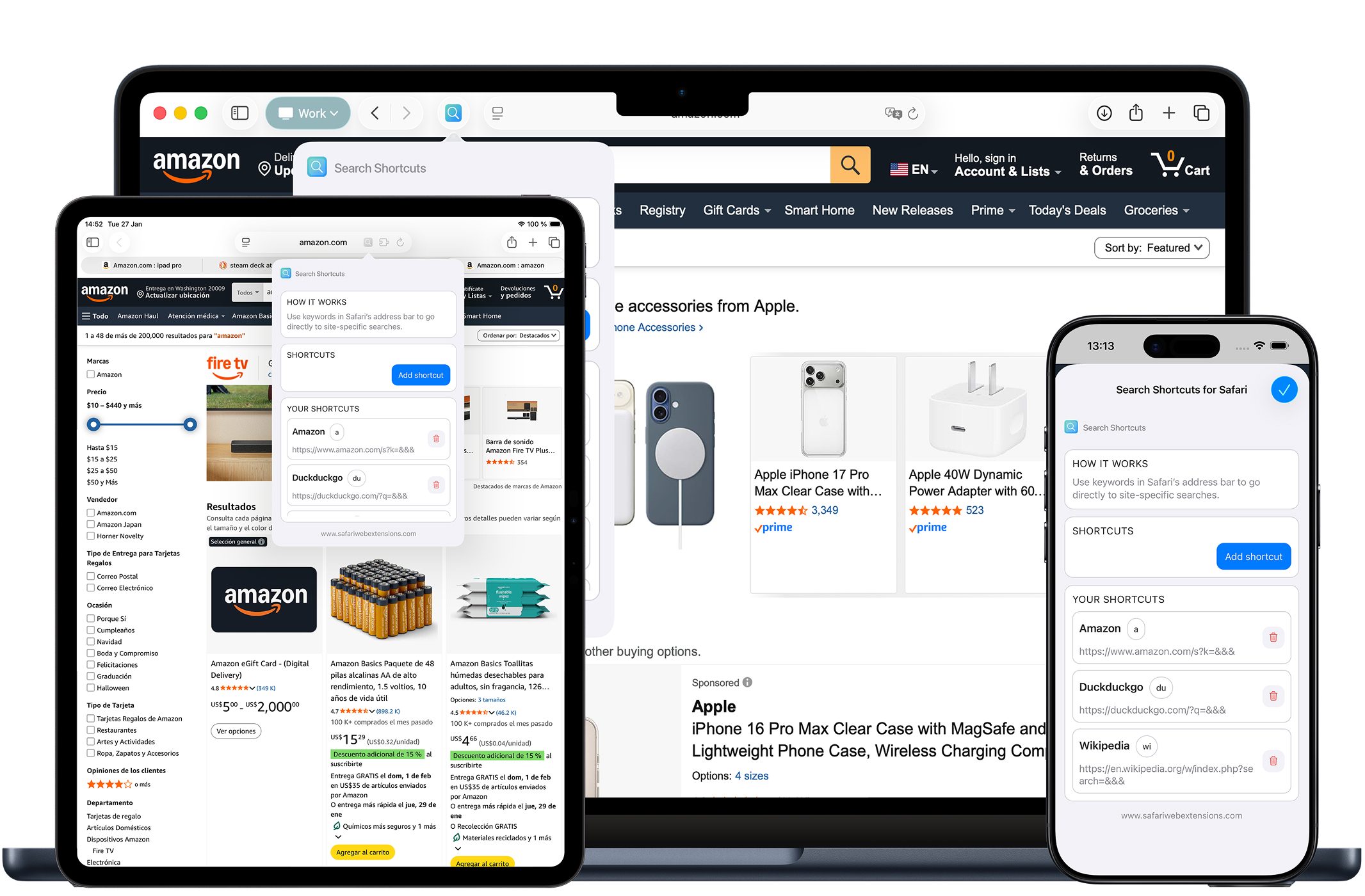
- Seamless Safari integration: Built to work flawlessly across Safari on macOS, iOS, and iPadOS. If you switch between devices, consistent behavior matters—especially for productivity-oriented search shortcuts.
How to Install “Search Shortcuts for Safari”
Installing Search Shortcuts for Safari follows the familiar App Store-to-Safari flow used by many modern Safari extensions. The exact labels can vary slightly by OS version, but the steps are consistent.
Step 1: Download Search Shortcuts for Safari from the App Store using the link in this article.
Step 2 (macOS): Open Safari, then go to Safari Settings (or Preferences), find the Extensions section, and enable Search Shortcuts for Safari.
Step 2 (iOS/iPadOS): Open the Settings app, scroll to Safari, then Extensions, and enable Search Shortcuts for Safari.
Step 3: Review any permissions prompts and allow only what you’re comfortable with. This is a smart habit for any Safari extension, especially ones that interact with browsing and the address bar.
Step 4: Open the extension’s UI and begin adding your first keyword search shortcuts—start with the websites you search most often.
How to Use “Search Shortcuts for Safari” for Maximum Efficiency
The fastest way to get value from Search Shortcuts for Safari is to treat it like a small layer of personalization for your browser: a compact set of keyword search triggers that map to your everyday destinations.
Start by identifying your top five “search destinations.” These are the sites you repeatedly search within—shopping, documentation, knowledge bases, forums, reference sites, and internal tools. Create search shortcuts for those first. Once you get used to typing a short keyword in the address bar, it becomes muscle memory, and that’s when the speed gains show up.
Next, keep your keywords short and unambiguous. If two shortcuts feel similar, you’ll hesitate—and hesitation cancels out the benefit of keyword search. A clean naming pattern (for example, one keyword per site) helps you stay quick.
Finally, periodically prune and refine. If a shortcut isn’t used, remove it. If a site changes, update the custom search URL. This is the advantage of fully custom shortcuts: the system remains aligned with how you browse today, not how you browsed six months ago.
How “Search Shortcuts for Safari” Boosts Productivity
Productivity improvements in a browser can be deceptively measurable: fewer clicks, fewer context switches, and fewer seconds lost to repeated navigation. Search Shortcuts for Safari boosts productivity by turning common search tasks into direct actions.
Consider a few realistic workflows. If you frequently compare prices, keyword search can take you straight to results on marketplaces without detouring through a general search engine. If you research topics daily, you can jump directly to results on a reference site and keep your mental focus on the question—not the browsing steps. If you manage a project and routinely look up terms, vendors, or documentation, search shortcuts reduce the overhead of “getting to the search box” on each site.
There’s also a quieter productivity win: less tab sprawl. Because you can initiate a targeted search directly, you’re less likely to open multiple intermediary pages “just to get there.” Over time, that means a calmer session state and less time spent cleaning up your browser.
Who Can Benefit from “Search Shortcuts for Safari”?
Search Shortcuts for Safari is broadly useful, but it shines for anyone who repeats the same types of searches across the same set of sites.
Frequent online shoppers can streamline product and parts searches by jumping straight into marketplace results. Students and researchers can speed up lookups on reference sources and reduce time spent bouncing between search engines and destination sites. Professionals who rely on web-based documentation, knowledge bases, or resource hubs can build a tailored keyword search toolkit that matches their daily workflow.
It’s also a great fit for people who use multiple Apple devices. Since this Safari extension is built for Safari across macOS, iOS, and iPadOS, it can support a consistent “search shortcuts” habit whether you’re at a desk, on a couch, or on the move.
Security and Privacy of “Search Shortcuts for Safari”
Browser add-ons naturally raise questions about what’s being accessed and what’s being stored, and that’s a healthy instinct. Search Shortcuts for Safari explicitly describes a privacy-first design with no data collection, tracking, or logging, positioning it as a privacy-conscious option among Safari extensions.
Even so, it’s wise to do a quick check before enabling any Safari extension: review the App Store privacy details, scan what permissions are requested, and confirm the behavior aligns with your comfort level. That small routine—especially with extensions that integrate into browsing and the address bar—helps you stay in control of your data and your browsing environment.
Where to Download “Search Shortcuts for Safari”
You can download Search Shortcuts for Safari from the App Store here: https://apps.apple.com/app/search-shortcuts-for-safari/id6758318827. If you’re building a faster browsing setup, it’s an easy addition to your lineup of Safari extensions—especially if search shortcuts and keyword search are already part of how you think about navigation.
Conclusion: Simplify Your Workflow with “Search Shortcuts for Safari”
Safari extensions are at their best when they remove friction from everyday tasks, and Search Shortcuts for Safari does exactly that by optimizing one of the web’s most frequent actions: searching. With custom keyword search shortcuts, direct navigation to results on your favorite sites, and fully customizable search URLs, it turns the address bar into a faster command line for the web—without sacrificing a clean, integrated Safari experience.
If you want a simple way to browse faster, reduce detours through generic results pages, and build a personal system of search shortcuts that matches your habits, Search Shortcuts for Safari is well worth a look. Download it, set up a handful of shortcuts you’ll actually use, and let small time savings add up across every Safari session.