

The World of Safari Extensions
Apple’s browser has matured into a serious platform for customization, thanks to the growing ecosystem of Safari extensions. In practical terms, a Safari extension is a small add-on that expands what Safari can do—often by placing tools directly in your toolbar, adding contextual actions to web pages, or streamlining everyday tasks like organizing tabs, capturing content, and improving focus.
The appeal is simple: Safari extensions let you shape Safari around your workflow instead of forcing you to adapt to the browser’s defaults. For busy professionals, they can reduce friction—fewer repetitive clicks, faster access to recurring tools, and cleaner handoffs between “research mode” and “execution mode.” For everyday users, a Safari extension can make browsing more comfortable and manageable, whether that means decluttering your sessions, saving resources, or making common web actions one-tap simple.
Where do you find Safari extensions? Most are distributed through Apple’s App Store, which makes discovery and installation straightforward. You can also browse curated collections and listings—many users like starting with directories such as Safari extensions hubs to see what’s popular and what’s new, then jumping to the App Store to install the ones that match their needs.
Installing a Safari extension typically follows a familiar pattern: download the companion app from the App Store, then enable the extension in Safari’s settings. On macOS, that usually means opening Safari Settings (or Preferences, depending on version), going to the Extensions pane, and checking the box to turn it on. On iPhone and iPad, you’ll enable it via Settings > Safari > Extensions, where you can also review the extension’s permissions. The result is the same across devices: a tighter, more capable Safari, tuned to the way you actually browse.

What is “TabPort for Safari”?
TabPort for Safari is a focused tab manager built to solve a deceptively common problem: you have important tabs open right now, but you don’t want to lose them. Maybe you’re switching projects, preparing for a meeting, cleaning up an overloaded browser, or moving from Mac to iPad. Whatever the reason, you need a quick, reliable way to export tabs, save a session, and restore it later—without turning tab management into a second job.
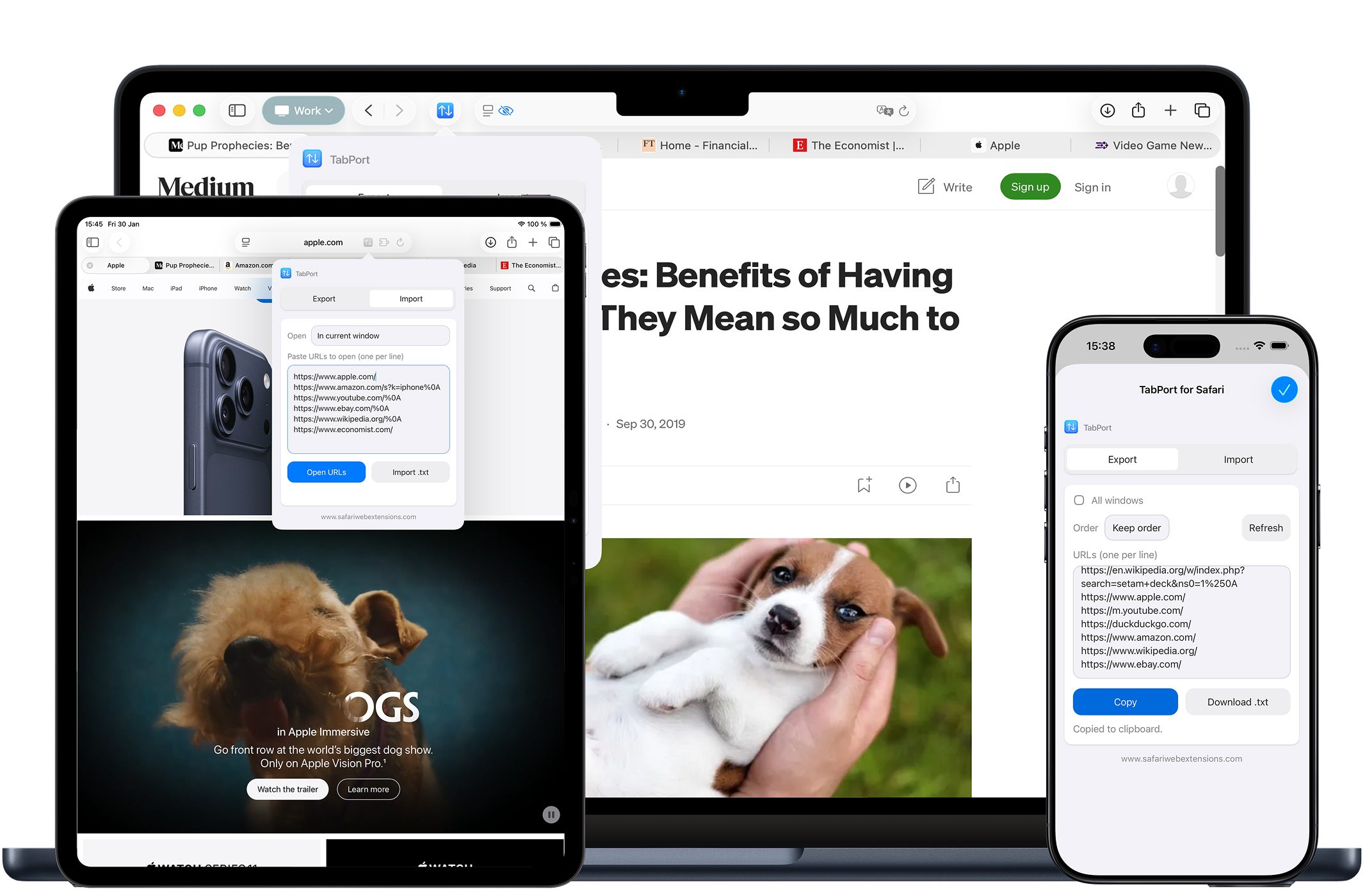
At its core, TabPort for Safari makes it easy to export tabs from your current window or from all windows, copy that URL list instantly, and import URLs to reopen them in one go. If your workflow frequently involves batches of links—research trails, shopping comparisons, documentation references, ticket queues, or client assets—this is the kind of utility that quietly saves time every day.
In a landscape full of feature-bloated solutions, TabPort for Safari sticks to a clear mission: make “export tabs” and “import tabs” fast, predictable, and frictionless, across Safari on macOS, iOS, and iPadOS.

Why “TabPort for Safari” is a Must-Have for Safari Users
Safari’s built-in tab features are solid, but there’s a gap between “tabs exist” and “tabs are manageable.” The moment your browser becomes a working surface—dozens of pages across multiple windows—your needs shift toward organization, portability, and repeatability. That’s where a purpose-built Safari extension like TabPort for Safari earns its keep.
The value proposition is straightforward: it reduces tab chaos and makes sessions portable. Want to share a reading list with a colleague? Copy a clean URL list. Need to close everything for performance but keep your place? Export all windows, save a .txt list, and restore later. Moving between devices? The same workflow applies on macOS, iOS, and iPadOS. For anyone who has ever said “I can’t close Safari because I’ll lose my tabs,” this tab manager is a practical answer.
It also fits neatly into modern work habits. A growing number of people treat their browser like a task hub: documentation in one window, communication in another, research in a third. TabPort for Safari turns that sprawl into an asset—something you can export tabs from, archive, and rehydrate later on demand.
Top Features of “TabPort for Safari”
As a tab manager, TabPort for Safari is built around a few high-impact actions: export tabs quickly, move URL lists cleanly between places, and import tabs when you need to resume. Here are the standout features and why they matter in real browsing life.
- Export Current Window Tabs: Instantly list all URLs from the tabs in your current Safari window—ideal when you’re wrapping up a focused task and want to save that exact context.
- Export All Windows Tabs: Capture every open tab from all Safari windows in a single action, which is especially useful when your work is spread out and you need a complete snapshot.
- Import and Export .txt URL Lists: Save sessions to text files and reopen them anytime. This is a simple, durable format that plays well with notes, documents, and long-term archiving.
- Copy URL List: Copy all tab URLs to your clipboard with a single click—perfect for dropping a link bundle into an email, a project tracker, or a shared doc.
- Import URLs to Open: Paste a list of links and open them all at once in new tabs, turning a static list into an active working session in seconds.
- Privacy-first design: No data collection, tracking, or logging—your browsing stays completely private, which matters when your tab lists include sensitive work or personal accounts.
- Multilingual support: Use the extension in multiple languages, helping teams and individuals who work across locales.
- Clean, user-friendly UI: A streamlined design that integrates smoothly into your workflow, so exporting and importing tabs feels like a natural browser action rather than a separate process.
- Seamless Safari integration: Built to work across Safari on macOS, iOS, and iPadOS, which is key if your browsing life spans Mac at work and iPhone/iPad on the go.
Taken together, these features cover the full loop: export tabs, store the list, share it if needed, and import tabs to pick up right where you left off. It’s a practical toolkit for anyone who wants the flexibility of a session manager without the overhead.
How to Install “TabPort for Safari”
Installing TabPort for Safari is the standard App Store flow followed by enabling the Safari extension in your device settings.
Step-by-step on macOS:
1) Download TabPort for Safari from the App Store using the provided link. 2) Open Safari. 3) Go to Safari Settings (or Safari Preferences). 4) Select the Extensions section. 5) Find TabPort for Safari and enable it. 6) If prompted, review and approve any requested permissions so it can interact with your tabs and pages as designed.
Step-by-step on iOS and iPadOS:
1) Install TabPort for Safari from the App Store. 2) Open the Settings app. 3) Scroll to Safari. 4) Tap Extensions. 5) Enable TabPort for Safari. 6) Review permissions, then open Safari and look for the extension controls in Safari’s extension menu so you can start exporting and importing tabs.
Once enabled, the goal is immediacy: you should be able to trigger exports, copy URL lists, or import tabs right from your browsing flow.
How to Use “TabPort for Safari” for Maximum Efficiency
The best way to think about TabPort for Safari is as a lightweight session pipeline. You can export tabs when your current state is valuable, and import tabs when you’re ready to resume.
Start with a simple habit: before you close a busy window, export the current window tabs and save the .txt list with a name that reflects intent, not just date—something like “Q1-tax-research,” “New-laptop-comparison,” or “ClientA-onboarding-links.” When you return to the task, import tabs by pasting the URL list (or reopening from the saved text list), and you’re instantly back in context.
For sharing, the “copy URL list” action is the fast lane. Instead of bookmarking pages one by one or sending a scatter of links across multiple messages, you can export tabs, copy the list, and drop it into a single email, ticket, or doc. That’s especially effective when you’re collaborating asynchronously and want to preserve ordering and completeness.
And if you’re juggling multiple themes—say, personal planning, work research, and ongoing reading—use “export all windows tabs” as a periodic reset tool. Capture everything, archive it, then close out what you don’t need right now. Later, import tabs selectively by pasting only the URLs relevant to your next focus block.
How “TabPort for Safari” Boosts Productivity
Productivity gains from a tab manager aren’t about doing more tabs—they’re about reducing the mental load of keeping tabs “just in case.” With TabPort for Safari, you can export tabs confidently, knowing you can restore a session without hunting through history or trying to reconstruct a research trail.
Consider a few common scenarios:
If you work in research-heavy roles, “export all windows tabs” lets you end a day with a clean archive of everything you touched—then start the next day with a lighter browser and a clear restore point. If you’re a developer, analyst, or student, being able to import tabs from a .txt list means you can maintain curated sets of references (documentation, dashboards, course materials) and open them in seconds when you sit down to work. If you manage projects, copying a URL list becomes a quick way to attach context to a task: here are the sources, here are the relevant pages, here is the backlog query—everything in one bundle.
In other words, the “export tabs” and “import tabs” loop turns the browser into something closer to a reusable workspace. You spend less time restoring context and more time acting on it.
Who Can Benefit from “TabPort for Safari”?
TabPort for Safari is broadly useful, but it’s especially compelling for people whose browsing sessions represent real work rather than casual scrolling.
It’s a strong fit for researchers and students who accumulate sources and need a reliable way to save and reopen reading sets. It’s a practical tool for professionals—marketers, journalists, designers, product managers—who routinely gather competitive examples, references, and assets across multiple windows. It also benefits anyone who frequently switches contexts: freelancers moving between clients, parents planning trips and schedules, or power users who treat Safari like a daily command center.
And because it’s built for macOS, iOS, and iPadOS, it suits people who move between devices and want the same tab workflow everywhere—without having to reinvent their system on each screen.
Security and Privacy of “TabPort for Safari”
Privacy is a legitimate concern with any Safari extension, especially one that interacts with tabs and URLs. According to its feature list, TabPort for Safari uses a privacy-first design with no data collection, tracking, or logging, keeping your browsing completely private.
Even with privacy-first claims, smart installation hygiene still applies: review the App Store privacy details, read what permissions are requested during setup, and keep only the extensions you actively use enabled. This is the simplest way to stay in control while benefiting from the convenience that Safari extensions can bring.
Where to Download “TabPort for Safari”
You can download TabPort for Safari directly from the App Store at this link: https://apps.apple.com/app/tabport-for-safari/id6758482546. If you’re browsing directories for Safari extensions, you’ll still ultimately install it through the App Store, which also provides the most up-to-date screenshots, release notes, and privacy information.
If your goal is simple—export tabs, keep a clean URL list, and import tabs when you need them—this is one of those small utilities that can quickly become part of your everyday setup.
Conclusion: Simplify Your Workflow with “TabPort for Safari”
Safari extensions are at their best when they remove friction from tasks you do constantly, and TabPort for Safari is a clean example of that philosophy. It’s a tab manager that focuses on the essentials: export tabs from a window or all windows, copy a URL list instantly, save and restore sessions via .txt, and import tabs in bulk when you’re ready to resume.
For anyone who lives in a busy browser—researchers, multitaskers, project-driven teams, or simply people who want their sessions to be portable—TabPort for Safari offers a straightforward way to stay organized without overcomplicating the experience. Download it, try it with one real workflow this week, and you’ll quickly see how much time “export tabs” and “import tabs” can save when they’re always one action away.