
The World of Safari Extensions
If you use Safari every day, you’ve probably had the same thought at least once: “I love how fast and battery-friendly this browser is—but I wish it did just a little bit more.” That’s exactly where Safari extensions come in. They’re small add-ons that expand what Safari can do, letting you tailor the browser to your workflow instead of forcing your workflow to adapt to the browser.
At a practical level, Safari extensions can help you block distractions, organize research, streamline shopping, improve readability, manage passwords, and automate everyday web tasks. Some focus on productivity, others on security, and plenty live in that sweet spot where convenience and peace of mind overlap. The best ones feel like native features Apple simply forgot to ship—integrated, lightweight, and easy to use.
Finding Safari extensions is refreshingly straightforward. Many are distributed through Apple’s App Store, where you can review screenshots, version history, ratings, and the all-important privacy details. You can also browse curated directories—like Safari extensions listings—when you want to discover tools by category or specific use case. Between the App Store’s guardrails and Safari’s extension architecture, it’s a more controlled ecosystem than the wide-open web extension world some other browsers support.
Installation is designed to be friendly even if you’ve never installed an add-on before. Typically, you download the companion app from the App Store, then enable the Safari extension in Safari’s settings. On macOS, that usually means opening Safari, heading to Settings (or Preferences), and toggling the extension on. On iPhone and iPad, you’ll generally go through Settings and then Safari to enable extensions. Once it’s on, the extension’s controls appear where they’re meant to be—often in Safari’s toolbar or share sheet—ready when you need them, out of the way when you don’t.
In this article, we’ll go deeper into a specific tool that nails a deceptively common task: turning the web page you’re looking at into a QR code you can share instantly—no copying links, no sending yourself messages, no awkward “airdrop me that URL” dance. If you’ve ever wanted an “url to QR” workflow that’s fast, clean, and built for Apple platforms, there’s a Safari extension worth your attention.
What is “QR This Page for Safari”?
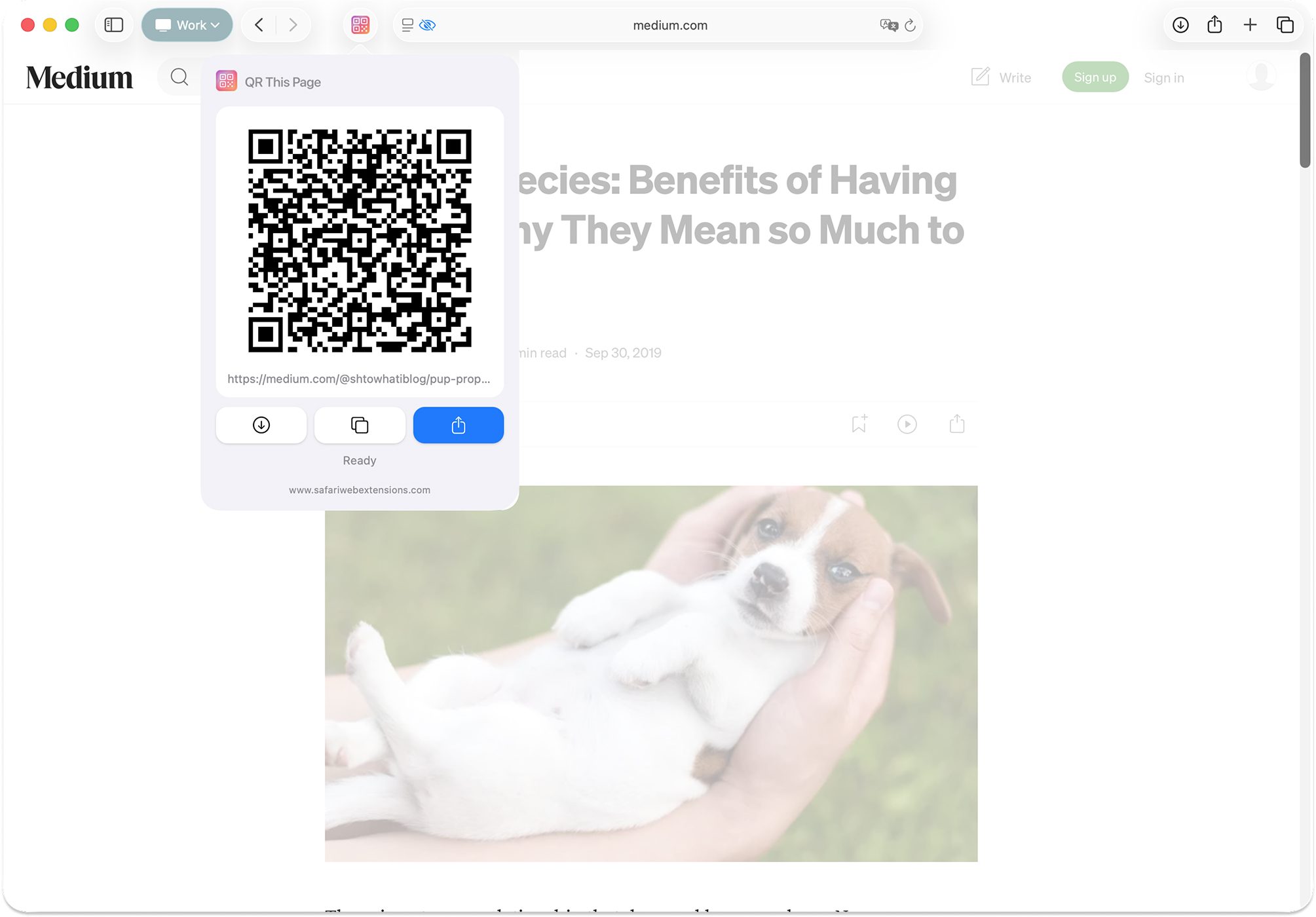
QR This Page for Safari is a focused Safari extension that converts the URL of your current Safari tab into a scannable QR code in seconds. It’s essentially a streamlined QR generator built for the way people actually share pages today—between phone and laptop, across iPad and desktop, from personal browsing to work contexts.
The problem it solves is simple but persistent: links are still surprisingly annoying to move between devices and people. You can copy a URL, paste it into a message, email it, or drop it into a notes app. But those steps add friction—especially when you’re trying to share quickly in person, transfer a page from macOS Safari to your iPhone, or get a colleague onto the exact page you’re viewing without typos or truncated links. With QR This Page for Safari, that friction collapses into one action: generate a QR code and scan it.
Because it’s built specifically as a Safari extension, it fits naturally into the browsing experience instead of feeling like a separate utility app you have to remember exists. The result is an “url to QR” tool that’s available exactly when you need it: when a tab is already open and the link is already the thing you’re trying to share.
Why “QR This Page for Safari” is a Must-Have for Safari Users
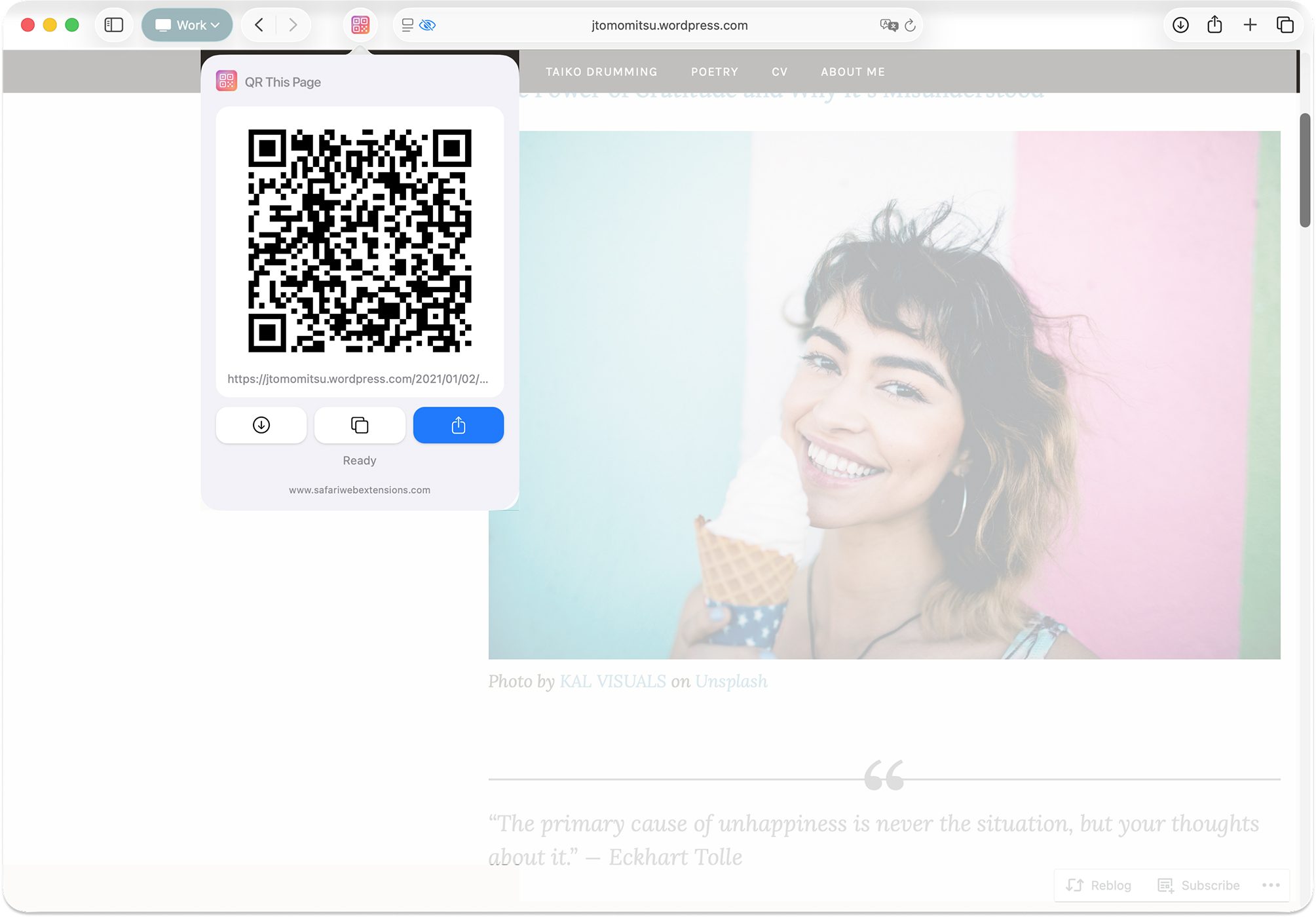
There are plenty of ways to make a QR code online, but most of them involve leaving your current page, opening a website, pasting a URL, dealing with ads or limitations, then downloading an image—if you can even trust the page you’re using. QR This Page for Safari is compelling because it keeps the process inside Safari and reduces it to the essentials.
For everyday use, the value is convenience: share a recipe to a friend at the table, send a product page to your partner’s phone, or move an article from your work Mac to your personal iPhone instantly. For professional use, it’s a productivity upgrade: share a live dashboard with a teammate, pull up a briefing link on a phone before a meeting, or put a QR code of a project doc on a slide so the room can follow along. This is what the best Safari extensions do—they remove micro-frictions that add up over a week.
And for users who care about data hygiene, QR This Page for Safari positions itself with a privacy-first design, stating no data collection, tracking, or logging. In a category where web-based QR generator sites can be a black box, that clarity will matter to many Safari users.
Top Features of “QR This Page for Safari”
QR This Page for Safari keeps its feature set tight, but each capability is built around real-world sharing. Here are the highlights and why they matter in day-to-day browsing.
- Generate QR Code for Current Tab: Instantly creates a QR code for the URL you’re currently viewing, turning any page into a scannable “QR code” moment without copy/paste.
- Download, Copy, or Share: Save the generated QR code as an image, copy it (or copy the URL), or share it using your device’s built-in share options—ideal when you want to drop it into a chat, a note, a presentation, or a document.
- Privacy-first design: The extension states it collects no data, does no tracking, and keeps no logs—an important differentiator for a QR generator that touches your browsing activity.
- Multilingual support: Designed to work in multiple languages, which is especially useful for international teams, classrooms, or families that share devices.
- Clean, user-friendly UI: A streamlined interface that aims to stay out of your way—crucial for a tool you might use many times a day.
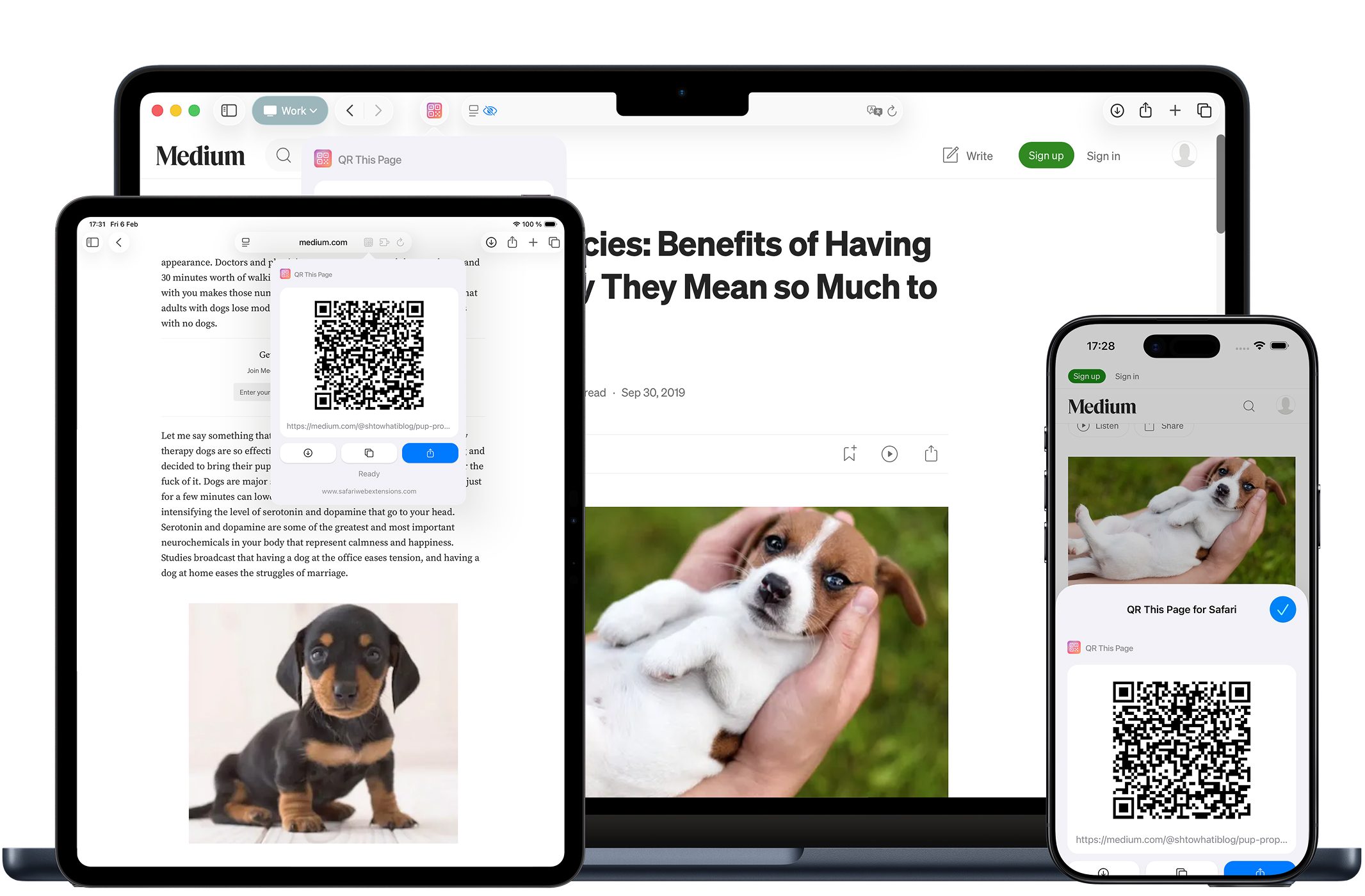
- Seamless Safari integration across macOS, iOS, and iPadOS: Built to work where Safari works, supporting the reality that sharing often happens across devices, not just within one.
Put together, these features add up to a practical “url to QR” workflow that’s less about novelty and more about speed: open tab, generate, share. That’s the entire promise, and it’s exactly what you want from a utility-style Safari extension.
How to Install “QR This Page for Safari”
Installing QR This Page for Safari follows the standard Apple flow for Safari extensions, and you can do it in a few minutes.
Step 1: Download QR This Page for Safari from the App Store using the link in the “Where to Download” section below.
Step 2 (macOS): Open Safari, go to Safari Settings (or Preferences), find the Extensions section, then enable QR This Page for Safari.
Step 2 (iOS/iPadOS): Open the Settings app, find Safari, tap Extensions, then enable QR This Page for Safari. Depending on your setup, you may also be able to manage permissions from this screen.
Step 3: Confirm the extension is available in Safari’s interface (commonly via the toolbar or share options). Once enabled, it should be ready whenever you have a page open that you want to turn into a QR code.
How to Use “QR This Page for Safari” for Maximum Efficiency
The basic use case for QR This Page for Safari is straightforward: open the page you want, generate the QR code, then scan or share. But maximum efficiency is about knowing which output method to use for the situation—copy, download, or share.
If you’re transferring a page from one of your devices to another device that’s physically nearby, the fastest path is usually to generate the QR code on the first screen and scan it with the second. This avoids messaging yourself links and helps when you’re signed into different accounts across devices. It’s also a surprisingly clean workaround when a link is long, parameter-heavy, or likely to get mangled in certain chat apps.
If you’re sending a QR code to someone remotely—say, a colleague in another office—downloading the QR code as an image makes it easy to drop into Slack, Teams, email, or a ticketing system. That’s where this Safari extension behaves like a compact publishing tool: you’re not just sending a URL; you’re sending a scannable object people can use from a presentation slide, printed sheet, or another screen.
And when you want the cleanest, most direct share, use the system share options. That’s the Apple-native path that tends to fit naturally with how you already work on macOS, iOS, and iPadOS—especially if you’re juggling multiple apps and want the QR generator step to feel invisible.
How “QR This Page for Safari” Boosts Productivity
Productivity gains often come from shaving seconds off high-frequency tasks. QR This Page for Safari does exactly that for link sharing—particularly when the “recipient” is a device, not a person.
Consider the common workflow of doing research on a Mac but consuming content on a phone: you find an article, a PDF, or a product page on macOS Safari, but you want it on your iPhone for later reading or to show someone. Instead of copying the URL, switching apps, finding the right conversation, pasting it, then retrieving it on the other device, you can generate a QR code and scan it. This “url to QR” loop is often the fastest possible handoff when you’re in the same room with both devices.
In meetings, QR codes are also a quiet superpower. If you’re presenting a webpage—an internal dashboard, a design prototype, a signup form, a knowledge base article—sharing it via a QR code reduces disruption. People can join the page without asking for the link, and you don’t have to waste time dropping URLs into chat, hoping everyone sees it. With a QR generator built into a Safari extension, the overhead is low enough that you’ll actually use it.
Even in personal life, the productivity story holds: sharing travel confirmations, restaurant menus, event pages, or long retail URLs becomes a one-step action. The extension doesn’t try to be everything; it focuses on making “share this page” dramatically quicker and more reliable.
Who Can Benefit from “QR This Page for Safari”?
QR This Page for Safari is broadly useful, but it shines brightest for people who regularly move between screens or share links in person.
It’s a smart fit for students sharing sources in study groups, teachers distributing reading materials, and conference attendees swapping pages quickly without typing. It’s also ideal for professionals who demo work in meetings—product managers, designers, marketers, sales teams, and IT staff who need a fast way to hand out a URL without depending on everyone being in the same chat channel.
And of course, it’s great for anyone deep in the Apple ecosystem. Because this Safari extension is designed to work across Safari on macOS, iOS, and iPadOS, it matches the reality of modern browsing: your tabs live across devices, and your sharing tools should too.
Security and Privacy of “QR This Page for Safari”
Any tool that touches your browsing activity should raise reasonable questions: What data does it access? Where does that data go? Does it leave your device? QR This Page for Safari describes itself as privacy-first, stating no data collection, tracking, or logging—an encouraging stance for a QR generator that works with URLs from your active tabs.
Still, it’s good practice to verify privacy information the same way you would with any Safari extension. Review the App Store privacy details, read any permission prompts carefully, and consider how the extension fits your personal threat model—especially if you often browse sensitive internal company tools or private accounts. QR codes are just another representation of a URL, which means you should apply the same caution you would when sharing a link: avoid sharing pages that contain personal tokens, private dashboards, or account-specific URLs unless you’re sure it’s appropriate.
Where to Download “QR This Page for Safari”
You can download QR This Page for Safari from the App Store here: https://apps.apple.com/app/qr-this-page-for-safari/id6758867015.
If you’re exploring more tools like it, browsing directories of Safari extensions can also help you compare options by category—especially if you’re building a personal set of utilities to make Safari feel custom-built for your daily routine.
Conclusion: Simplify Your Workflow with “QR This Page for Safari”
The best browser add-ons don’t demand attention—they quietly remove friction. QR This Page for Safari does that by turning the page you’re already viewing into a shareable QR code in seconds, with flexible options to download, copy, or share. It’s a practical answer to a modern browsing reality: we live across multiple screens, and the fastest way to move a link is often to make it scannable.
If you’ve been looking for a reliable “url to QR” workflow, a lightweight QR generator that stays inside Safari, or simply a utility that makes sharing smoother across macOS, iOS, and iPadOS, QR This Page for Safari is well worth a try. Download it, enable the Safari extension, and see how quickly QR codes can become a natural part of your everyday browsing.