
The World of Safari Extensions
Safari extensions have quietly become one of the most practical ways to upgrade Apple’s browser without changing how you browse. Instead of reinventing Safari, an Safari extension layers in focused capabilities—small, purpose-built tools that solve everyday problems: cleaning up cluttered pages, managing passwords, blocking distractions, automating repetitive clicks, or improving media handling. The best ones feel less like “add-ons” and more like features Safari should have shipped with.
At their core, Safari extensions are lightweight apps that integrate directly into Safari’s toolbar and menus, offering controls, shortcuts, or content enhancements where you need them most—inside the browser. Because Safari is often the hub for work, learning, and entertainment, even a small improvement—better video playback controls, faster navigation, clearer interfaces—can have an outsized impact on your daily routine.
The benefits are straightforward: convenience, consistency, and time saved. A well-designed Safari extension can replace clunky site-specific controls with a consistent set of tools, reduce the friction of common tasks, and help you stay in flow. And with Safari running across macOS, iOS, and iPadOS, modern Safari extensions increasingly aim to deliver a unified experience across your Apple devices.
Where do you find them? The most common place is Apple’s App Store, where many Safari extensions are distributed as apps that include an extension component. You can also discover curated options and learn more about what’s available at Safari extension directories such as https://www.safariwebextensions.com, which can be useful when you’re comparing tools by category—like video controls, productivity utilities, or privacy helpers.
Installing a Safari extension is typically simple. On Mac, you’ll usually download the companion app from the App Store, then enable the extension in Safari’s settings. On iPhone and iPad, you’ll install the app and then toggle the extension on in Safari settings. Once enabled, the extension appears in Safari’s toolbar or extension menu, ready to use with a single click or tap—no complicated setup required for most tools.
What is “Video Controls for Safari”?
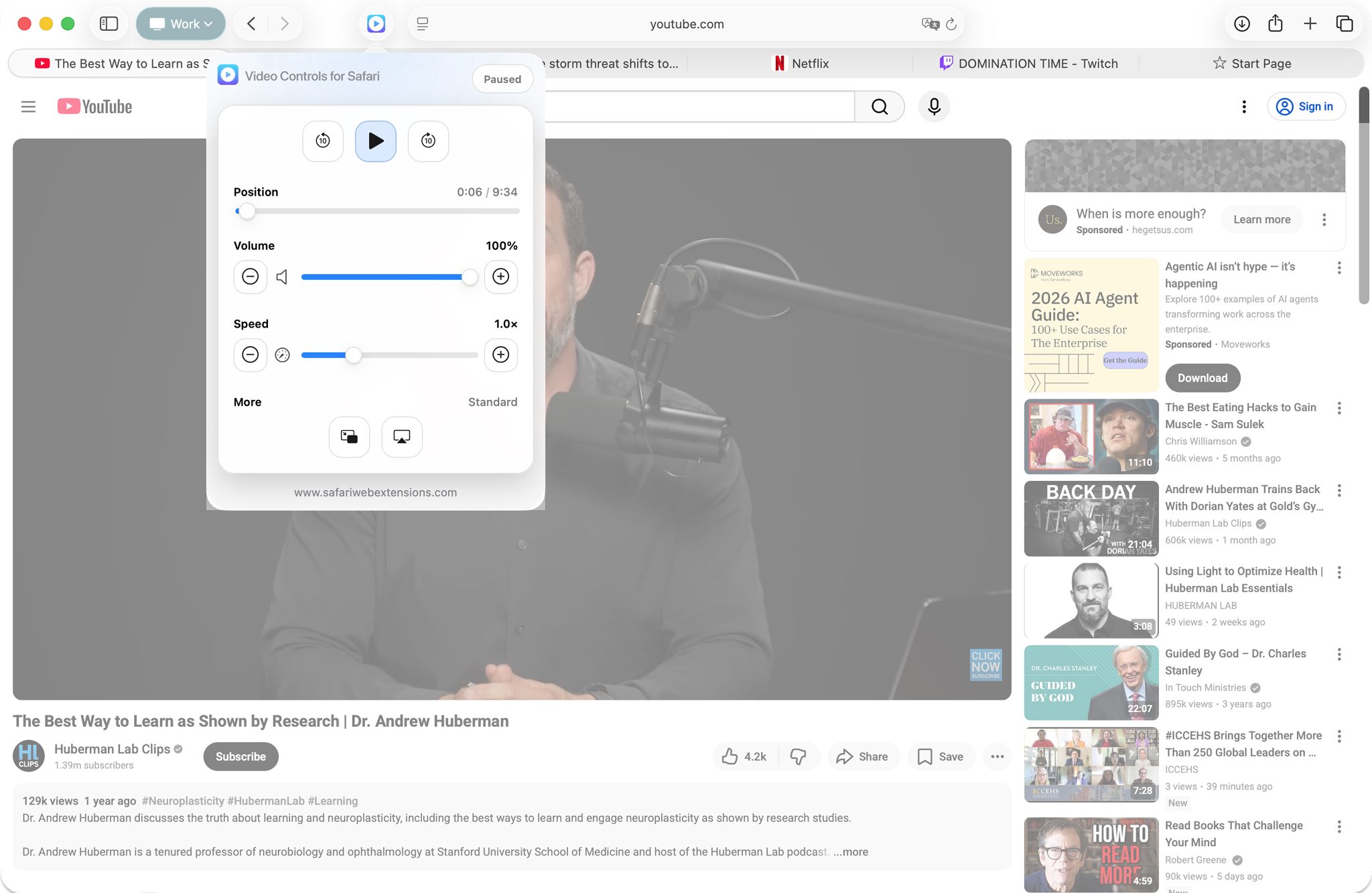
Video Controls for Safari is a Safari extension designed to make online video playback easier to manage across Safari on macOS, iOS, and iPadOS. It puts essential video controls—play/pause, seeking forward and back, volume, playback speed, Picture in Picture, and AirPlay—into a clean popup interface so you can control what you’re watching without relying on each website’s built-in player UI.
The core problem it solves is inconsistency. Online video players vary widely in design and behavior. Some hide controls until you hover. Others bury speed controls in menus. Many make volume adjustments imprecise, and PiP or AirPlay can be difficult to find (or implemented differently from site to site). Video Controls for Safari aims to standardize that experience: one familiar control panel that travels with you, regardless of which website you’re watching on.
Why “Video Controls for Safari” is a Must-Have for Safari Users
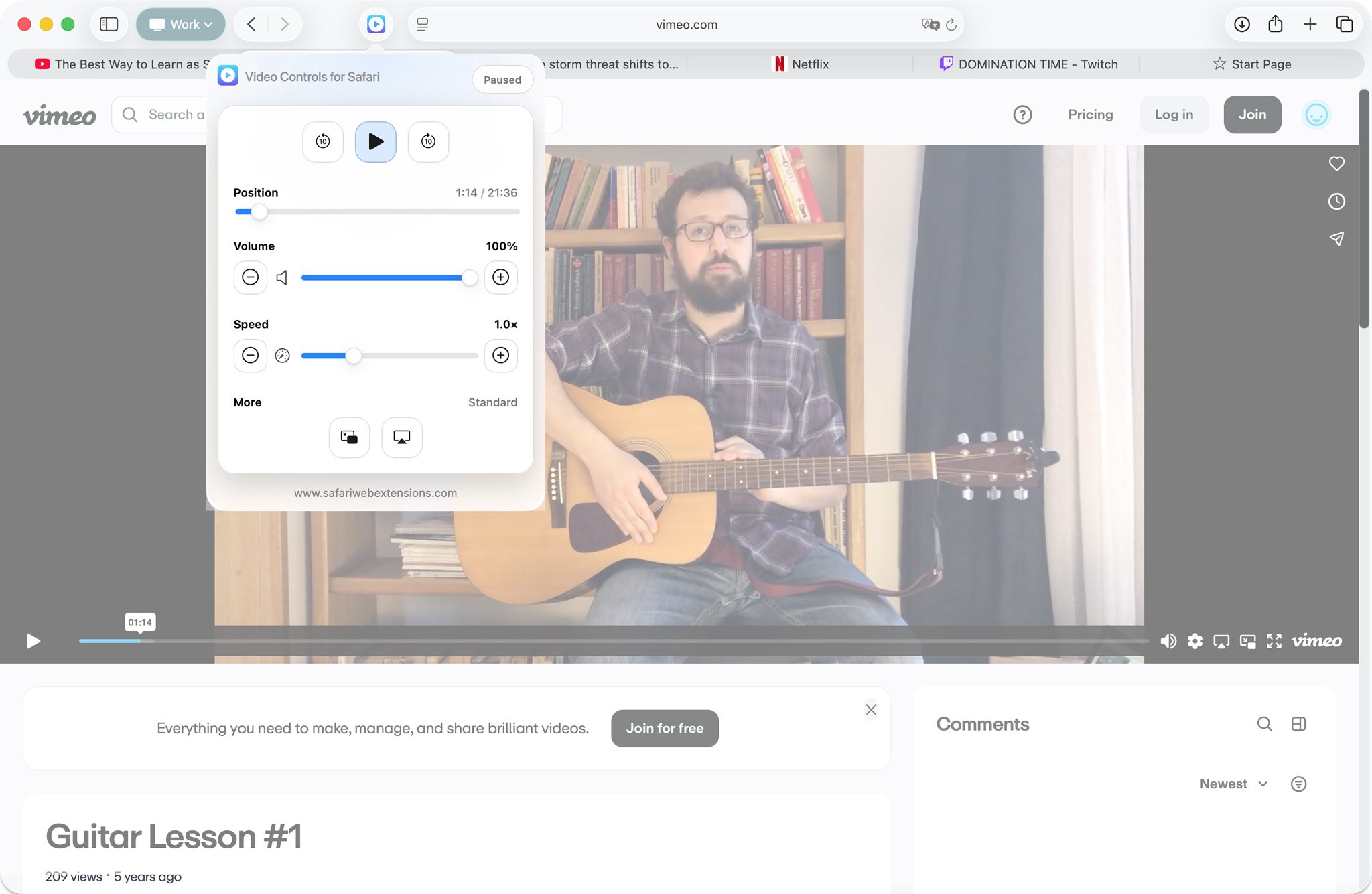
If you watch any meaningful amount of web video—training modules, lectures, product demos, news clips, livestream replays, or entertainment—your time in Safari is often shaped by how quickly you can access controls. That’s where Video Controls for Safari earns its place: it reduces the “micro-friction” that comes from hunting for tiny on-page buttons and swapping between inconsistent player layouts.
From a productivity standpoint, the value proposition is clear. Better video controls make it easier to pause at the exact moment you need to take notes, replay a key explanation, slow down a complex section, or speed through familiar material. For everyday viewing, the convenience is just as tangible: quick volume adjustments, instant PiP while you multitask, and straightforward AirPlay when you want a bigger screen. It’s a focused Safari extension that targets a common pain point and solves it in a way that feels native to your workflow.
Top Features of “Video Controls for Safari”
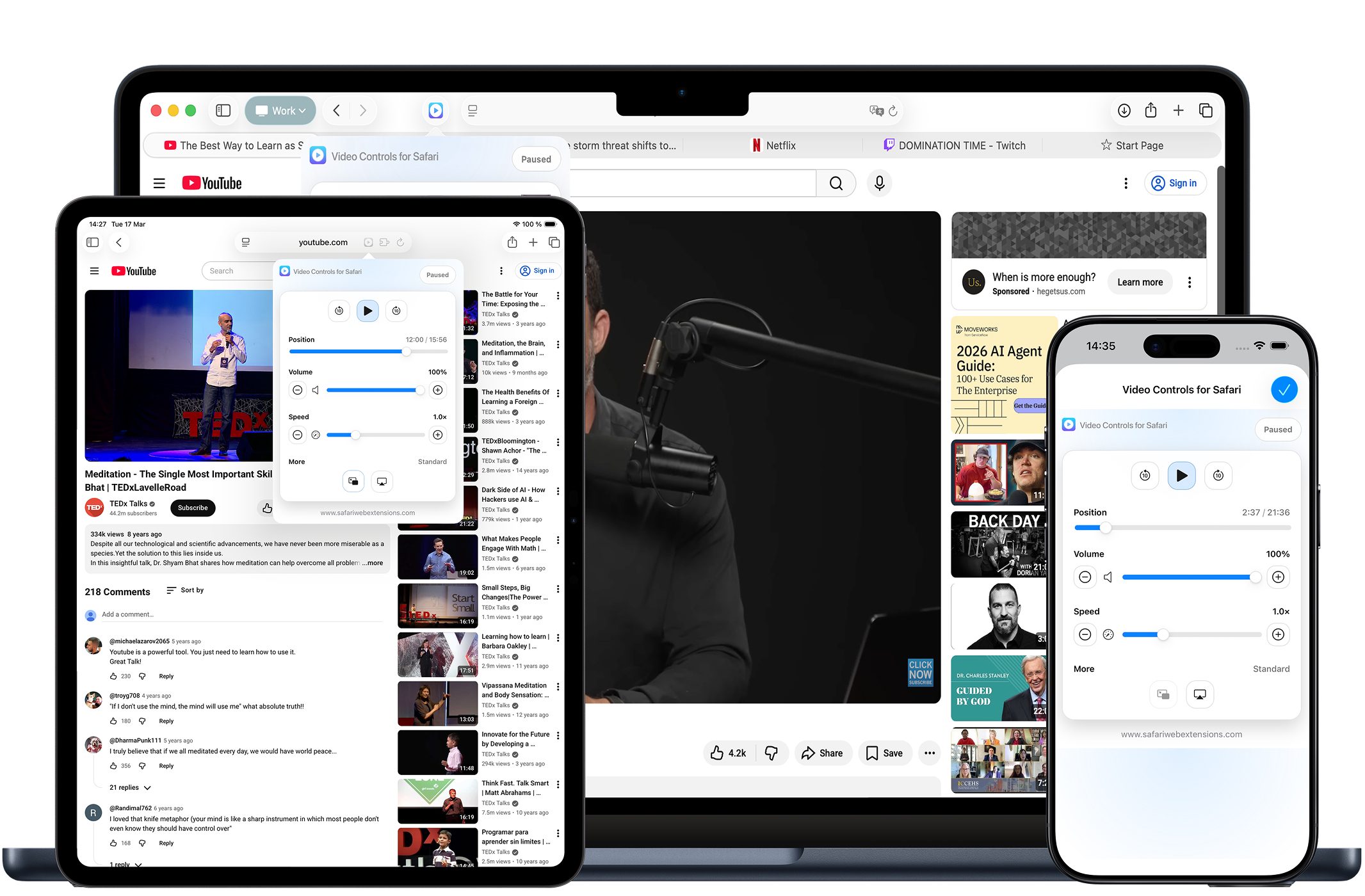
Video Controls for Safari focuses on the controls you actually reach for during video playback, packaged into a streamlined interface that integrates directly into Safari. Here are the headline capabilities and why they matter day to day.
- Play and pause from the extension popup: Stop and resume video playback without interacting with the website’s player, which is especially helpful when controls are hidden, tiny, or overlaid with other UI.
- Move forward and back with simple time controls: Jump ahead or rewind quickly to rewatch a segment, catch a missed detail, or skip filler—exactly the kind of “small” control that saves time over a week.
- Adjust volume (increase, decrease, or mute): Make fast audio changes without fiddling with a site’s volume slider. When you’re switching between meetings, music, and videos, this is one of the most-used video controls.
- Change playback speed: Watch faster to get through tutorials and long briefings, or slow down for technical explanations, language learning, or any clip where clarity matters more than pace.
- Picture in Picture (PiP): Pop the video out into a floating window so you can keep watching while browsing other tabs, answering messages, or working in another app—multitasking that feels natural instead of forced.
- AirPlay support: Send compatible videos to AirPlay devices directly from the extension, making it easier to shift from solo viewing to a living-room or conference-room screen.
- Privacy-first design: The extension states it collects no data, performs no tracking, and does no logging—an important reassurance for a tool that touches your browsing experience.
- Multilingual support: Use the interface in multiple languages, which is especially valuable for shared devices, international teams, or multilingual households.
- Clean, user-friendly UI: A streamlined design keeps the focus on core actions—ideal for quick adjustments without pulling attention away from what you’re watching.
- Seamless Safari integration across macOS, iOS, and iPadOS: Built to work across Apple platforms, so your preferred way of controlling video playback can stay consistent from Mac to iPhone to iPad.
How to Install “Video Controls for Safari”
Installing Video Controls for Safari follows the familiar Apple pattern for Safari extensions: download the app, then enable the extension in Safari’s settings.
On macOS: download Video Controls for Safari from the App Store link, open the app if prompted, then go to Safari Settings (or Preferences) and find the Extensions section. Enable Video Controls for Safari in the list. Once enabled, you should see it available from Safari’s extensions area so you can open its popup when a video is playing.
On iOS and iPadOS: install Video Controls for Safari from the App Store, then open the Settings app, navigate to Safari, and locate the Extensions section. Turn on the extension and allow any required permissions prompts. After that, you’ll access it from Safari’s extensions menu while browsing.
How to Use “Video Controls for Safari” for Maximum Efficiency
The key to getting real value from Video Controls for Safari is to treat it as your default control surface for web video. When you start a clip, open the extension popup and manage the basics—play/pause, seeking, volume, and speed—from there rather than switching between different website UIs.
For learning and training, playback speed is the obvious efficiency lever. Speed up sections you already understand, then drop back to normal or slower speed for dense segments. Pair that with quick back/forward controls to revisit a single sentence or key moment without scrubbing around a timeline.
For multitasking, PiP is the power move. Start a video, switch it into Picture in Picture, then continue working in another tab or app while keeping the content visible. This is particularly useful for conference talks, long tutorials, or live coverage where you want the context but don’t need the video full-screen.
If your viewing shifts from personal to shared, AirPlay support can become the fastest path to “big screen mode.” When a video is compatible, sending it to an AirPlay device from Video Controls for Safari can be more direct than hunting for a site’s cast or output controls.
How “Video Controls for Safari” Boosts Productivity
Most productivity advice focuses on big systems—task managers, calendars, automation. But the reality is that time is often lost in tiny gaps: the seconds spent adjusting video playback, the repeated friction of finding speed settings, the constant hunt for a volume slider that’s different on every site. Video Controls for Safari addresses those gaps with consistent, always-available video controls.
Consider a few common workflows. If you’re a student or professional taking a web-based course, you might pause frequently to write notes, rewind to confirm a definition, or speed through recap sections. Having those controls centralized can keep you focused on learning instead of interface management. If you work in research or media, you may review a lot of clips quickly; speed controls and quick seeking can shorten review cycles without sacrificing comprehension. Even in day-to-day browsing, PiP helps you keep a video visible while responding to messages, checking references, or comparing information across tabs.
The underlying theme is flow: when your tools are consistent, you spend less time “driving the player” and more time absorbing the content or finishing the task that brought you to the video in the first place. That’s the practical productivity win a well-made Safari extension can deliver.
Who Can Benefit from “Video Controls for Safari”?
Video Controls for Safari is broadly useful, but it shines most for people who spend serious time with browser-based video and want better consistency in their video controls.
Students can use speed adjustments and quick seeking to study more effectively. Remote workers and knowledge workers benefit when they’re juggling webinars, product demos, and training videos alongside active work in other tabs. Creators, editors, and researchers who review many clips can save time with fast, predictable video playback management. And for everyday users, it’s simply a more comfortable way to watch—especially when site controls are cluttered, hidden, or awkward on mobile screens.
Because it’s built to work across macOS, iOS, and iPadOS, it also appeals to people who move between devices. If Safari is your default browser everywhere, a consistent extension-based control panel can reduce the mental overhead of switching contexts.
Security and Privacy of “Video Controls for Safari”
Browser add-ons naturally raise privacy questions because they operate close to your browsing activity. Video Controls for Safari describes itself as privacy-first, stating that it performs no data collection, no tracking, and no logging—an encouraging stance for any Safari extension that interacts with the pages you visit.
Even with privacy-forward design, it’s smart practice to verify details yourself. Before enabling any Safari extension, review the App Store’s privacy information, read the permissions Safari displays when you enable it, and consider whether the extension needs access on all sites or only on specific sites where you watch video. That quick check helps you match the tool’s capabilities to your comfort level.
Where to Download “Video Controls for Safari”
You can download Video Controls for Safari from the Apple App Store here: https://apps.apple.com/app/video-controls-for-safari/id6760678703. Once installed, enable it in Safari’s Extensions settings and you’ll have quick access to modern video controls for smoother video playback across your devices.
If you’re exploring more Safari extensions in general—especially tools that improve media handling and productivity—browsing a dedicated directory like Safari extension listings at https://www.safariwebextensions.com can help you compare options and discover complementary utilities.
Conclusion: Simplify Your Workflow with “Video Controls for Safari”
Video Controls for Safari is a focused Safari extension that tackles a surprisingly universal annoyance: inconsistent, sometimes frustrating website video players. By centralizing essential video controls—play/pause, seeking, volume, speed, PiP, and AirPlay—into a clean interface, it makes video playback feel more consistent and more under your control across macOS, iOS, and iPadOS.
If your browser is where you learn, work, and unwind, small upgrades matter. Try Video Controls for Safari, tune your playback to match your pace, and let your video experience in Safari become one less thing you have to wrestle with.