
The World of Safari Extensions
Modern browsing isn’t just about loading pages faster—it’s about shaping Safari into a tool that matches the way you work, research, shop, and create. That’s where Safari extensions come in. They’re small, focused add-ons that extend what Safari can do, from blocking distractions to enhancing productivity workflows, tightening privacy controls, or—if you’re a design-minded user—helping you understand the building blocks of a great-looking website.
At a practical level, a Safari extension is software that plugs into the browser and adds capabilities Safari doesn’t provide by default. Some live as toolbar buttons, some operate quietly in the background, and others interact directly with the content you’re viewing—like webpages, forms, and media. The best ones feel native: they work where you need them, stay out of your way, and deliver a clear benefit in seconds.
The benefits are straightforward: Safari extensions can save time, reduce repetitive tasks, add specialized tools for niche jobs, and make everyday browsing more comfortable. For creative professionals, they can also become research instruments. If you’ve ever paused on a beautiful landing page and thought, “What font is that?”—you’ve already encountered a real-world problem that a good font identifier can solve instantly.
Where do you find and download them? Apple distributes Safari extensions through the App Store, which helps standardize installation and updates across devices. Many extensions are also presented in curated collections online; a directory like Safari extensions on Safari Web Extensions can help you discover what’s available and compare options before you download.
Installing a Safari extension typically follows a simple path: download the app from the App Store, then enable the extension inside Safari’s settings. On macOS, you’ll usually find this under Safari > Settings (or Preferences) > Extensions. On iPhone or iPad, you enable it in Settings > Safari > Extensions. Once it’s toggled on and the necessary permissions are granted, it becomes part of your browser—ready when you need it, without requiring a separate workflow.
What is “What Font for Safari”?
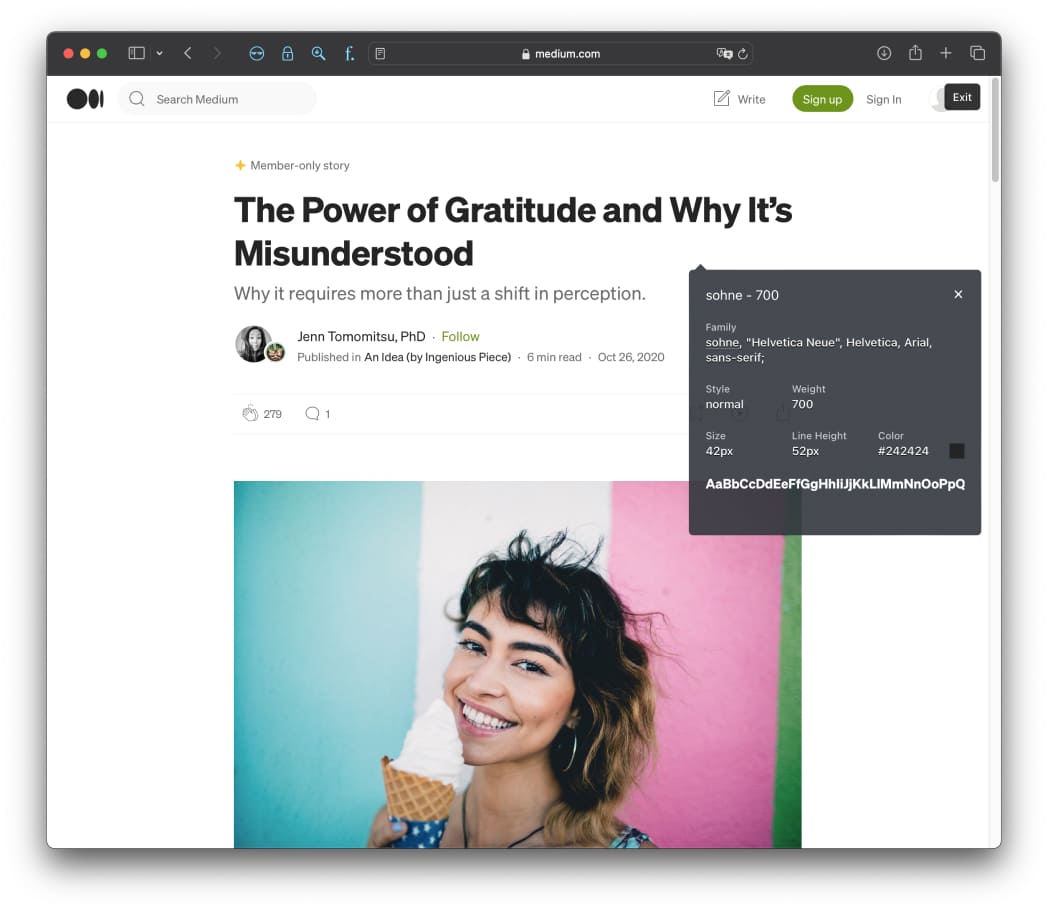
What Font for Safari is a font identifier built for Safari that lets you inspect typography directly on the pages you visit. The concept is refreshingly simple: click the extension icon, hover over any webpage text, and the tool reveals its font. Then, if you want more detail, you click to see a deeper readout—font family, style, color, and more—right where you’re working.
The core problem it solves is one designers, marketers, developers, and typography enthusiasts run into constantly: websites don’t announce their font choices. Even when a typeface looks familiar, modern web typography often involves fallbacks, variable fonts, and style rules that make guessing unreliable. What Font for Safari turns that “What am I looking at?” moment into an answer you can use in seconds—without breaking your browsing flow.
Why “What Font for Safari” is a Must-Have for Safari Users
Safari is fast, elegant, and widely used across Apple devices—but when it comes to hands-on typography inspection, it helps to have a specialized Safari extension in your toolkit. What Font for Safari is built for exactly that purpose: quickly identifying fonts and surfacing the details that matter when you’re trying to learn from, emulate, or evaluate a design.
The value proposition is convenience. Instead of switching contexts—opening developer tools, hunting through style panels, and deciphering CSS rules—you can stay focused on what you’re doing: auditing a brand site, gathering references for a mood board, checking readability, or simply satisfying curiosity. In other words, it’s a practical typography companion that fits naturally into everyday browsing, which is what the best Safari extensions aim to do.
Top Features of “What Font for Safari”
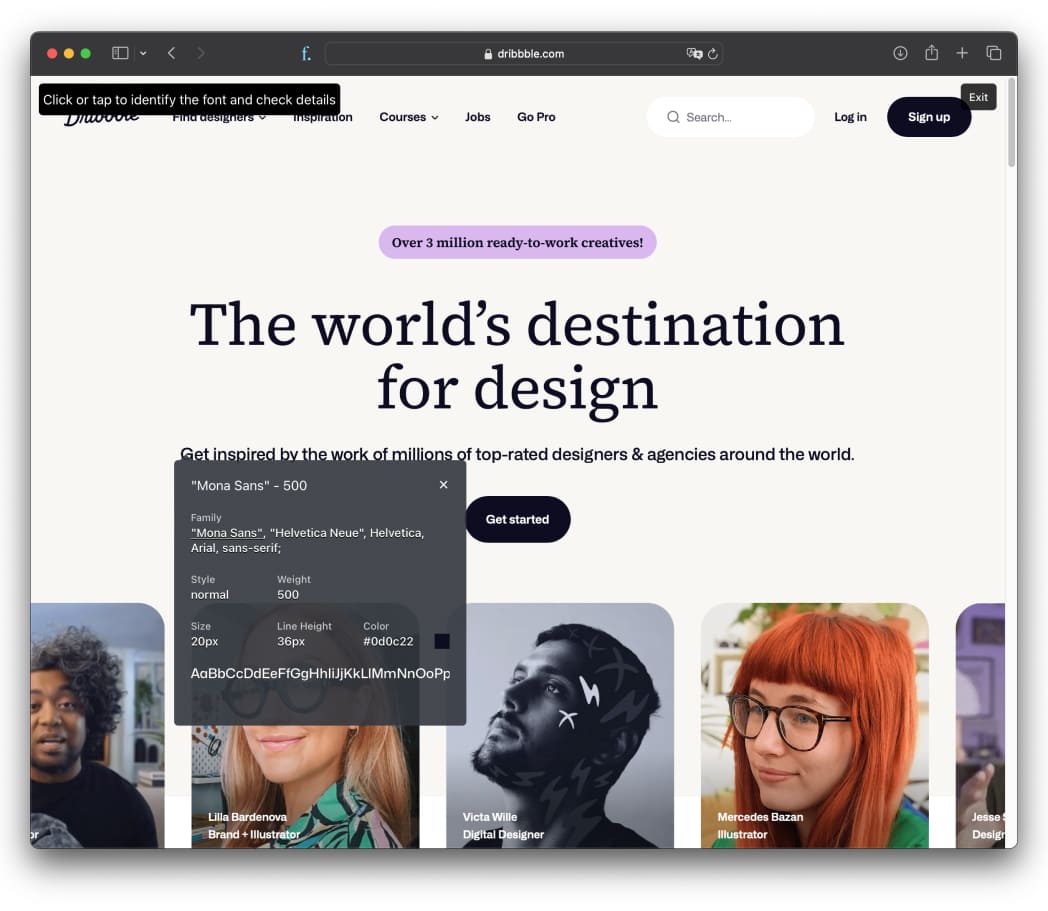
- Instant Font Detection: Click the extension icon and hover over any text on a webpage to instantly reveal its font—ideal when you want a fast answer without interrupting your workflow.
- Detailed Font Information: Click on any text to see font family, style, weight, size, line height, color, and more, turning a quick check into a richer typography inspection.
- Easy to Use: Download the extension, activate it, and grant permission in Safari Extensions settings to get started quickly—no complex setup or learning curve.
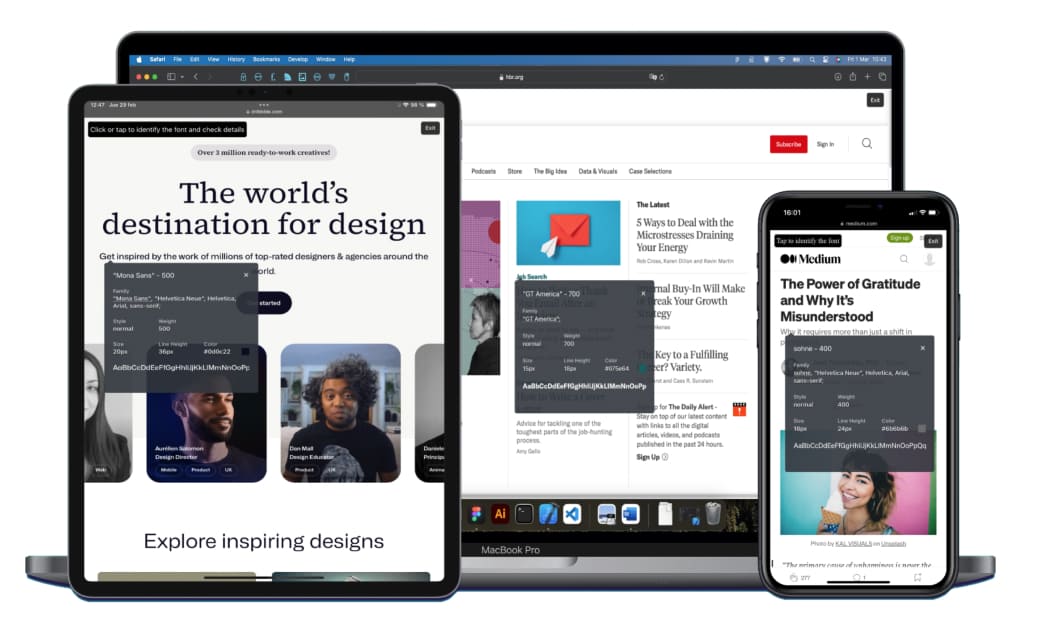
- Cross-Device Compatibility: What Font for Safari is available on iOS, iPadOS, and macOS, so your font identifier tool can follow you from desktop research to mobile browsing.
- Great for Designers and Curious Users: Whether you’re collecting font inspiration for a redesign or simply identifying a font you discover online, it’s built for both professional and casual use.
- Smooth Exit Control: A close button at the top right makes it easy to stop using the tool when you’re done—small UX details that matter in day-to-day browsing.
- Privacy-first design: No data collection, tracking, or logging—your browsing stays completely private, which is especially important for research-heavy work and client projects.
- Multilingual support: Use the extension in multiple languages for a globally friendly experience, helpful for teams or users working across regions.
- Clean, user-friendly UI: A streamlined design that stays out of the way and keeps the focus on the typography you’re inspecting.
- Seamless Safari integration: Built to work across Safari on macOS, iOS, and iPadOS, aligning with what users expect from well-made Safari extensions.
How to Install “What Font for Safari”
Installing What Font for Safari is designed to be quick, and it follows the familiar process for Safari extensions distributed through the App Store.
Step 1: Open the App Store on your Mac, iPhone, or iPad and go to the listing for What Font for Safari.
Step 2: Download and install the app.
Step 3 (macOS): Open Safari, then go to Safari > Settings (or Preferences) > Extensions. Find What Font for Safari and enable it. If Safari prompts you for permissions, review them and approve what’s needed to operate on webpages.
Step 3 (iOS/iPadOS): Open the Settings app, navigate to Safari > Extensions, then enable What Font for Safari. Review and grant the requested permissions so the extension can inspect page text when you invoke it.
Step 4: Return to Safari and confirm the extension icon is available (typically near the address bar or in the extensions menu). You’re ready to identify fonts as you browse.
How to Use “What Font for Safari” for Maximum Efficiency
The fastest way to get value from What Font for Safari is to treat it like a “spot check” tool. When a page catches your eye—an editorial layout, a product detail page, a portfolio—click the extension icon and hover over headlines, subheads, and body copy to see what typography choices are actually being used. This is particularly useful on sites where multiple type styles are layered across sections.
When you need more context, click the text to bring up the detailed information. This is where What Font for Safari becomes more than a quick font identifier: you can check weight, size, line height, and color to understand how the design achieves hierarchy and readability. For typography research, those details often matter as much as the font family itself.
A practical habit is to sample type at different breakpoints. If you’re browsing on iPad or iPhone, you’ll see how a responsive layout influences type scale and spacing. Then, on macOS, you can compare desktop styling. Because What Font for Safari is cross-device, it fits naturally into that kind of multi-screen review.
And when you’re finished, use the close button at the top right to exit cleanly. It’s a small detail, but it keeps the experience lightweight—an important quality for any Safari extension you’ll use repeatedly.
How “What Font for Safari” Boosts Productivity
Productivity gains with typography tools come from reducing friction. The traditional path to inspect type on the web can involve multiple steps and a fair bit of interpretation. What Font for Safari streamlines that by putting the answers directly into your browsing session, which is why it fits so neatly alongside other modern Safari extensions designed to speed up everyday work.
Consider a few scenarios. If you’re designing a landing page, you can quickly audit competitors’ typography choices—headline fonts, supporting text styles, and color usage—and use those observations to inform your own direction. If you’re a developer implementing a design system, you can verify that the typography being served on a live site matches expectations. If you work in content, you can evaluate readability choices—line height and size—on publications you admire.
Even outside professional contexts, it’s simply efficient. The web is full of great typography, and being able to identify a font in the moment (rather than bookmarking a page and hoping you remember what stood out later) turns casual browsing into actionable inspiration.
Who Can Benefit from “What Font for Safari”?
What Font for Safari is clearly tuned for anyone who pays attention to typography, but its audience is broader than “designers only.” If you’ve ever wanted to identify a font from a webpage, you’re the target user.
Designers and brand teams can use it for font inspiration and quick audits. Front-end developers can use it to cross-check typographic implementation details. Marketers and content strategists can use it to understand how leading sites structure visual hierarchy for readability. Students can use it as a learning tool—seeing typography choices in the wild, rather than only in theory. And curious users get a satisfying answer to one of the most common design questions on the internet.
Because it’s available on macOS, iOS, and iPadOS, it also makes sense for people who move between devices—researching at a desk, then continuing on a tablet or phone. In a landscape of Safari extensions, that cross-device availability is a practical advantage.
Security and Privacy of “What Font for Safari”
Browser tools live close to your browsing activity, so privacy matters. What Font for Safari positions itself as privacy-first: it states that it collects no data, performs no tracking, and keeps no logs—meaning your browsing stays completely private while you use the font identifier.
As a best practice with any Safari extension, it’s still smart to review the permissions you grant during setup and read the App Store privacy details before enabling it across all your devices. That quick check helps ensure the extension’s access aligns with your comfort level and how you plan to use it.
Where to Download “What Font for Safari”
You can download What Font for Safari from the App Store here: What Font for Safari. Once installed, enable it in Safari’s extension settings and it’s ready whenever you want to inspect typography on a page.
If you’re exploring more tools for your browser, it’s worth browsing curated collections of Safari extensions to build a setup that matches your workflow—whether that’s design research, writing, development, or everyday productivity.
Conclusion: Simplify Your Workflow with “What Font for Safari”
Typography is one of the most influential parts of web design, but it’s often hidden in plain sight. What Font for Safari brings it to the surface with an approachable, quick workflow: hover to identify, click to learn more, and close when you’re done. For designers, developers, and anyone who cares about how websites look and read, it’s the kind of focused tool that makes Safari extensions worth exploring.
If you’re looking for a clean, cross-device font identifier with a privacy-first approach, download What Font for Safari and start turning great typography you spot online into insights you can actually use.