
The World of Safari Extensions
There’s a quiet productivity revolution happening inside Safari: a growing ecosystem of Safari extensions that let you tailor the browser to the way you actually work, read, research, and relax online. While most people think of a browser as a fixed tool—tabs, bookmarks, a search bar—extensions turn Safari into a customizable workspace. With the right add-ons, everyday tasks like reading long articles, managing distractions, and streamlining repetitive actions can feel dramatically smoother.
So what are Safari extensions, exactly? In simple terms, they’re small software add-ons that integrate directly into Safari to modify or enhance your browsing experience. Some extensions add new buttons to your toolbar, others change how certain webpages behave, and many provide focused utilities—everything from saving information to improving accessibility. The best ones don’t just add features; they remove friction, shaving seconds (and irritation) off the things you do all day.
The benefits can be surprisingly broad. For many users, a good Safari extension is about convenience: fewer clicks, fewer repetitive gestures, faster access to the tools you rely on. For others, it’s about accessibility and comfort—making reading easier, reducing strain, or enabling hands-free workflows. And for power users, Safari extensions are part of a larger productivity system: paired with macOS, iOS, and iPadOS features, they help build a consistent browsing setup across devices.
Where do you find Safari extensions? Apple distributes them through the App Store, which is also where you’ll see screenshots, version history, and—importantly—privacy details. If you’re exploring tools like an Auto Scroll utility, a web scroller, or a specialized reader aid, the App Store listing is the best place to evaluate what an extension offers before installing it.
Installing a Safari extension is straightforward. You download it from the App Store like any other app, then enable it in Safari’s settings. On macOS, you typically manage extensions through Safari’s Extensions preferences. On iPhone and iPad, you enable and control them through Settings. Once enabled, the extension can appear in Safari’s toolbar or share sheet, ready when you need it.

What is “Auto Scroll and Read”?
Auto Scroll and Read is an Auto Scroll-focused Safari extension built for one of the most common, low-level frustrations on the web: constant manual scrolling. If you spend any meaningful time reading long articles, browsing social feeds, going through eBooks, or following multi-page threads, you’ve probably felt it—your attention is on the content, but your hands keep getting pulled back into the repetitive motion of swiping or moving a mouse wheel.
This extension acts as a web scroller that automatically moves the page for you at a speed you choose. Instead of repeatedly nudging the page down every few seconds, you set a pace that matches your reading rhythm and let the content come to you. That core idea sounds simple, but in practice it can change how comfortable long-form reading feels—especially when you’re trying to stay focused.
Auto Scroll and Read is also designed to fit into the Apple ecosystem: it’s available on macOS, iOS, and iPadOS, which matters if you move between devices throughout the day and want a consistent browsing workflow.
Why “Auto Scroll and Read” is a Must-Have for Safari Users
The value proposition of Auto Scroll and Read is less about flashy new capabilities and more about removing a constant source of interruption. Auto Scroll isn’t just a convenience feature; it can be a focus feature. When the page moves on its own, you stop “breaking the spell” of reading to perform tiny manual adjustments. Over time, that adds up to a calmer, more continuous experience—especially on phones and tablets where frequent swipes are part of the default browsing habit.
It’s also a strong fit for people who treat Safari as a primary reading environment, not just a quick navigation tool. If your daily routine includes news, blogs, long documentation pages, or serialized content, a dependable web scroller can turn Safari into something closer to a dedicated reader—without needing to switch apps.
And there’s a practical comfort angle, too. Hands-free or reduced-interaction reading can make longer sessions feel easier. That’s particularly relevant when you’re multitasking, reading while eating, or simply trying to reduce repetitive gestures. In that sense, Auto Scroll and Read earns its place among modern Safari extensions designed for real-world browsing habits.
Top Features of “Auto Scroll and Read”
At its core, Auto Scroll and Read is built around smooth, customizable Auto Scroll behavior—but the feature set goes beyond a basic “scroll down” button. Here are the standout capabilities, and why they matter in everyday use.
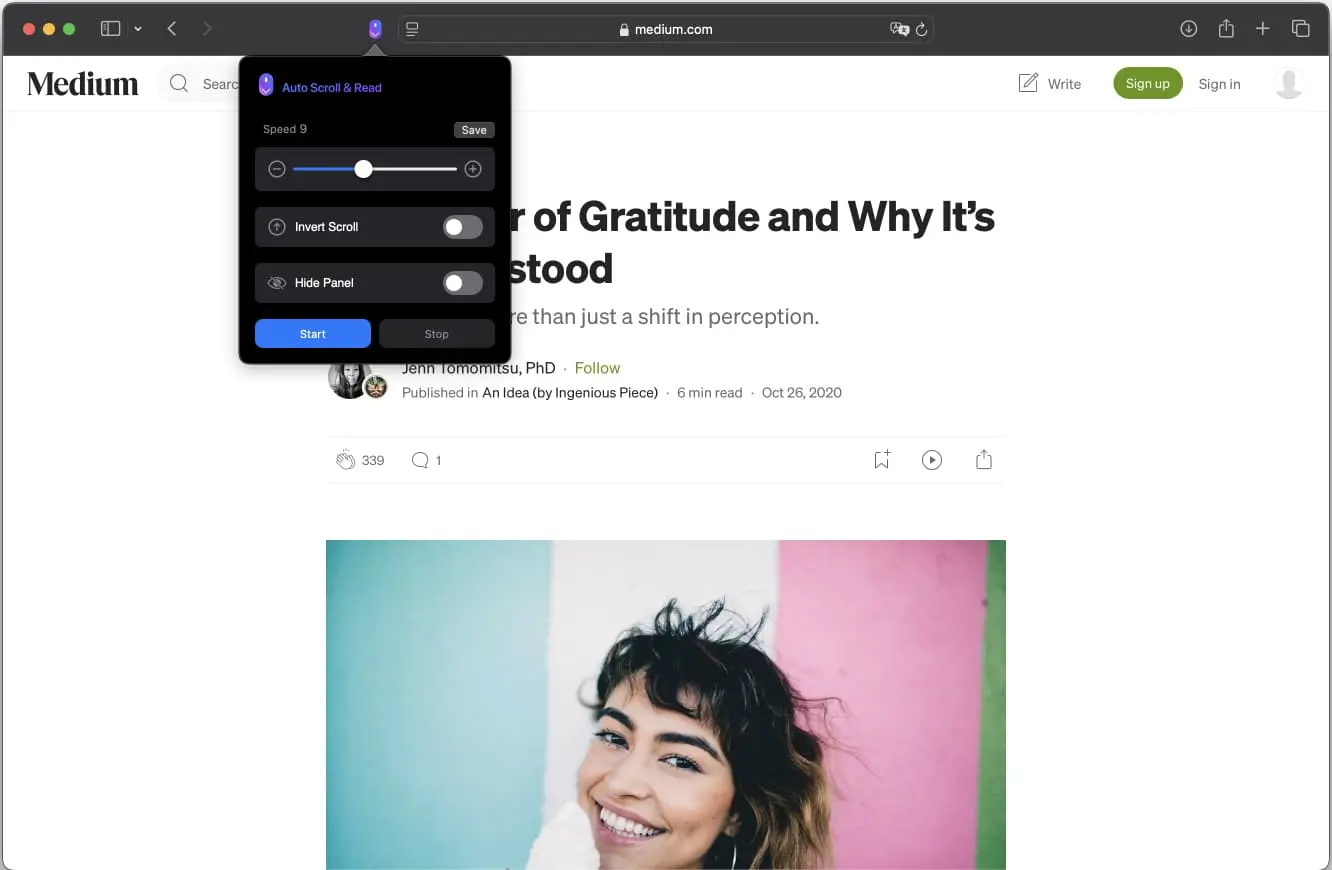
- Auto Scroll for hands-free reading: Automatically scroll through webpages so you can focus on the content instead of repeatedly swiping or using a mouse wheel. For long articles and continuous feeds, this can make reading feel more like watching a steady stream than managing a page.
- Customizable scrolling speed: Set a pace that matches how you read—slow and steady for dense articles, faster for skimming. This is the key feature that makes the extension feel personal rather than one-size-fits-all.
- Save your preferences: Once you find a speed you like, you can save it and quickly apply it again. That reduces setup friction and makes the web scroller behavior consistent from session to session.
- Reverse scrolling: Scroll from bottom to top when you need it—useful when revisiting earlier sections, checking prior panels, or moving back through content without manual dragging.
- Read comics hands-free: Designed to help with reading comics, mangas, and manhwas, where continuous, comfortable scrolling can improve the experience—especially on iPad or when reading in longer stretches.
- Intuitive user interface: The interface is designed to be simple to start using quickly, so you spend less time configuring and more time reading.
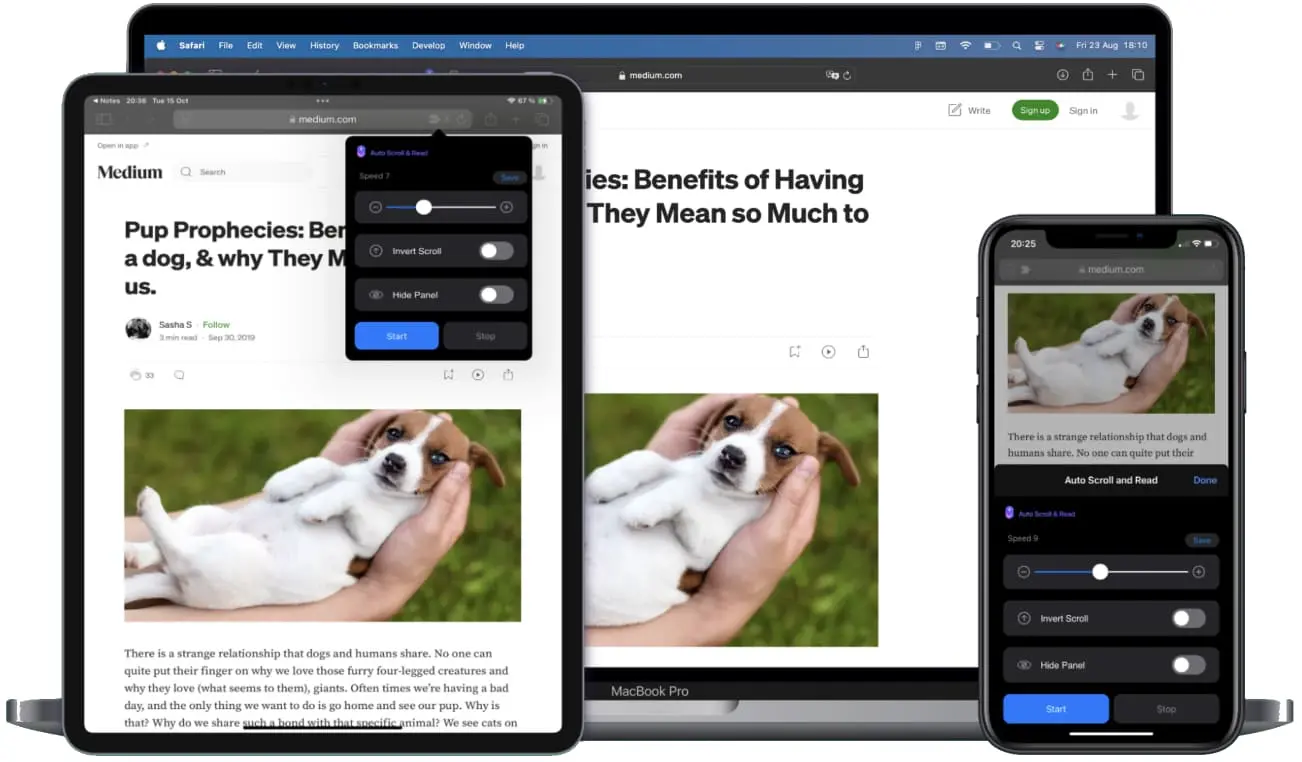
- Cross-device compatibility: Available on macOS, iOS, and iPadOS, making it easier to maintain a consistent Auto Scroll workflow across the Apple devices you use most.
- Multi-language support: Localized in over 10 languages, which helps make the extension accessible to a broader set of users worldwide.
- Works well across content types: News articles, blogs, social media, eBooks, and PDFs are all called out as use cases—exactly the places where continuous scrolling reduces friction and keeps your attention on the page.
How to Install “Auto Scroll and Read”
Installing Auto Scroll and Read is similar to installing other Safari extensions, and the process is designed to feel familiar across Apple platforms.
Step 1: Download from the App Store. Visit the App Store listing for Auto Scroll and Read and install it like a standard app.
Step 2: Enable the extension in Safari. After installation, open Safari’s extension settings on your device and enable Auto Scroll and Read. This step is essential—downloading alone doesn’t automatically activate a Safari extension.
Step 3: Confirm it’s available when browsing. Once enabled, look for the extension’s controls in Safari’s toolbar or extension menu. If Safari prompts you for permissions on specific websites, review them carefully and grant access only where you intend to use Auto Scroll.
Step 4: Choose an initial scrolling speed. Before your first serious reading session, set a speed you find comfortable—think of it as setting your default “reading tempo.”
How to Use “Auto Scroll and Read” for Maximum Efficiency
The best way to get value from an Auto Scroll tool is to treat it like a reading mode you can toggle on demand. When you land on a long page—an in-depth report, a documentation guide, a multi-part blog post—activate Auto Scroll and Read and let the page move at a steady pace while you keep your focus on comprehension.
A practical approach is to create two or three favorite speeds. One can be a slower setting for dense reading (think: technical posts, eBooks, or PDFs where you pause more often). Another can be a medium pace for typical news and blogs. And if you often skim—such as scanning a long social media thread or quickly reviewing a page—set a faster option you can switch to when detail isn’t the priority. Because Auto Scroll and Read lets you save preferences, you can build these “gears” and avoid constant tinkering.
Reverse scrolling is also worth building into your habits. If you’ve ever overscrolled and then had to manually drag back to a previous paragraph or panel, you know how disruptive that can be. When you need to re-check something you just passed, reverse scrolling gives you a controlled way to move back without losing your place.
Finally, if you read visual, vertically-scrolling content like comics, mangas, or manhwas, treat the extension like a hands-free reader aid. Set a gentle, consistent speed and let the panels come to you—especially useful on iPad, where longer sessions are common and comfort matters.
How “Auto Scroll and Read” Boosts Productivity
Productivity gains from a web scroller don’t always look like “doing more.” Often, they look like “staying in flow.” When you remove the micro-task of manual scrolling, you reduce the number of tiny interruptions that fracture attention—particularly during research-heavy work where you’re bouncing between sources, reading long explainers, and comparing details across tabs.
Consider a few common scenarios. If you’re a student reviewing online materials, Auto Scroll can help you keep a steady pace through readings without constantly touching the screen. If you work with online documentation, you can let a long page move while you follow along, keeping your hands available for notes or for switching between an editor and Safari. If you’re catching up on industry news, saved speed presets can help you skim efficiently without turning reading into a repetitive physical action.
Over time, that kind of friction reduction matters. It’s the same reason people adopt keyboard shortcuts or tab management tools: the less you have to “manage the interface,” the more you can focus on what you came to do. Among Safari extensions, Auto Scroll utilities can be deceptively impactful because they improve the most frequent action in browsing—moving through content.
Who Can Benefit from “Auto Scroll and Read”?
Auto Scroll and Read is broadly useful, but it shines most for people who spend extended time reading on the web and want a calmer, more consistent experience.
It’s a strong fit for readers who regularly go through long-form content like news analysis, blogs, and essays; for students working through course materials in Safari; and for professionals who live in web-based documentation and reference pages. It’s also well-suited to fans of comics, mangas, and manhwas who want hands-free reading, and for anyone who wants their Safari experience to feel more like a dedicated reader without switching apps.
Because it’s available across macOS, iOS, and iPadOS, it also makes sense for people who move between devices throughout the day and want their Auto Scroll experience to travel with them—one of the most practical advantages of modern Safari extensions when they support multiple platforms.
Security and Privacy of “Auto Scroll and Read”
Any time you install a Safari extension, it’s reasonable to think about security and privacy, because extensions can interact with the pages you visit. The specifics—what data is collected (if any), what’s linked to you, and what permissions are required—should be evaluated directly from the App Store listing and the permissions prompts you see when enabling the extension.
With Auto Scroll and Read, the best practice is to review the App Store privacy details, confirm what access it requests in Safari, and grant website permissions thoughtfully. If you only need Auto Scroll on certain sites (for example, reading platforms or long-form blogs), consider limiting access accordingly. That simple habit is one of the most effective ways to stay comfortable with Safari extensions in general.
Where to Download “Auto Scroll and Read”
You can download Auto Scroll and Read from the App Store here: Auto Scroll and Read. From there, enable it as a Safari extension in Safari’s settings, choose your preferred scrolling speed, and start using it as your everyday web scroller.
Conclusion: Simplify Your Workflow with “Auto Scroll and Read”
Safari extensions are at their best when they remove friction from the most common actions you take online. Auto Scroll and Read does exactly that by turning manual scrolling into a controlled, customizable Auto Scroll experience—complete with saved preferences, reverse scrolling, and hands-free support for content like comics, mangas, and manhwas.
If you read a lot on the web—news, blogs, social media threads, eBooks, or PDFs—and you want a smoother, more focused Safari workflow across macOS, iOS, and iPadOS, this is the kind of Safari extension that can make an immediate difference. Download Auto Scroll and Read, set your ideal pace, and let the web come to you.