

The World of Safari Extensions
There’s a quiet power to Apple’s browser: Safari is fast, battery-friendly, and deeply integrated across macOS, iOS, and iPadOS. But for many people, the real magic starts when you add a Safari extension. These small add-ons can reshape how the web behaves—tightening privacy, smoothing workflows, and removing friction from everyday browsing without asking you to switch browsers or rethink your habits.
In plain terms, Safari extensions are lightweight software additions that expand Safari’s capabilities. Some help you organize information, some change how websites look or load, and others add utilities directly into your browsing flow. The best ones feel less like “extra tools” and more like missing buttons Safari should have shipped with—especially for tasks you repeat constantly.
The benefits are practical and immediate: fewer distractions, faster navigation, cleaner pages, and more control over what you see and do online. If you’ve ever found yourself repeatedly scrolling past irrelevant search results, copy-pasting the same snippets, or wishing you could tidy up parts of the web that waste your time, you’re already the target audience for the modern Safari extension ecosystem.
So where do you find Safari extensions? On Apple platforms, many are distributed through the App Store. That’s significant: it centralizes discovery, keeps updates straightforward, and gives users a familiar place to review screenshots, release notes, ratings, and privacy labels before installing anything.
Installing a Safari extension is usually simple. You download the app from the App Store, then enable the extension in Safari’s settings. On macOS, that typically means going into Safari Settings (or Preferences) and checking the extension on. On iPhone and iPad, you’ll enable it under Settings > Apps > Safari > Extensions. From there, most extensions provide a minimal onboarding flow—sometimes a toolbar button or quick configuration panel—so you can confirm it’s running and customize it as needed.
With that foundation in place, let’s look at a very specific, very modern problem: search results that are technically “relevant,” but practically useless. If your day involves repeated Googling—whether for work research, shopping, troubleshooting, or reading news—then controlling which domains appear can be the difference between a focused session and an endless scroll. That’s where Search Filter Web Extension comes in.
What is “Search Filter Web Extension”?
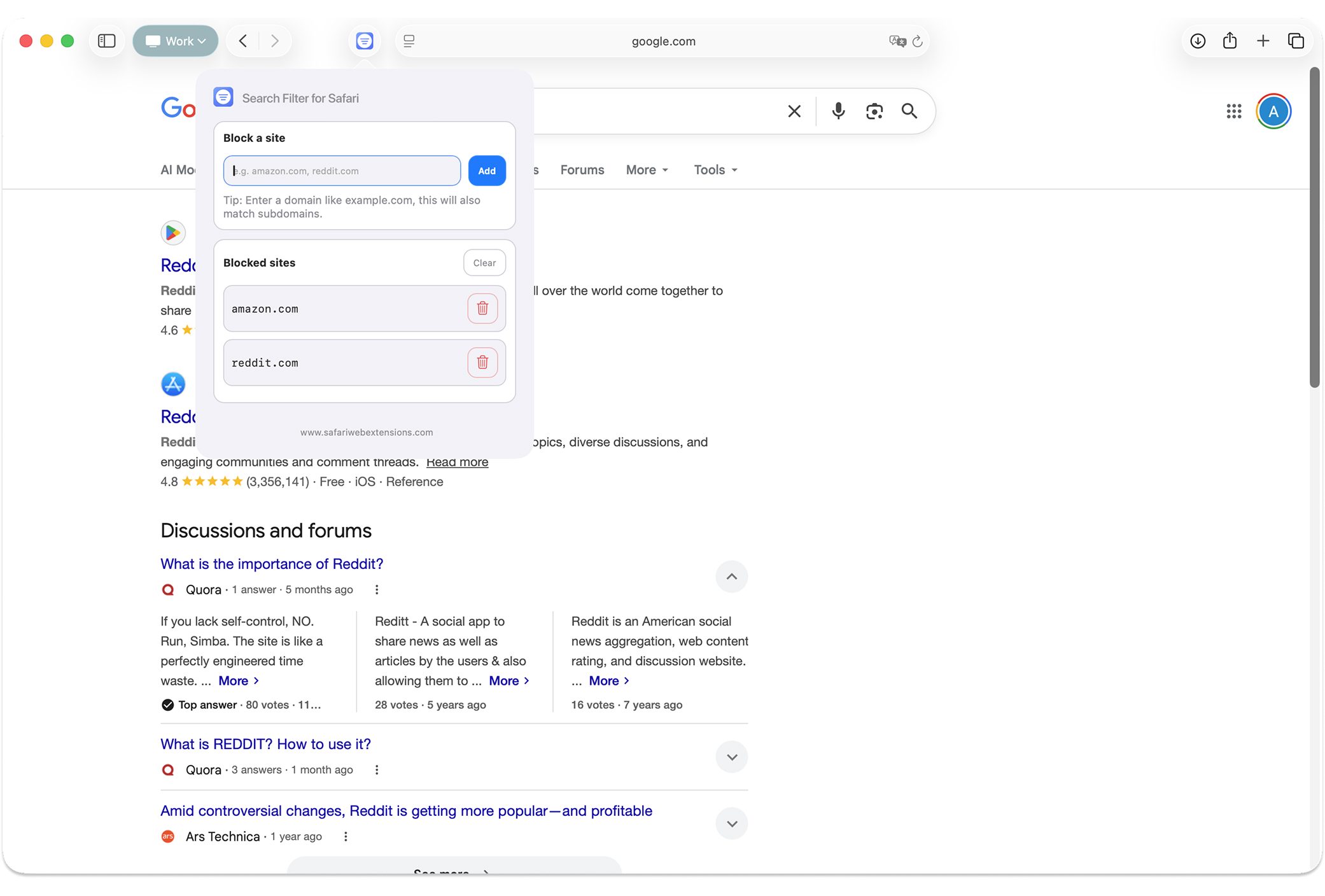
Search Filter Web Extension is a google search filter built for Safari that helps you filter out unwanted Google search results instantly, creating a cleaner and more focused browsing experience. Instead of repeatedly encountering the same domains you don’t trust, don’t want, or simply don’t find useful, the extension allows you to remove those results from view right on the search results page.
The core problem it solves is simple: Google is powerful, but its results can be noisy. Over time, many users build a mental list of sites they’d rather avoid—content farms, low-quality aggregators, pages stuffed with ads, or sources that just don’t match the depth or tone they need. Search Filter Web Extension turns that frustration into a one-click workflow: identify the domain you don’t want, block it, and move on with a better results page.
Why “Search Filter Web Extension” is a Must-Have for Safari Users
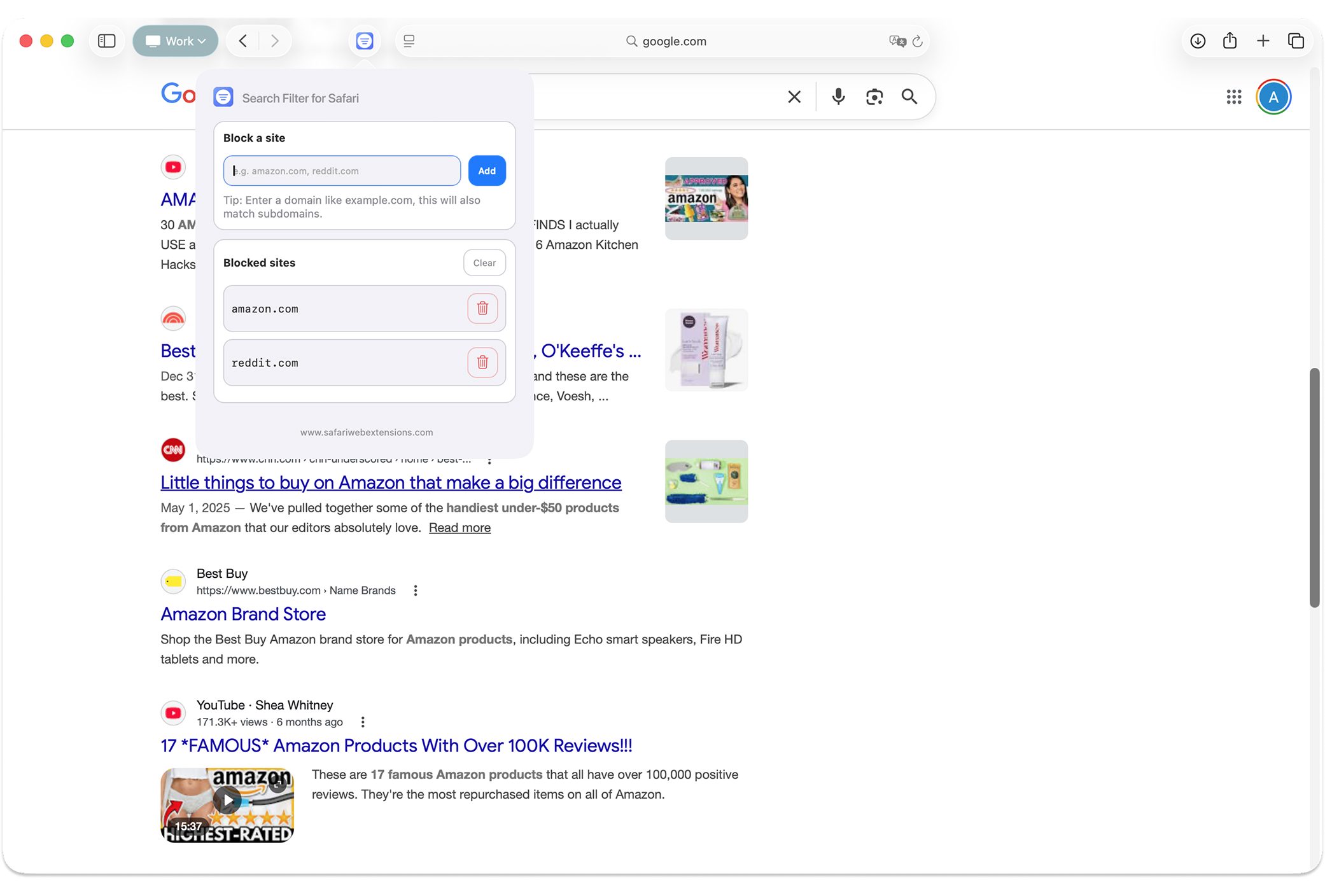
If you live in your browser, search is your front door to the web. And when that door opens to clutter, it costs time and attention—two things most of us can’t spare. Search Filter Web Extension is compelling because it improves the quality of your search experience without requiring a new search engine, a complicated rule system, or a separate app. It’s a targeted convenience upgrade that’s easy to appreciate within minutes.
From a productivity perspective, the value proposition is straightforward: fewer irrelevant clicks, less scanning, and faster decisions. As a Safari extension, it also benefits from native Safari integration—meaning it’s designed to feel at home inside Safari rather than operating like a bolted-on workaround. For people who use Safari across Mac, iPhone, and iPad, that matters.
It also fits neatly into the “block sites” category of tools, but with a specific purpose: it’s not about general web blocking or parental controls; it’s about shaping your Google results into something that better reflects your preferences and standards. For anyone who’s ever muttered “not this site again” while researching, this is the kind of Safari extension that earns its keep quickly.
Top Features of “Search Filter Web Extension”
Search Filter Web Extension focuses on doing a few things extremely well: cleaning up results, keeping the workflow simple, and staying respectful of user privacy. Here are the standout features and why they matter in real use.
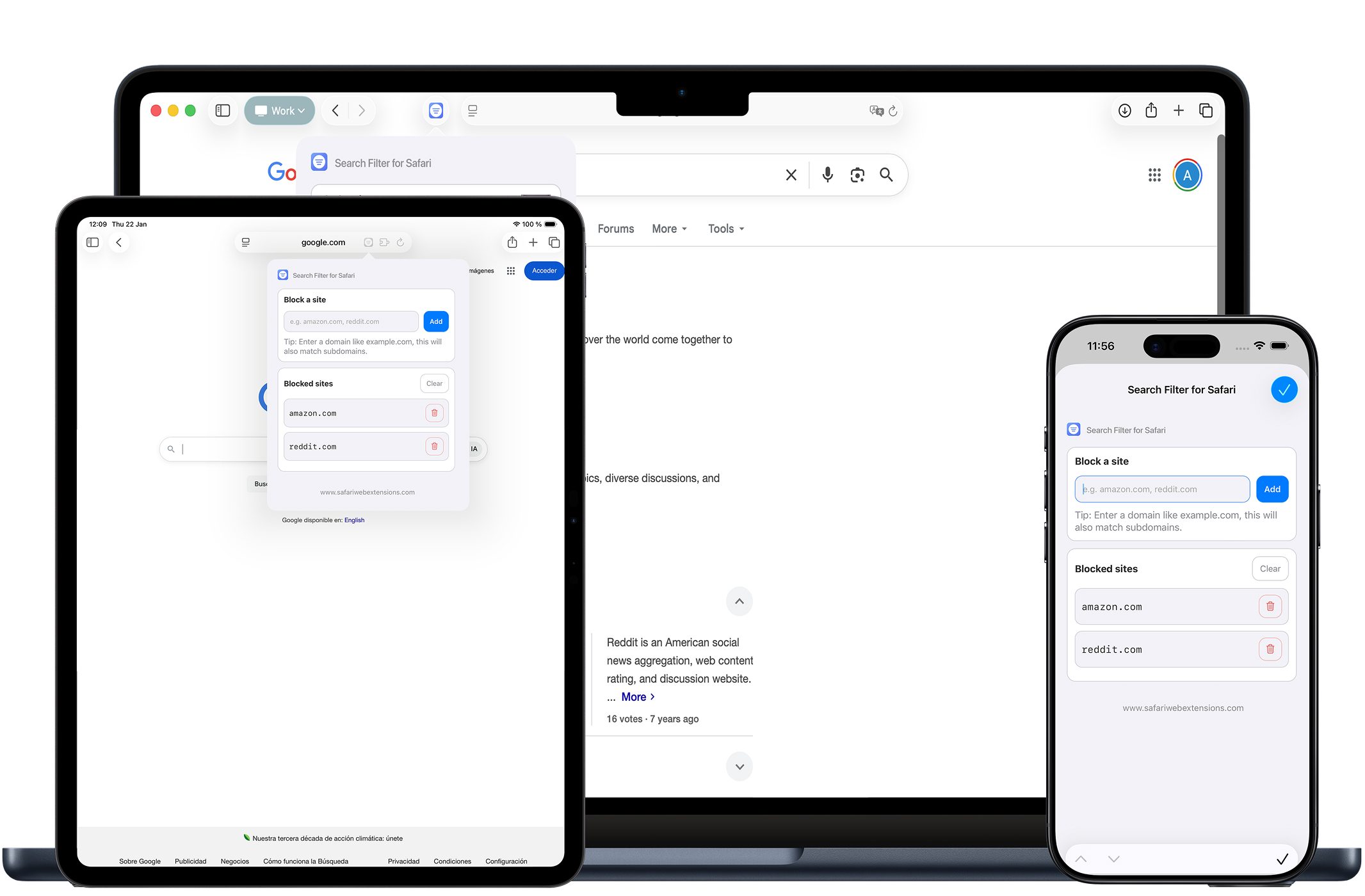
- Hide unwanted search results: Instantly remove results from specific websites on Google so your results pages stay cleaner and more relevant. The practical impact is immediate—less scanning and fewer wasted clicks when you’re trying to find the best answer fast.
- Simple site blocking: Block domains and all their subdomains with a single click. No complex rules or setup required. This is especially useful for sprawling networks of similar pages where blocking a single subdomain wouldn’t solve the problem.
- Privacy-first design: No data collection, tracking, or logging, so your browsing stays completely private. For a google search filter that lives in the browser, this is a meaningful promise—one that aligns with why many people choose Safari in the first place.
- Multilingual support: Use the extension in multiple languages, making it accessible for users who browse and research across regions or prefer a non-English interface.
- Clean, user-friendly UI: A streamlined design that integrates smoothly into your workflow, reducing the “tool friction” that often causes people to abandon otherwise useful utilities.
- Seamless Safari integration: Built to work across Safari on macOS, iOS, and iPadOS, reinforcing the idea that one Safari extension should fit into your whole Apple ecosystem—not just one device.
How to Install “Search Filter Web Extension”
Installing Search Filter Web Extension follows the standard App Store-to-Safari flow. The exact menus vary slightly by device, but the process is consistent.
Step 1: Download from the App Store. Visit the App Store listing for Search Filter Web Extension and install it like any other app.
Step 2: Enable the extension in Safari.
On Mac: open Safari, go to Safari Settings (or Preferences), find the Extensions section, and enable Search Filter Web Extension.
On iPhone/iPad: open Settings, scroll to Safari, open Extensions, and enable Search Filter Web Extension.
Step 3: Confirm permissions and settings. If Safari prompts you for website access or permissions, review them carefully and choose the option that matches your comfort level. This is good practice for any Safari extension, especially one that interacts with search pages.
Step 4: Test it on Google. Open a Google search results page and confirm that the extension is active and ready to help you filter results.
How to Use “Search Filter Web Extension” for Maximum Efficiency
The fastest way to benefit from Search Filter Web Extension is to treat it like a “results hygiene” tool. As you browse Google results, pay attention to the domains that consistently waste your time—pages that bury the answer, repeat content you’ve already seen, or prioritize ads over information. The moment you recognize a pattern, block the domain and keep moving.
A practical approach is to build your block list gradually instead of trying to perfect it on day one. Over a week of normal searching, you’ll naturally identify the top offenders, and the effect compounds: each blocked domain reduces noise for future searches in that same topic area.
For example, if you frequently research software troubleshooting, you might want results that prioritize official documentation, reputable developer forums, or high-quality technical blogs. If certain domains repeatedly rank for your queries but rarely help, blocking them turns Google into a more specialized tool tailored to your standards—without changing your habits or switching platforms.
How “Search Filter Web Extension” Boosts Productivity
Productivity gains from a google search filter are deceptively significant because they occur in tiny moments: fewer scrolls, fewer back-button taps, fewer “open in new tab just in case” clicks. Multiply that by dozens of searches per day, and the time savings become tangible—especially for knowledge workers who treat Google like an external memory.
Search Filter Web Extension also reduces decision fatigue. When your results page is packed with sources you already know you won’t use, you’re forced to evaluate and dismiss them repeatedly. Blocking those domains once turns repeated micro-decisions into a one-time action, leaving you with a cleaner page where the remaining options are more likely to be worth your attention.
In workflow terms, it fits neatly into common routines: research for writing, competitive analysis, shopping comparisons, travel planning, and debugging. In all of those scenarios, you’re not just searching—you’re triaging results. The ability to block sites and subdomains quickly helps you spend more time on the pages that matter and less time managing clutter.
Who Can Benefit from “Search Filter Web Extension”?
Search Filter Web Extension is broadly useful, but it’s especially well-suited to people who search often and have strong preferences about sources. If you’ve ever thought of Google results as something you wish you could “edit,” this is for you.
It’s a natural fit for:
- Researchers, students, and writers who want to reduce low-quality sources and keep results focused on credible domains.
- Developers and IT professionals who search constantly and want to avoid repetitive aggregator pages in favor of documentation and high-signal communities.
- Shoppers and deal hunters who prefer to block sites that over-optimize for affiliate content and surface more direct sources instead.
- Busy professionals who need Google to be faster and cleaner, not a distraction engine.
- Multilingual users who appreciate multilingual support while maintaining a consistent, streamlined filtering workflow.
Security and Privacy of “Search Filter Web Extension”
Browser add-ons should always earn trust, and privacy is a reasonable concern for any Safari extension that interacts with web pages. Search Filter Web Extension explicitly positions itself as privacy-first, stating: no data collection, no tracking, and no logging—so your browsing stays completely private.
Even with a clear privacy stance, it’s still smart to review the App Store privacy details and any permissions Safari prompts you to grant. As a general rule, enable only what you need, and periodically audit your enabled Safari extensions to keep your browsing environment lean and secure.
Where to Download “Search Filter Web Extension”
You can download Search Filter Web Extension directly from the App Store at its official listing: https://apps.apple.com/app/search-filter-web-extension/id6758107917. If you’ve been looking for a simple way to block sites in Google results and keep your searches focused, it’s an easy add to your Safari toolkit.
Conclusion: Simplify Your Workflow with “Search Filter Web Extension”
Safari extensions are at their best when they remove friction from something you do every day, and search is one of the most repeated actions in modern computing. Search Filter Web Extension tackles a surprisingly stubborn problem—noisy Google results—with a focused set of features: hide unwanted results, block domains and subdomains with a click, and do it with a clean UI and seamless Safari integration across macOS, iOS, and iPadOS.
If you want a cleaner google search filter experience that helps you block sites you never want to see again, Search Filter Web Extension is well worth trying. Download it, build your block list naturally as you browse, and let your search results reflect your preferences—not the web’s loudest corners.