0. Important: After completing all the steps and activating the extension, you must completely close and reopen Safari:
- In some cases, Safari may not recognize the extension immediately, even after it has been installed and activated.
- If this happens, we strongly recommend completely closing Safari and then reopening it, as this often resolves the issue.
- On iOS, simply close Safari and open it again.
- On macOS, right-click the Safari icon and select Quit, instead of using Command + Q, to make sure Safari fully closes.
1. Download and Install Your Desired Safari Extension:
- Open the App Store and search for the Safari extension you want to install.
- Tap Get and then Install to download the extension.
- Once the installation is complete, open it on your device’s screen.
2. Open Safari Settings:
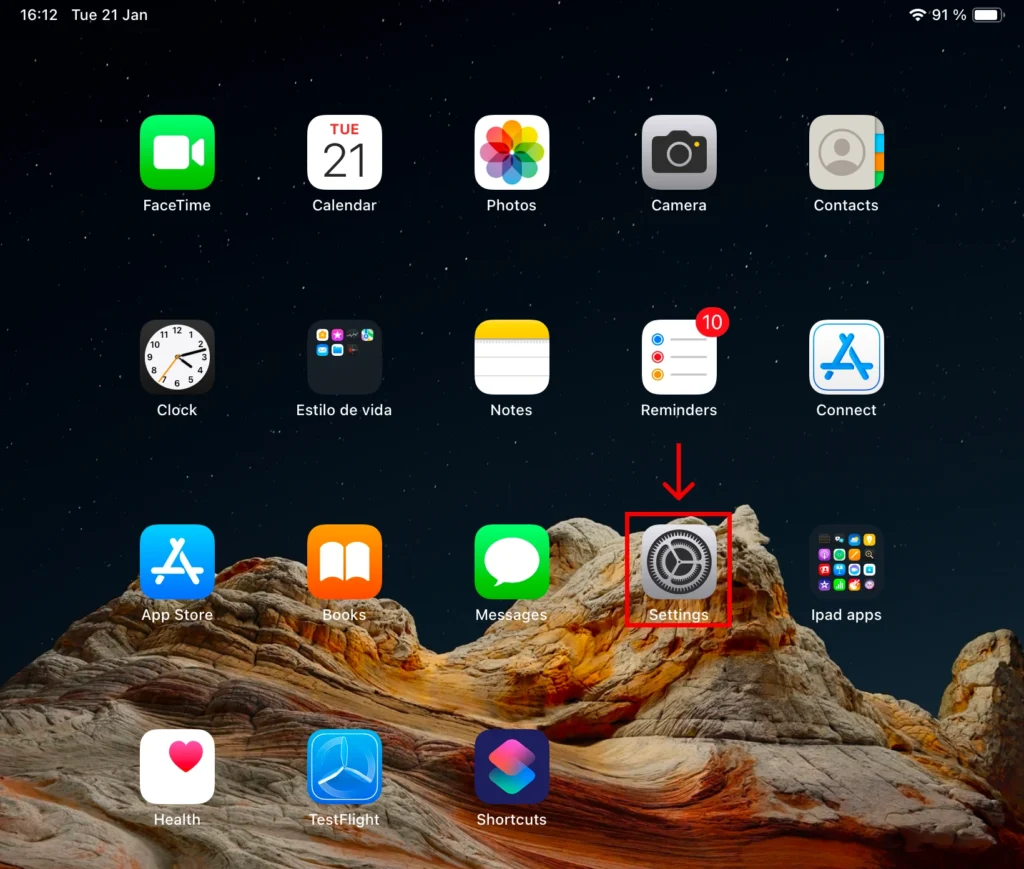
- On your device’s home screen, tap the Settings icon.
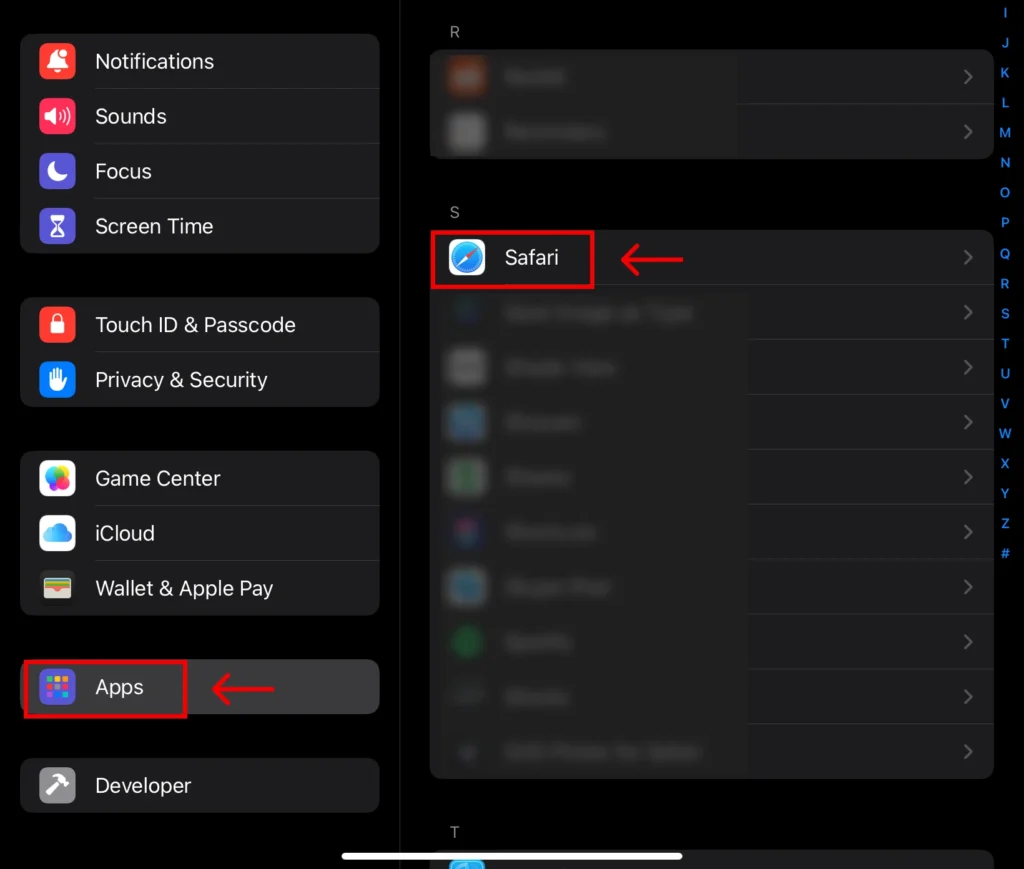
3. Select Safari in the Apps Section:
- Scroll down and select the Apps section.
- From the list of installed apps, select Safari.
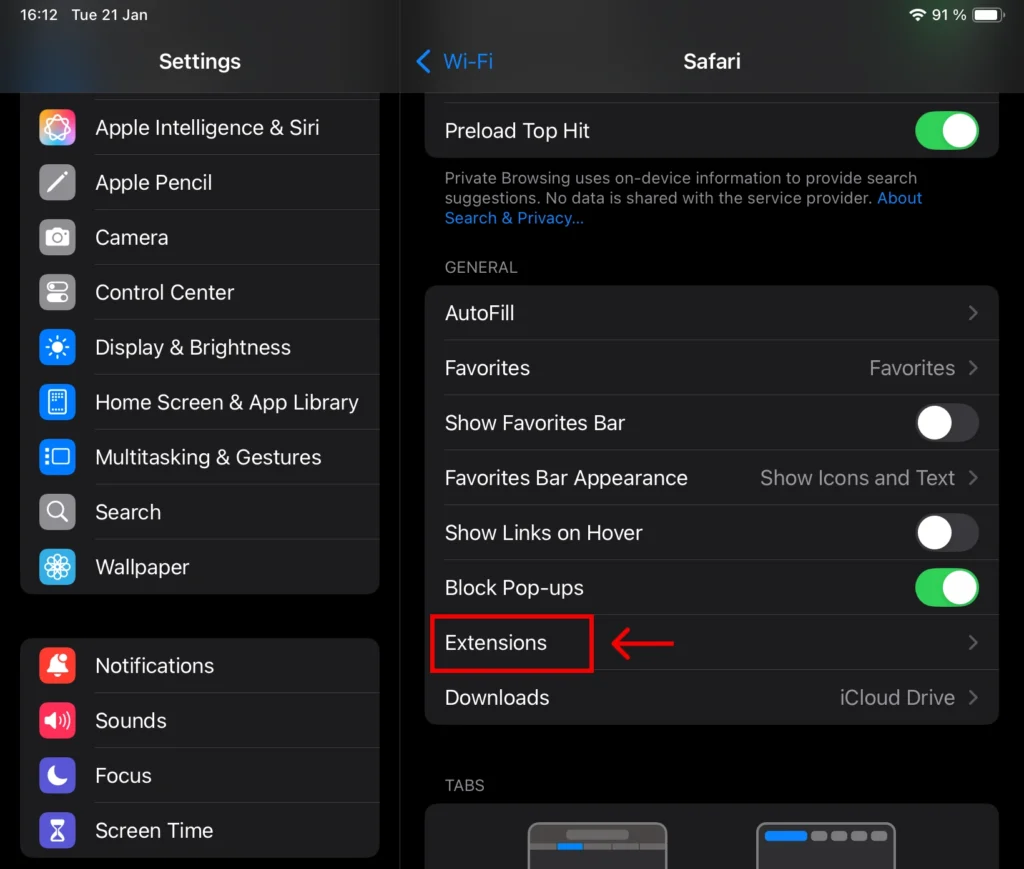
4. Select the Extensions Section:
- On the new screen, scroll down to the General section and select Extensions.
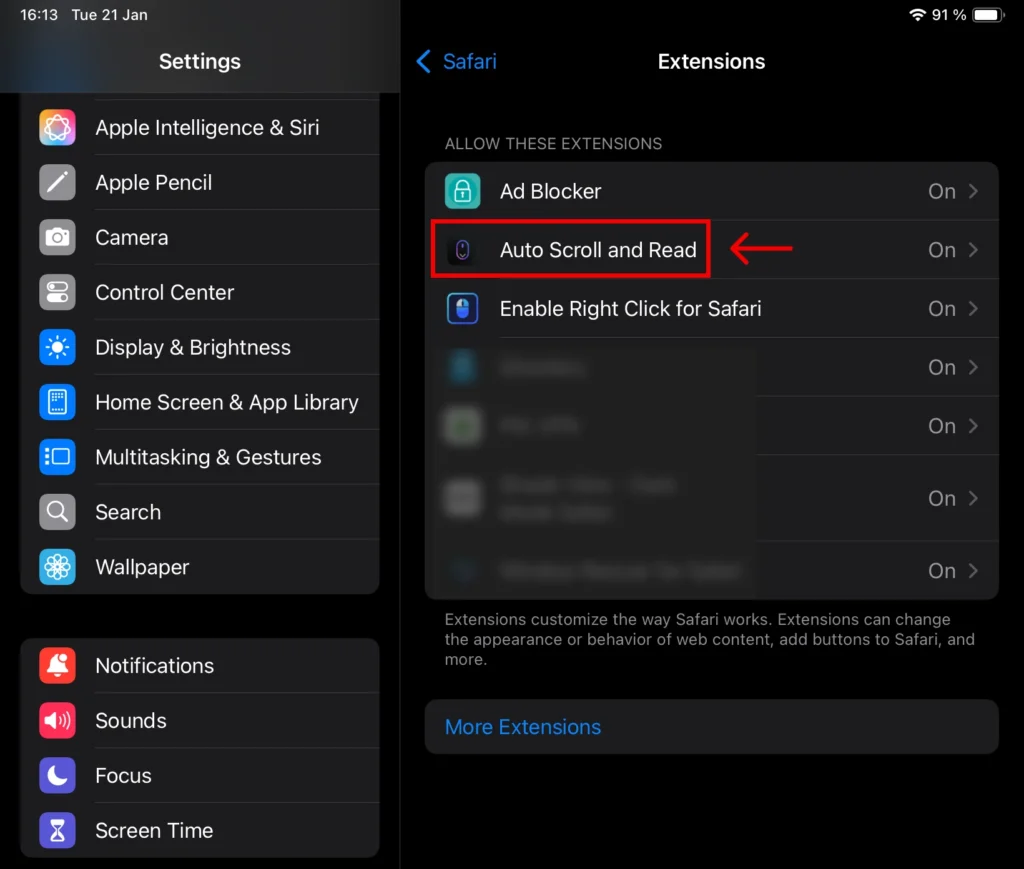
5. Activate the Safari Extension and Grant Permissions:
- On the Extensions screen, select your desired Safari extension (refer to the example highlighted in red in the image below).
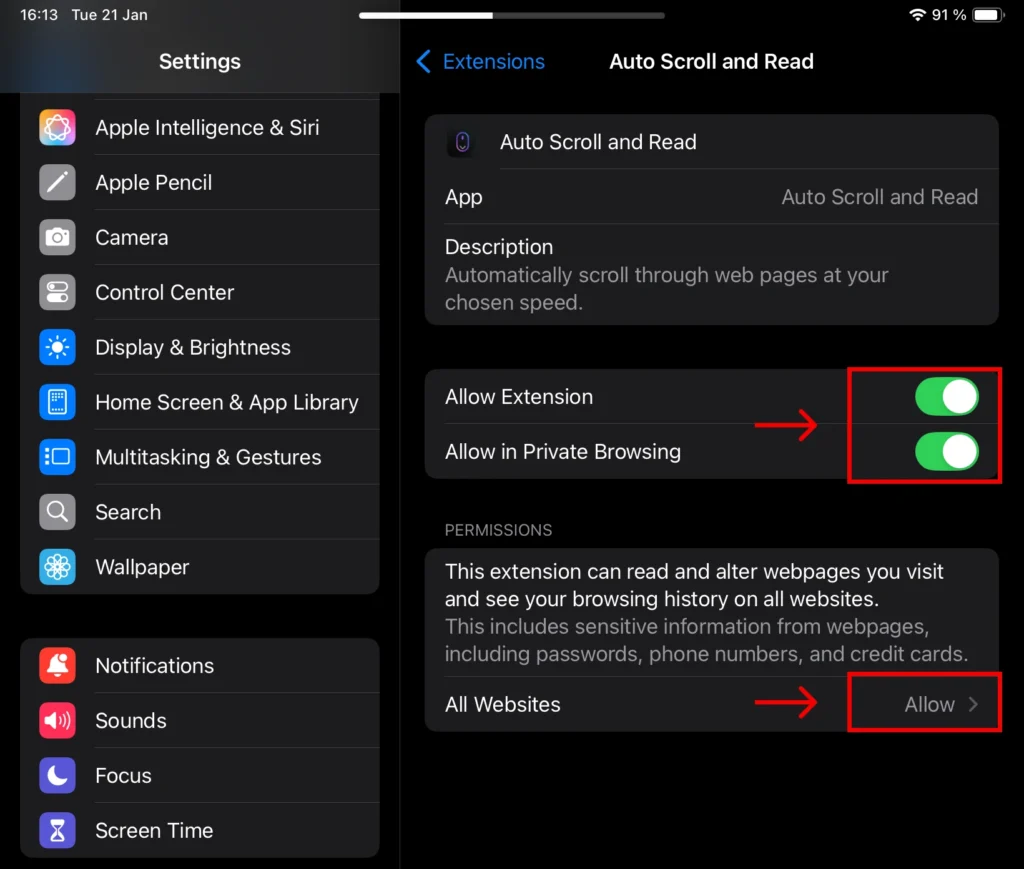
- This will open the Safari Extension options screen.
- Toggle on the Allow Extensions option.
- In the permissions section, tap the option labeled All Websites and select Allow.
6. Start Using the Safari Extension:
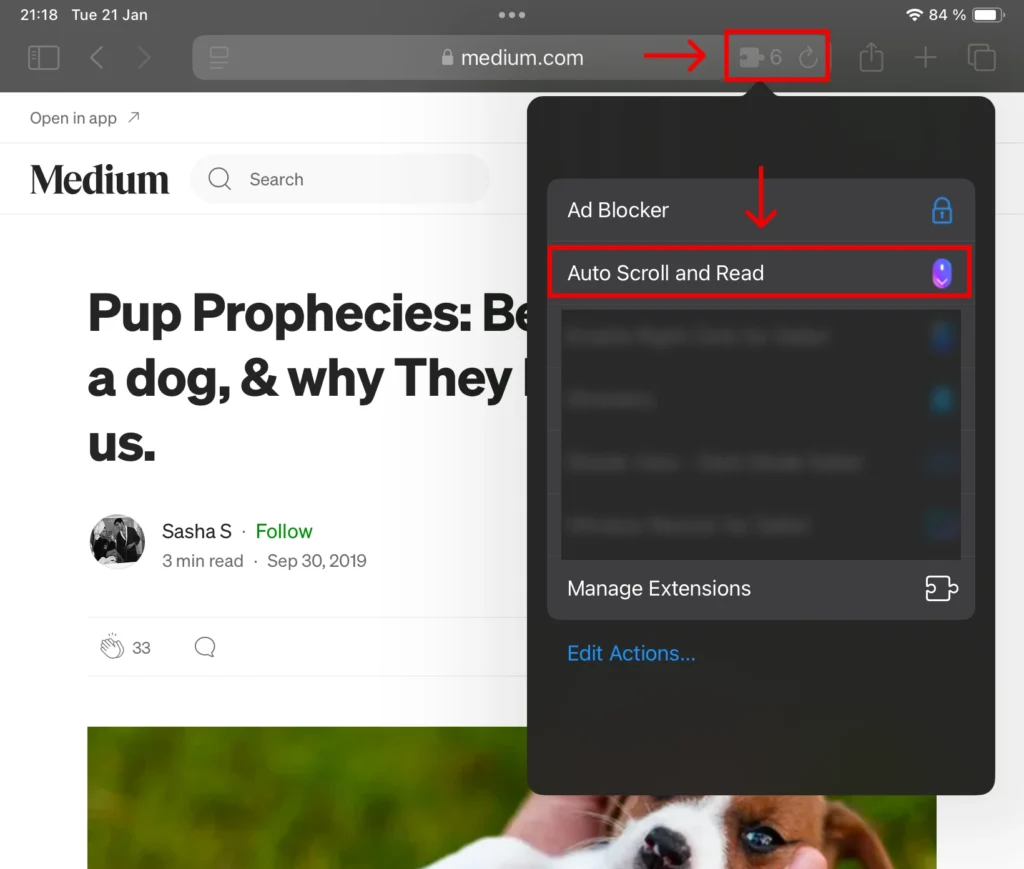
- After enabling the extension, open Safari.
- On the left side of the search bar, you’ll see an extension icon—tap on it.
- This will open a new menu where you can select the extension.
7. Important: After completing all the steps and activating the extension, you must completely close and reopen Safari:
- In some cases, Safari may not recognize the extension immediately, even after it has been installed and activated.
- If this happens, we strongly recommend completely closing Safari and then reopening it, as this often resolves the issue.
- On iOS, simply close Safari and open it again.
- On macOS, right-click the Safari icon and select Quit, instead of using Command + Q, to make sure Safari fully closes.
Explore Our Must-Have Safari Extensions
There are several other Safari extensions that can significantly enhance your browsing experience. Here are a few worth checking out:
- What Font for Safari: Easily identify web fonts on any page. Check the App Store and read more in this article.
- Color Sense: A top-notch color picker tool for designers. Check the App Store and read more in this article.
- Window Resizer for Safari: Simplifies resizing your browser windows. Check the App Store and read more in this article.
- Enable Right Click: Restores the ability to right-click and copy content on protected websites. Check the App Store and read more in this article.
- Shade View Dark Mode: Automatically apply dark mode to any website. Check the App Store and read more in this article.
- CSS Inspector: Access and inspect CSS elements on any webpage. Check the App Store and read more in this article.
- SVG Picker: View and copy SVG files from websites. Check the App Store and read more in this article.
- Save Image as Type: Save images in your preferred format (PNG, JPG, WebP). Check the App Store and read more in this article.
- Page Ruler for Safari: Measure webpage elements with precision. Check the App Store and read more in this article.
- Auto Scroll and Read: Automatically scroll websites. Check the App Store and read more in this article.
- Auto Scroll and Find: Automatically scroll while searching for specific text. Check the App Store and read more in this article.
- Lorem Ipsum for Safari: Generate placeholder text with just a click. Check the App Store and read more in this article.
- Porn Blocker for Safari: Boost your focus by blocking adult content. Check the App Store and read more in this article.
- Focus Boost for Safari: Improve your productivity by minimizing distractions. Check the App Store and read more in this article.
- Highlight Text for Safari: Highlight and save Text. Check the App Store and read more in this article.
- Web Paint for Safari: Draw, Paint, Annotate, and take screenshots directly in Safari. Check the App Store and read more in this article.
- SEO Meta for Safari: Quickly analyze on-page SEO directly in Safari. Check the App Store and read more in this article.