
The World of Safari Extensions
Apple’s Safari has come a long way from being “the browser that comes with your Mac” to a modern, performance-focused daily driver across macOS, iOS, and iPadOS. One of the biggest reasons it can feel truly personal—tailored to how you research, shop, work, and unwind—is the growing ecosystem of Safari extensions. These add-ons let you reshape how the web behaves, filling in gaps that a general-purpose browser can’t always cover out of the box.
So what are Safari extensions? In plain terms, they’re lightweight tools that extend Safari’s capabilities—adding controls, automations, and protections directly into your browsing experience. Some focus on productivity (think quick notes, tab tools, and reading aids). Others focus on safety and control, such as tools that block trackers, hide distractions, or help you block javascript when it causes clutter, breakage, or performance issues. The best ones feel like they were always meant to be part of Safari: fast, integrated, and available wherever you use the browser.
The benefits are practical and immediate. A good Safari extension can reduce repetitive clicks, speed up common workflows, and give you more say over what loads on a page. That control matters more than ever on today’s script-heavy web, where pages can be stuffed with interactive widgets, auto-playing elements, and third-party code you didn’t ask for. Tools like a javascript blocker can help bring the browsing experience back to something calmer and more predictable.
Where do you find Safari extensions? The most straightforward place is Apple’s App Store, where extensions are distributed as apps (often with companion settings or a lightweight interface). You can also discover curated directories and recommendation sites dedicated to this ecosystem—useful if you want to explore categories and alternatives before committing to a download. Once installed, many extensions can be enabled and configured from Safari’s Extensions settings on macOS, or from the Safari section within the Settings app on iPhone and iPad.
Installation is typically simple. You download the extension from the App Store, then enable it in Safari’s settings, and grant any permissions it requests. After that, it appears in Safari’s toolbar (or the extensions menu), ready to use. This permissions step is important: Safari extensions may need access to webpages to do their job, and Safari makes that access visible so you can make informed decisions.
In this article, we’re taking a close look at a tool built for one of the most common modern browsing needs: gaining control over scripts. If you’ve ever wished you could block javascript on demand—on one page, or across an entire site—this is where JavaScript Blocker for Safari comes in.
What is “JavaScript Blocker for Safari”?
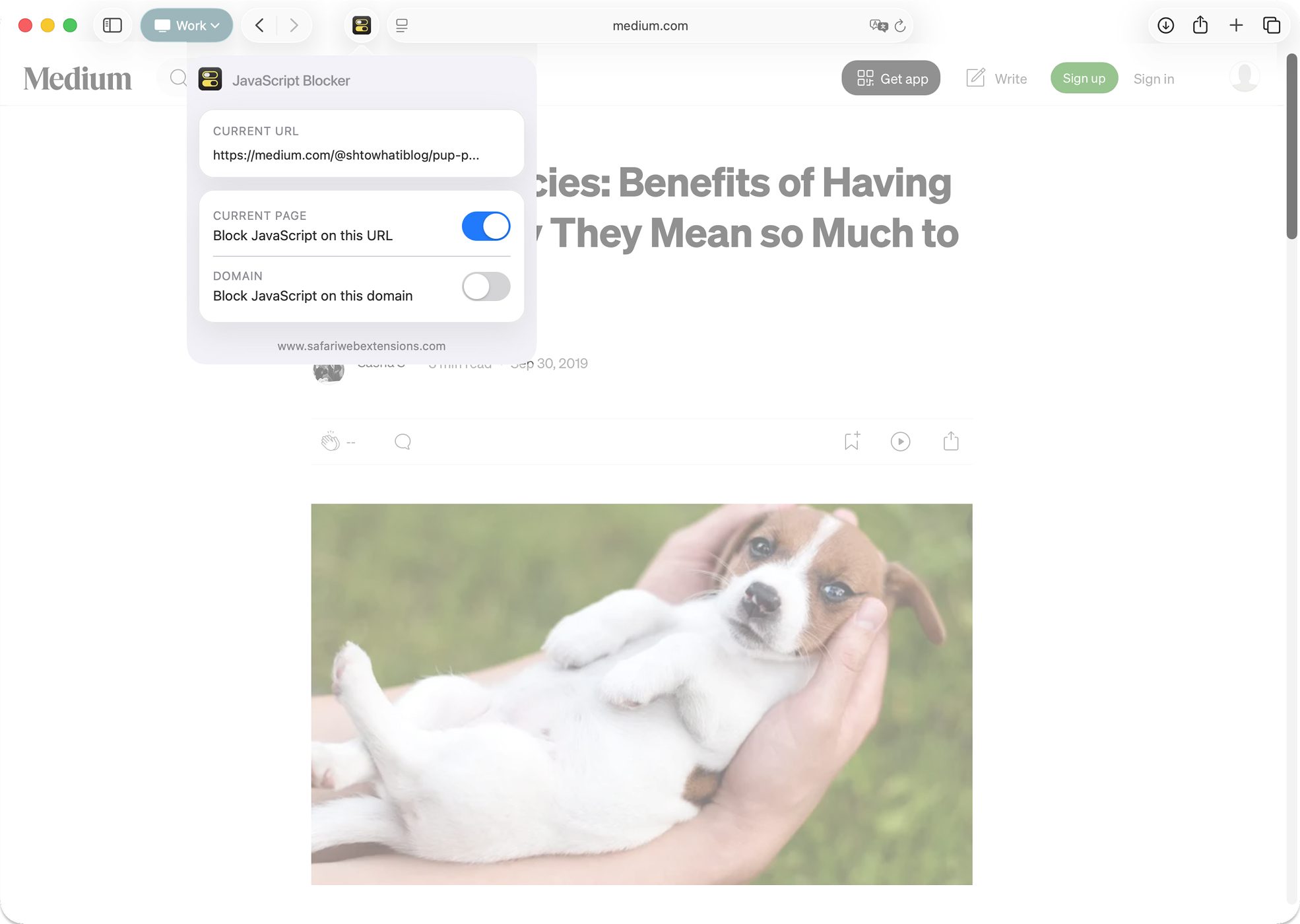
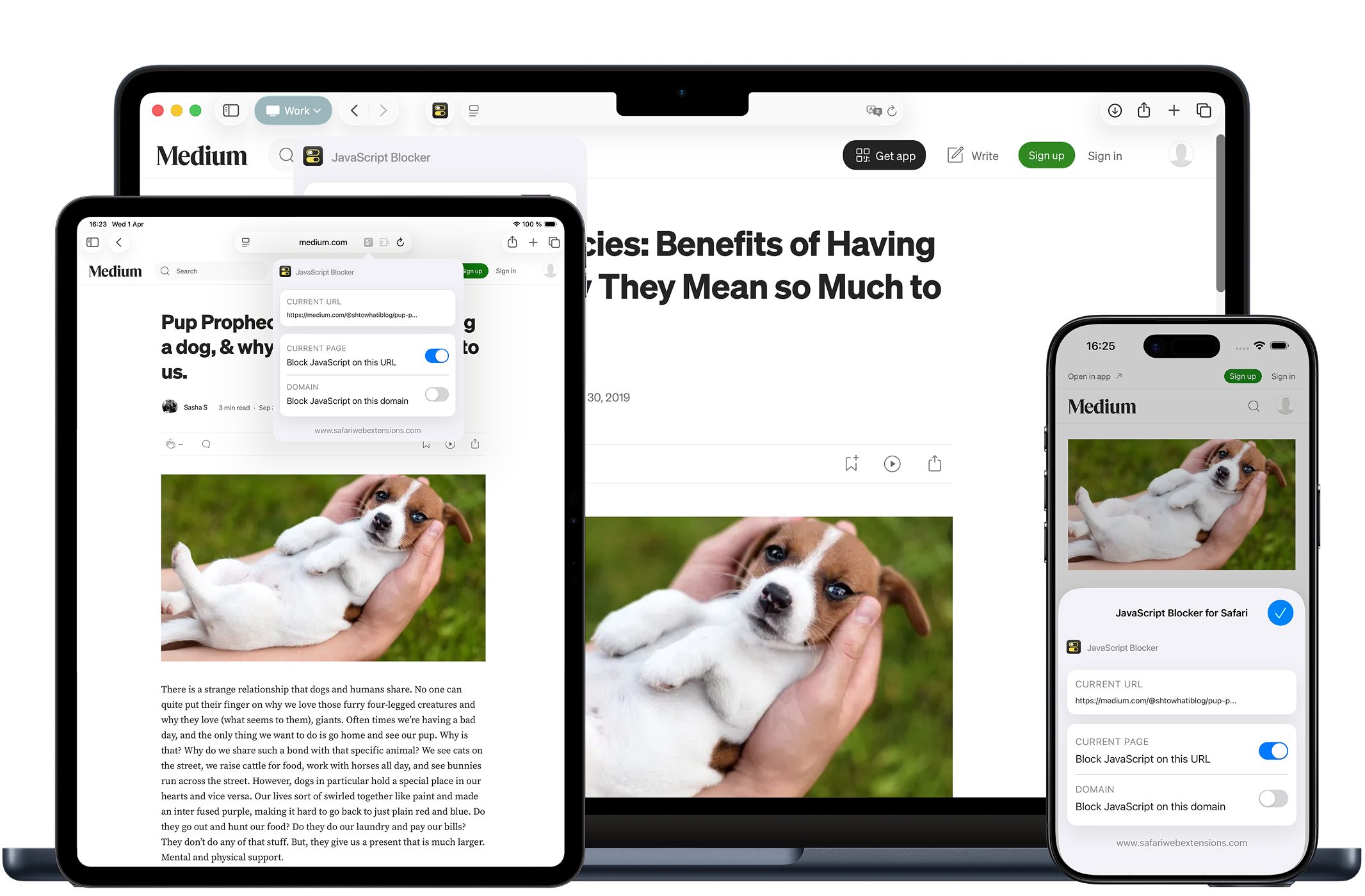
JavaScript Blocker for Safari is a Safari extension designed to give you simple, powerful control over website scripts. With a single tap, it lets you block javascript on the page you’re currently viewing or block it across the entire domain. That might sound like a niche capability—until you remember how much of the modern web is built on JavaScript, from page layout behaviors and pop-ups to interactive components and embedded third-party services.
The core problem it solves is straightforward: not every page needs scripts to be useful, and not every user wants every script to run. Sometimes JavaScript is essential for logging in, completing forms, or loading dynamic content. Other times it’s a source of distractions, performance slowdowns, or behaviors that make a page harder to read. A focused javascript blocker like JavaScript Blocker for Safari gives you an immediate “off switch” so you can browse with more control.
Why “JavaScript Blocker for Safari” is a Must-Have for Safari Users
The appeal of JavaScript Blocker for Safari is how quickly it turns an abstract idea—“I wish this page would stop doing that”—into a concrete action. Instead of digging through settings, switching browsers, or enduring another barrage of pop-ups and animated UI elements, you can block javascript right where you are. For anyone who spends their day in Safari, those small moments of friction add up.
This is also about convenience. Many script-control tools are powerful but complex, requiring deep configuration. JavaScript Blocker for Safari emphasizes one-tap control and a clean interface, making it approachable even if you’ve never used a javascript blocker before. It’s the kind of Safari extension that fits into your workflow rather than forcing you to build a new one.
And for users thinking about privacy, script control can be part of a broader strategy: fewer scripts running can mean fewer opportunities for unwanted behaviors on a page. The extension also states a privacy-first design with no data collection, tracking, or logging, which is exactly the kind of clarity people want when they’re installing Safari extensions that interact with websites.
Top Features of “JavaScript Blocker for Safari”
JavaScript Blocker for Safari keeps its feature set focused on practical control—blocking scripts where they matter, with minimal fuss. Here are the headline capabilities and why they matter in everyday browsing.
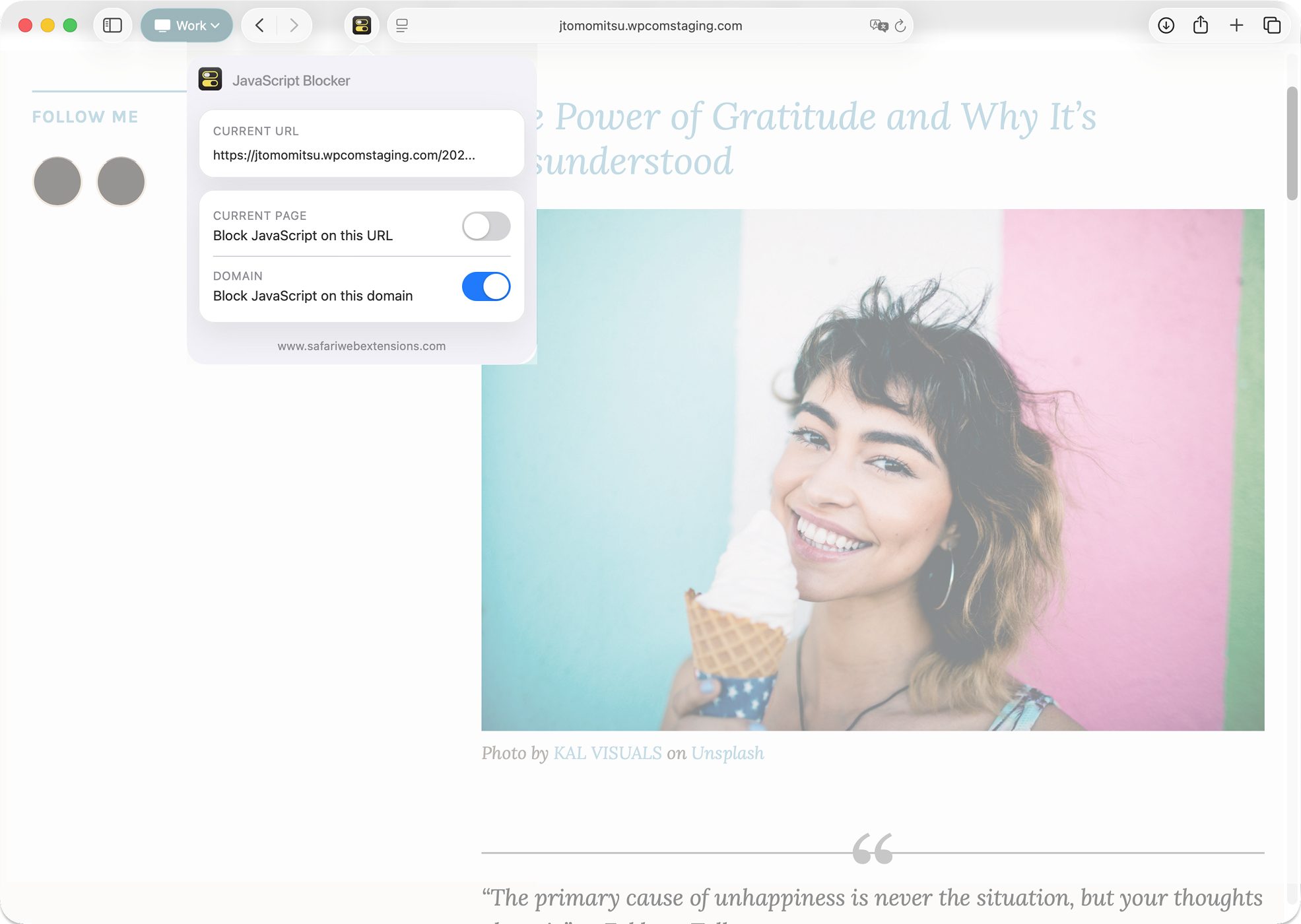
- Block JavaScript on the current page: Turn off scripts on the exact page you’re visiting. This is ideal when one article page is misbehaving, overloaded, or distracting, and you want a fast fix without changing how the rest of the site works.
- Block JavaScript across an entire domain: Apply blocking to the whole current website domain. If a site consistently feels heavy, cluttered, or hard to navigate due to scripts, domain-level control saves you from repeating the same action on every page.
- Block inline scripts too: Prevent inline JavaScript and event-based scripts from running. In practice, this can reduce “on-click” surprises and script-triggered behaviors that fire as you move around a page.
- One-tap toggle control: Enable or disable blocking instantly from the extension popup. It’s a key usability detail: when a site genuinely needs scripts, you can quickly switch behavior without getting stuck in settings screens.
- Privacy-first design: The extension states it collects no data and performs no tracking or logging, helping ensure your browsing stays private while you block javascript.
- Multilingual support: A globally friendly experience for users who prefer working in languages other than English, which is still surprisingly uncommon among smaller utilities.
- Clean, user-friendly UI: A streamlined interface that avoids clutter—important for a tool you may open frequently when evaluating whether a page really needs scripts.
- Seamless Safari integration across devices: Built to work across Safari on macOS, iOS, and iPadOS, so your script-control habits can carry over from desk to phone to tablet.
Collectively, these features aim at one goal: making script control feel as easy as toggling a light switch. When you need a javascript blocker, you typically need it “right now,” not after you’ve configured a long list of rules.
How to Install “JavaScript Blocker for Safari”
Installing JavaScript Blocker for Safari follows the standard App Store flow for Safari extensions, with a quick enablement step afterward.
Step 1: Open the App Store on your Mac, iPhone, or iPad and navigate to the listing for JavaScript Blocker for Safari.
Step 2: Download and install the app.
Step 3 (macOS): Open Safari, then go to Safari settings and find the Extensions section. Locate JavaScript Blocker for Safari and enable it.
Step 3 (iOS/iPadOS): Open the Settings app, scroll to Safari, then find Extensions. Enable JavaScript Blocker for Safari and allow any requested permissions so it can function on webpages.
Step 4: Confirm the extension appears in Safari’s extensions area. Once it’s visible, you’re ready to block javascript on a page or domain when needed.
How to Use “JavaScript Blocker for Safari” for Maximum Efficiency
The fastest way to get value from JavaScript Blocker for Safari is to think in two modes: page fixes and site policies. Page fixes are for one-off problems—an article page that keeps shifting, a recipe site that’s unusable under layers of interactive elements, or a blog post that triggers constant overlays. Site policies are for repeat offenders—domains where you almost never need scripts to read the content.
When you land on a page that feels “too busy,” open the extension and use the one-tap toggle to block javascript on the current page. If the page becomes cleaner and more readable, you’ve confirmed scripts were driving the noise. If something breaks—say navigation stops responding or content doesn’t load—toggle blocking off just as quickly. This back-and-forth is not a flaw; it’s the point of a practical javascript blocker: quick experimentation without consequences.
For maximum efficiency, reserve domain-level blocking for sites where you know what you’re getting. If you have a handful of domains you visit frequently for reading—where the content is largely static—blocking scripts at the domain level can make those visits more consistent. Meanwhile, keep page-level blocking for everything else, especially web apps and services that legitimately rely on JavaScript to function.
How “JavaScript Blocker for Safari” Boosts Productivity
Productivity gains from JavaScript Blocker for Safari show up in the quiet moments: fewer interruptions, fewer interface surprises, and less time spent fighting a webpage. If your work involves reading and synthesizing information—journalists, researchers, students, analysts—your “throughput” depends on how quickly you can get to the words that matter.
Consider a typical workflow: you open a set of sources in multiple tabs, scan them for key details, and pull quotes or references into notes. On script-heavy sites, that flow gets disrupted by dynamic elements, pop-ups, or interactive components that keep grabbing focus. A Safari extension that can block javascript gives you a way to stabilize the page long enough to do your job.
Another productivity scenario is device switching. Because JavaScript Blocker for Safari is built to integrate across Safari on macOS, iOS, and iPadOS, you can bring the same “control mindset” to every screen. If you regularly review documents on an iPad, do research on a Mac, and quickly reference links on an iPhone, consistent access to a javascript blocker reduces friction across contexts.
The broader lesson is simple: productivity isn’t only about doing more—it’s about removing unnecessary resistance. Script control is one of the most direct ways to reduce that resistance on today’s web.
Who Can Benefit from “JavaScript Blocker for Safari”?
JavaScript Blocker for Safari is especially useful for people who want more say in how websites behave, without turning configuration into a hobby.
If you’re a reader-first browser user—someone who values clean articles, documentation, forums, and knowledge bases—you’ll appreciate how easily you can block javascript when a page becomes chaotic. If you’re a power user who already relies on Safari extensions to streamline daily work, this fits naturally alongside other utilities that reduce friction. And if you’re privacy-conscious, script control can be one more lever in your toolkit—especially given the extension’s stated privacy-first design.
It can also be valuable for troubleshooting. When a page behaves oddly, disabling scripts can help you quickly determine whether JavaScript is part of the problem. That’s useful even if you ultimately re-enable scripts—because knowing what caused the issue is half the battle.
Security and Privacy of “JavaScript Blocker for Safari”
Any time you install a Safari extension, it’s fair to ask two questions: what access does it need, and what does it do with that access? JavaScript Blocker for Safari positions itself as privacy-first, stating that it performs no data collection, tracking, or logging—an important reassurance for an extension that interacts with webpage behavior.
Still, good security hygiene means verifying details for yourself. Review the App Store listing’s privacy information, and pay attention to Safari’s permission prompts when enabling the extension. If you’re careful about which websites you grant access to, you can align the tool with your comfort level while still benefiting from the ability to block javascript on demand.
Where to Download “JavaScript Blocker for Safari”
You can download JavaScript Blocker for Safari from the App Store at its official listing: JavaScript Blocker for Safari. Once installed and enabled, it becomes part of your regular Safari toolkit—ready whenever you want a quick, reliable way to block javascript on a page or across a domain.
If you’re browsing for more tools like this, it’s worth exploring the wider ecosystem of Safari extensions as well. The best setups are usually a small, intentional collection: a few extensions that each solve a real problem, without piling on complexity.
Conclusion: Simplify Your Workflow with “JavaScript Blocker for Safari”
The modern web runs on scripts, but that doesn’t mean you have to accept every script on every page. JavaScript Blocker for Safari is a focused, user-friendly Safari extension that makes it easy to block javascript on the current page or across an entire domain, with one-tap control and seamless Safari integration across macOS, iOS, and iPadOS.
For anyone who wants a calmer, more controlled browsing experience—whether for reading, research, or simply reducing distractions—this kind of javascript blocker can become a daily essential. If that sounds like your style of browsing, the next step is simple: download JavaScript Blocker for Safari, enable it, and start shaping the web into something that works better for you.