
The World of Safari Extensions
There’s a quiet power to browsing in Safari: it’s fast, energy-efficient, and deeply integrated with Apple’s ecosystem. But the real story of modern Safari is how customizable it has become—thanks to Safari extensions. These add-ons let you tailor the browser to your workflow, whether that means blocking distractions, automating repetitive actions, or bringing professional-grade tools directly into the pages you visit every day.
At a basic level, a Safari extension is a lightweight software add-on that expands what Safari can do. Instead of switching between separate apps, you can augment the browser itself—turning Safari into a productivity hub. For designers, developers, and anyone who works with digital content, this can be transformative: fewer context switches, faster checks, and tools that live right where the work happens.
The benefits are practical and immediate. Safari extensions can speed up common tasks, reduce friction, and help you stay focused. Some improve privacy and readability. Others help with research, writing, collaboration, or web development. And increasingly, you’ll find specialized utilities—like a dedicated color picker or eyedropper—that bring niche, professional capabilities into Safari with a single click.
Where do you find them? Most Safari extensions are distributed through Apple’s App Store (on macOS, and increasingly across iOS and iPadOS too). That distribution model matters: it’s familiar, it centralizes updates, and it gives you a clear place to review screenshots, release notes, ratings, and app privacy information before you install anything.
Installation is typically straightforward. On macOS, you download the extension’s companion app from the App Store, then enable the Safari extension in Safari’s settings. On iPhone and iPad, you install from the App Store and then toggle it on in Settings. Once enabled, the extension appears in Safari’s toolbar or share/menu area, ready to use on the pages you visit.
In other words: if you’ve ever wished Safari could “just do one more thing,” there’s likely a Safari extension for it. And for anyone who works with color—whether you’re designing a site, building a UI, or simply trying to match a brand palette—one standout tool is Color Sense for Safari.
What is “Color Sense for Safari”?
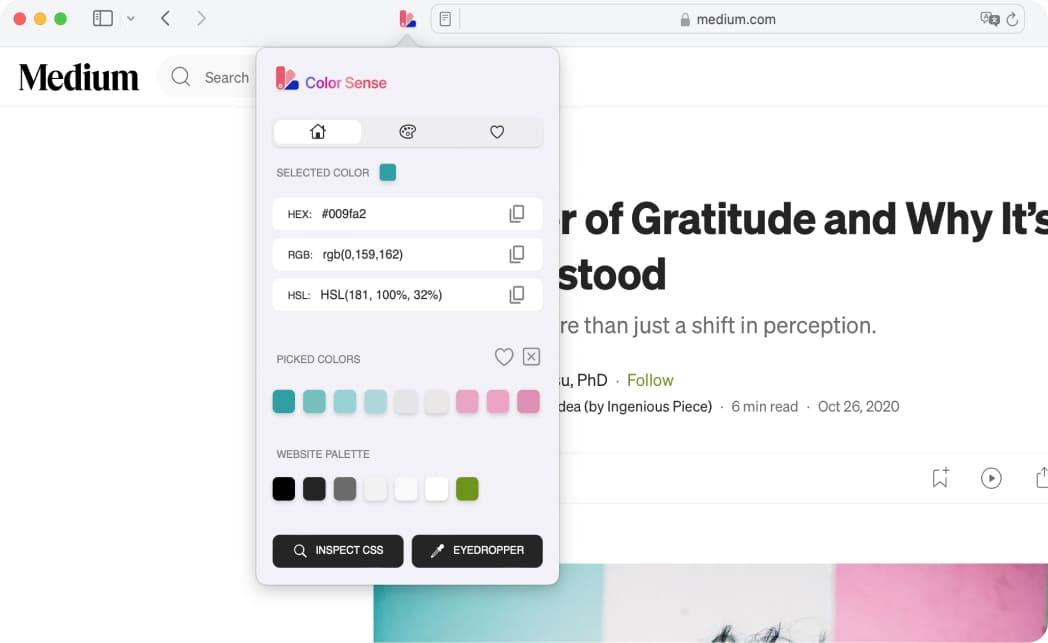
Color Sense for Safari is a dedicated color picker and eyedropper tool built to work directly inside Safari. Its purpose is simple but powerful: detect and copy any pixel color on-screen, or inspect web elements to identify their exact color values. From there, it helps you copy colors into the formats you actually use—such as HEX, RGB, and HSL—and organize those colors into palettes you can save and revisit.
The core problem it solves is one that almost everyone in digital design has faced: you see a color you like on a webpage (or inside a component), but extracting it accurately—and then keeping it organized—takes too many steps. Screenshots, external pickers, manual conversions, and scattered notes can quickly become a mess. Color Sense for Safari streamlines that workflow by making color capture, inspection, conversion, and palette-building feel native to your browsing.
Why “Color Sense for Safari” is a Must-Have for Safari Users
If you spend time gathering inspiration, reviewing websites, or iterating on visual design, a reliable color picker isn’t a luxury—it’s infrastructure. Color Sense for Safari delivers the kind of speed that matters in real work: capture a pixel color immediately, inspect element colors with a click, and copy the value in the format your tools expect. That’s the difference between a smooth creative flow and a stop-and-start process filled with friction.
It also brings order to the chaos of “colors I might use later.” Instead of losing great finds to browser tabs or random notes, you can build palettes intentionally and save them to favorites—useful whether you’re designing a brand system, assembling UI tokens, or just trying to maintain consistency across a project. As a Safari extension, it stays close to the source: the web itself.
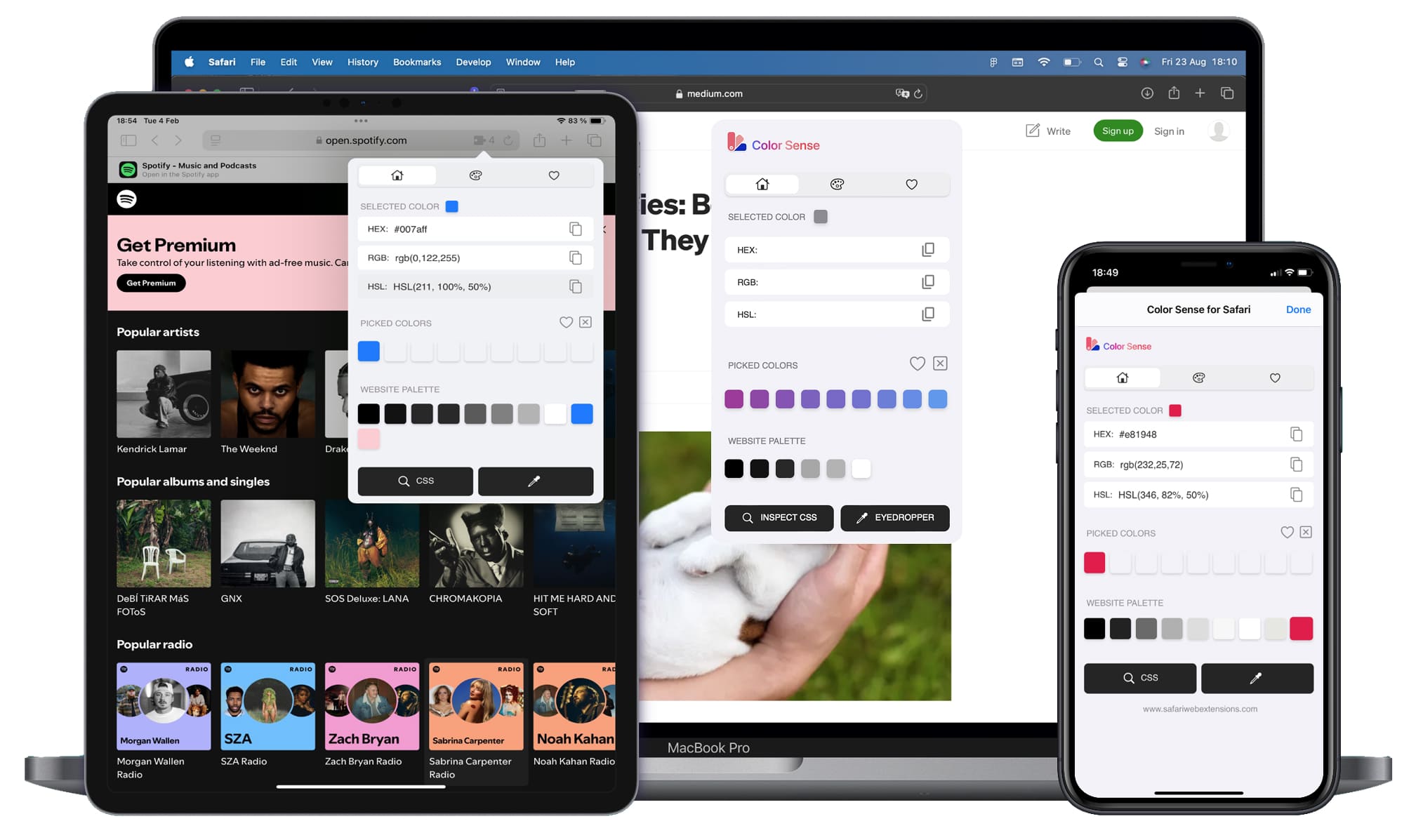
And importantly for people working across devices, Color Sense for Safari is available on macOS, iOS, and iPadOS. That means you can inspect a color while browsing on an iPad, then continue refining palettes later on a Mac—without having to change tools or re-learn a different workflow.
Top Features of “Color Sense for Safari”
Color Sense for Safari is packed with practical capabilities aimed at real-world design and development workflows. Here are the standout features—and what they mean in day-to-day use.
- Eyedropper with ultra-accurate magnifier: Capture any pixel color from your current page with precision. This is the classic “eyedropper” workflow done right, especially when you need accuracy on fine details like borders, icons, or text anti-aliasing.
- Check website palettes in one click: Instantly discover full site palettes. This is ideal for competitive research, inspiration gathering, or quickly understanding how a brand’s color system is structured across a page.
- Create your own palettes: Select colors with different tools and assemble personalized palettes. It’s a practical way to turn ad-hoc discoveries into a curated set you can use for a design concept or a UI system.
- Web Color Inspector for element-level color IDs: Identify and save the color of any element on a webpage with a simple click, revealing the exact HEX color code. This is especially useful when you’re validating whether a button, background, or component matches a documented standard.
- Detailed color analysis and format copying: Copy colors in formats like HEX, RGB, and HSL. If your workflow spans design tools, CSS, and collaboration docs, quick format access eliminates constant conversion steps.
- Copy and design compatibility: Seamlessly copy and use color codes in tools like Figma and Photoshop (and more). The practical impact here is speed: sample a color in Safari, paste it directly into your design system or mockups.
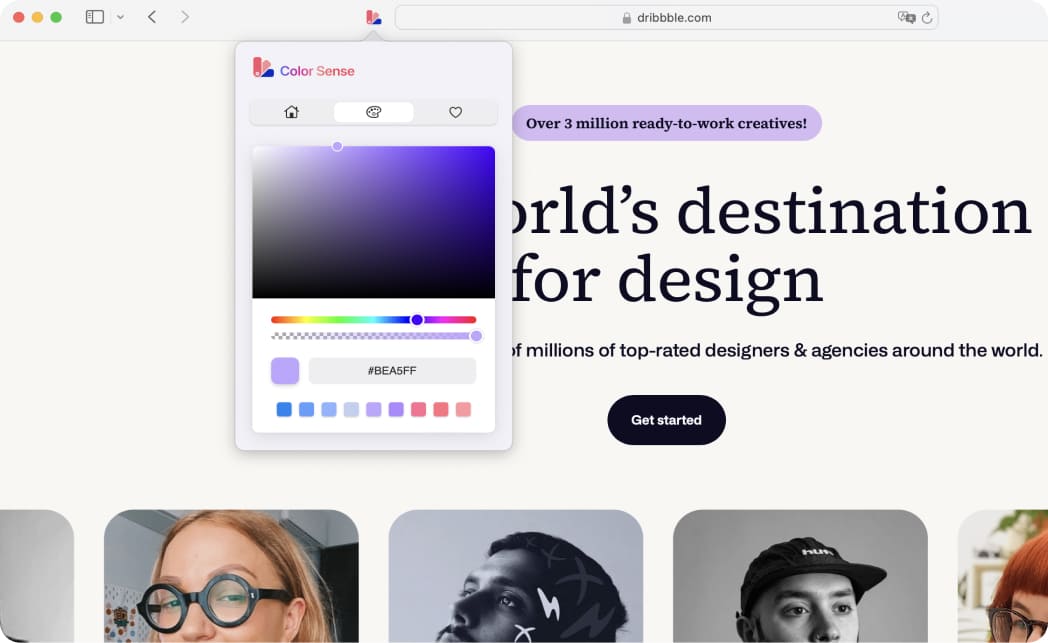
- Color picker tool for fine adjustments: Customize colors by choosing hues and adjusting opacity. It’s helpful when the sampled color is close but needs a tweak to meet contrast requirements or align with a brand token.
- Favorites for palettes: Save your favorite color palettes and build a reusable collection. This becomes your personal library of proven palettes for recurring projects, clients, or design styles.
- Light and Dark Mode themes: Choose the interface theme you prefer, which matters when you’re working long sessions or switching between day and night environments.
- Cross-device compatibility: Available on macOS, iOS, and iPadOS—useful for people who browse and review work on multiple screens.
- Localization in 30+ languages: Fully localized, making it accessible to global teams and multilingual workflows.
- User-friendly interface: Sleek, intuitive design that works for both pros and novices—important for teams where not everyone lives in dev tools.
- Efficient and lightweight: Designed to avoid lag and bloat, which matters when you rely on your color picker frequently and don’t want it to slow down the browsing experience.
How to Install “Color Sense for Safari”
Installing Color Sense for Safari follows the standard App Store flow for a modern Safari extension. Here’s a clear step-by-step path.
On macOS: Open the App Store, search for Color Sense for Safari, and download it. After installation, open Safari and go to Safari settings to find the Extensions section. Enable Color Sense for Safari, and optionally pin it to the toolbar so the color picker and eyedropper are always within reach.
On iOS and iPadOS: Download Color Sense for Safari from the App Store. Then go to the Settings app, find Safari, and open the Extensions section to enable it. Once enabled, you can access the Safari extension while browsing, using Safari’s extension controls.
If you use multiple Apple devices, it’s worth installing on each one you browse with most—especially if you regularly review design references on iPad or do production work on a Mac.
How to Use “Color Sense for Safari” for Maximum Efficiency
The best way to think about Color Sense for Safari is as a workflow accelerator: sample, inspect, copy, organize—repeat. To use it efficiently, start by deciding whether you need pixel-level sampling (eyedropper) or element-level verification (web color inspector). Pixel sampling is great for gradients, images, or subtle UI details. Element inspection is ideal when you want the precise color applied to a button, text block, or component.
When you find a color you want, copy it in the format that matches the next step in your process. If you’re going straight into CSS, you might prefer HEX or HSL depending on how you manage themes and variables. If you’re collaborating with designers who think in numeric channels, RGB can be the quickest common language. This built-in “copy to a variety of color formats” approach is what makes a color picker feel like a serious tool rather than a novelty.
Finally, treat palette creation as part of the capture process—not an afterthought. When you’re doing research, it’s easy to grab a dozen colors and forget why they mattered. With Color Sense for Safari, you can immediately place colors into a named palette and then save that palette to favorites. Over time, you end up with a curated library instead of a pile of one-off values.
How “Color Sense for Safari” Boosts Productivity
Productivity gains from a good eyedropper and color picker aren’t theoretical—they show up in the tiny moments that usually steal your attention. Instead of capturing screenshots, opening a separate tool, zooming in, sampling, converting formats, and then trying to remember where you found the color, you can do the entire loop inside Safari. That’s a classic example of how Safari extensions reduce context switching.
Consider a few realistic scenarios. A product designer is auditing a marketing site before building a UI kit: the web color inspector makes it quick to identify whether components truly match the published palette. A front-end developer is implementing a theme and needs to validate a hover color and background tint: the eyedropper captures the pixel color, then the tool can provide the value in a useful format like HEX, RGB, or HSL. A creative lead is assembling mood boards from live websites: one-click palette discovery speeds up ideation, while favorites keep the strongest palettes easy to find later.
Even small conveniences—like light and dark mode and a user-friendly interface—add up when you’re using the tool repeatedly throughout the day. The value of a lightweight, efficient Safari extension is that it becomes invisible: it supports the work without feeling like another “thing” to manage.
Who Can Benefit from “Color Sense for Safari”?
Color Sense for Safari is broadly useful, but it shines brightest for people who make decisions about color—either aesthetically or programmatically. Designers will appreciate the speed of a reliable color picker and the ability to build palettes from real sites. Developers and QA testers can use the web color inspector to validate UI implementation details quickly. Content creators, marketers, and brand teams can capture consistent colors for campaigns, landing pages, and social assets while browsing live references.
It’s also an approachable tool for newcomers. If you’re learning design, the ability to sample colors from websites you admire—and then see them expressed as HEX, RGB, or HSL—helps build intuition. And because it’s cross-device on macOS, iOS, and iPadOS, it fits modern workflows where inspiration and execution happen on different screens.
Security and Privacy of “Color Sense for Safari”
Any time you install a Safari extension, it’s smart to think about security and privacy. Extensions can interact with webpages you visit, so you should always understand what permissions are requested and how the tool describes its data practices. That’s not about distrust—it’s about good hygiene, especially on a work machine.
For Color Sense for Safari, the best practice is to review the App Store listing carefully, including any privacy details provided there, and confirm that the permissions align with how you plan to use the color picker and eyedropper features. If you’re deploying it across a team, it’s also worth standardizing a quick review checklist for all Safari extensions you adopt.
Where to Download “Color Sense for Safari”
You can download Color Sense for Safari from the App Store at its official listing: Color Sense for Safari. If you’ve been searching for a fast color picker, a precise eyedropper, and a practical palette workflow packaged as a lightweight Safari extension, it’s an easy tool to add to your setup.
Conclusion: Simplify Your Workflow with “Color Sense for Safari”
Safari extensions are one of the most effective ways to personalize Safari and make the browser work the way you do—especially when the tool you need lives right on the web. Color Sense for Safari makes a strong case for itself by focusing on the essentials: a precise eyedropper, a capable color picker, quick inspection of web elements, and flexible copying in formats like HEX, RGB, and HSL—plus the ability to build, favorite, and revisit palettes.
If your day includes design references, UI reviews, or front-end implementation, this is the kind of Safari extension that pays you back in minutes saved and fewer interruptions. Download Color Sense for Safari, pin it where you can reach it quickly, and turn color discovery into a smooth, repeatable part of your workflow.