
The World of Safari Extensions
Safari has always played a particular role in the Apple ecosystem: it’s fast, energy-efficient, and deeply integrated across macOS, iOS, and iPadOS. But for many power users, the browser’s real superpower isn’t just what ships in the box—it’s what you can add on top of it. That’s where Safari extensions come in.
Safari extensions are lightweight add-ons that enhance the browser with new capabilities—anything from cleaner reading experiences and smarter tab management to developer utilities and productivity tools. They can change how websites behave, add buttons and menus to automate everyday actions, and help you move information from the web into the apps and systems you rely on. If you’ve ever wished Safari could “just do” one more thing—save a page in a specific format, capture content for notes, or streamline repetitive workflows—there’s a good chance an extension already exists for it.
The benefits are practical and immediate. A good Safari extension can shave minutes off recurring tasks, reduce manual copy-and-paste work, and provide a consistent toolset across your Apple devices. For creators, researchers, developers, students, and anyone who lives in their browser, extensions can turn Safari into a purpose-built workspace—without switching to a different browser or juggling extra apps.
Finding and downloading Safari extensions is straightforward: on Apple platforms, extensions are typically distributed through the App Store. That means you’ll install them like any other app, and then enable them in Safari’s settings. On macOS, you’ll usually download the extension’s companion app from the App Store, then open Safari’s settings to turn the extension on. On iPhone and iPad, you install from the App Store, then enable it in Settings under Safari extensions.
Installation is designed to be approachable even if you’ve never used an extension before. In most cases, it’s a simple loop: download from the App Store, enable in Safari, and grant permissions if the extension needs access to webpages to function. Once enabled, the extension typically appears in Safari’s toolbar on Mac, or inside the Share Sheet / extensions menu on iOS and iPadOS—ready to use whenever you need it.
What is “Website to Markdown for Safari”?
Website to Markdown for Safari is a Safari extension that converts any webpage into clean Markdown in one click. At its core, it’s built for anyone who regularly captures content from the web—articles, documentation, references, recipes, research sources—and wants that content in a format that’s portable, readable, and easy to reuse.
The problem it solves is deceptively common: the web is made of HTML, but many of the tools people use to write and organize information—notes apps, documentation systems, developer workflows—prefer Markdown. Copying from a browser into a writing tool often brings along messy formatting, unnecessary navigation elements, or awkward line breaks. With a website to markdown and html to markdown approach, Website to Markdown for Safari aims to make the handoff from “webpage” to “clean text you can work with” fast and consistent.
Why “Website to Markdown for Safari” is a Must-Have for Safari Users
There’s a reason markdown has become the default language for modern writing workflows: it’s clean, durable, and works almost everywhere. The value proposition of Website to Markdown for Safari is that it brings that universality directly into Safari—so you can convert what you’re reading into something you can immediately save, edit, cite, and share.
For productivity, the impact is simple: fewer steps between discovery and action. Instead of wrestling with formatting or re-copying sections to remove clutter, you can convert a page into Markdown quickly, then move it into your preferred destination. If you’ve been looking for a reliable safari extension for website to markdown tasks—or you’ve tried html to markdown tools that require extra tabs, external services, or awkward workflows—this is the sort of utility that earns a permanent spot in your browser.
It also matters that this is built for Safari across Apple platforms. Many web capture tools treat mobile as an afterthought. Here, the promise is a seamless experience across Safari on macOS, iOS, and iPadOS, which is exactly where a cross-device research and writing workflow tends to happen.
Top Features of “Website to Markdown for Safari”
Website to Markdown for Safari focuses on the parts of the workflow that matter: what you convert, how clean the output is, and how quickly you can do something with the result. Here are the standout capabilities and why they matter in daily use.
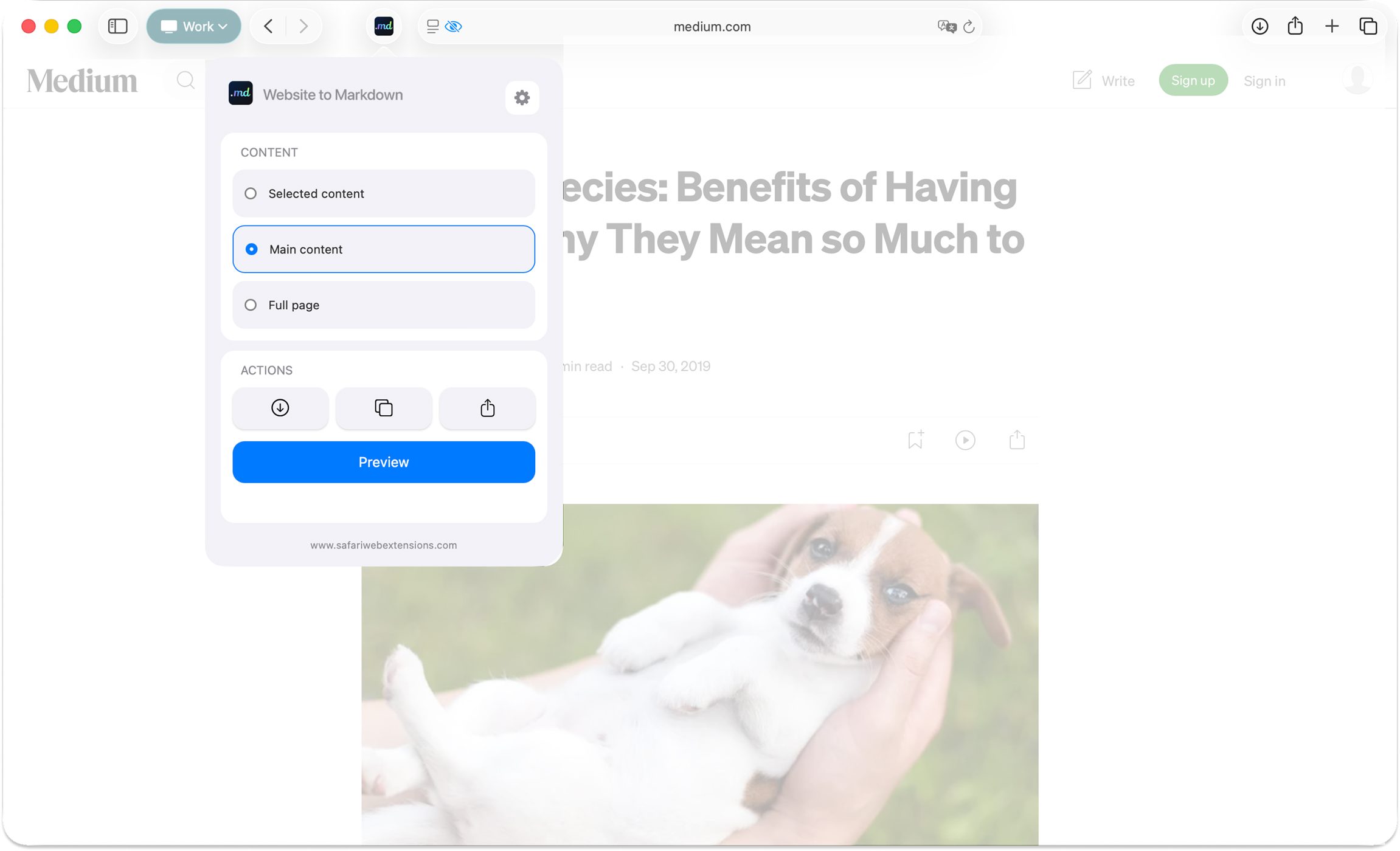
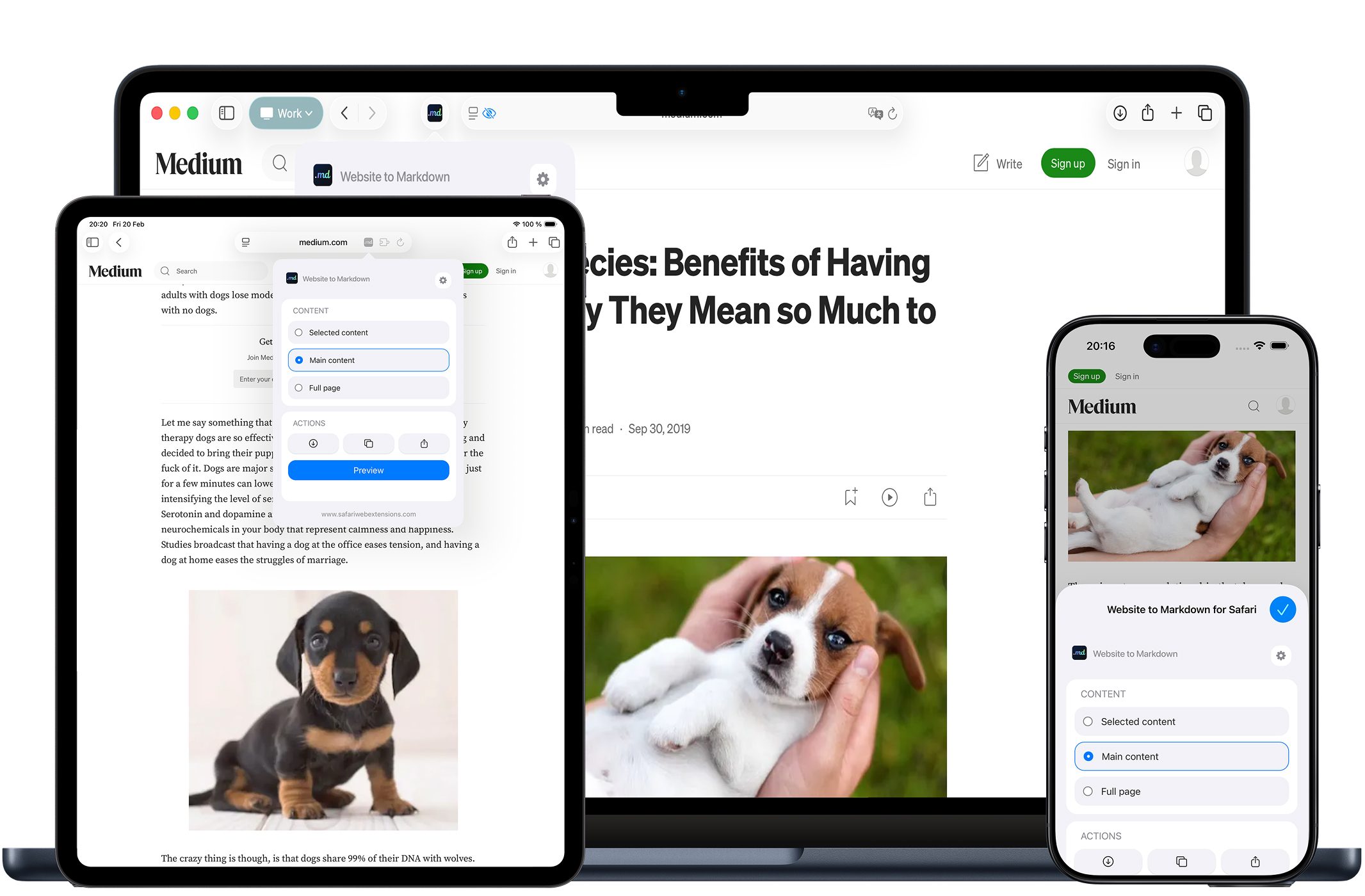
- Convert webpages to Markdown: Extract selected content, the main article, or the full page into clean, well-formatted Markdown—useful when you want only the relevant section, a clutter-free article capture, or a complete snapshot for reference.
- Save or share anywhere: Download, copy, preview, or share the current website as Markdown in seconds—ideal for moving content into notes, docs, or a team chat without breaking your flow.
- Privacy-first design: No data collection, tracking, or logging—your browsing stays completely private, which is particularly important when converting sensitive internal documentation or research.
- Multilingual support: Use the extension in multiple languages, making it friendlier for international teams and multilingual research.
- Clean, user-friendly UI: A streamlined interface that stays out of the way—important for an action you may do dozens of times a day.
- Seamless Safari integration: Built to work across Safari on macOS, iOS, and iPadOS, supporting consistent capture whether you’re at a desk or on the go.
Put together, these features position Website to Markdown for Safari as a practical website to markdown and html to markdown tool that lives where the content starts: inside Safari, at the moment you find something worth saving.
How to Install “Website to Markdown for Safari”
Installing Website to Markdown for Safari follows the standard App Store-to-Safari process used by modern Safari extensions. The exact menus differ slightly between Mac and iPhone/iPad, but the flow is consistent: install, enable, and confirm permissions.
On macOS: Download Website to Markdown for Safari from the App Store, then open Safari and go to Safari settings (or preferences). Find the Extensions section, locate the extension, and enable it. If Safari prompts for website access permissions, review them and allow what’s necessary for conversion.
On iOS and iPadOS: Install Website to Markdown for Safari from the App Store. Then open the Settings app, scroll to Safari, and find Extensions. Enable the extension and review any website access settings so it can convert pages when invoked.
Once enabled, you should be able to access the extension from Safari’s extension controls (Mac toolbar) or from the Safari extensions area on iPhone and iPad—ready whenever you need to turn a webpage into Markdown.
How to Use “Website to Markdown for Safari” for Maximum Efficiency
Using Website to Markdown for Safari is designed to feel immediate: you’re reading a page, you decide it’s worth keeping, and you convert it on the spot. For maximum efficiency, the trick is choosing the right capture mode for the job—selected content, main article, or full page—so you don’t spend time cleaning up later.
If you’re clipping a specific excerpt (a quote, a set of steps, a code-adjacent explanation), extracting selected content keeps your notes tight and avoids carrying over unrelated sections. When you’re saving a long read, converting the main article is often the sweet spot: you keep the substance without the scaffolding of navigation, ads, and unrelated page furniture. And when you need the whole context—say, for a policy page, a reference list, or a page that doesn’t have a clean “article” structure—full-page conversion can be the most reliable record.
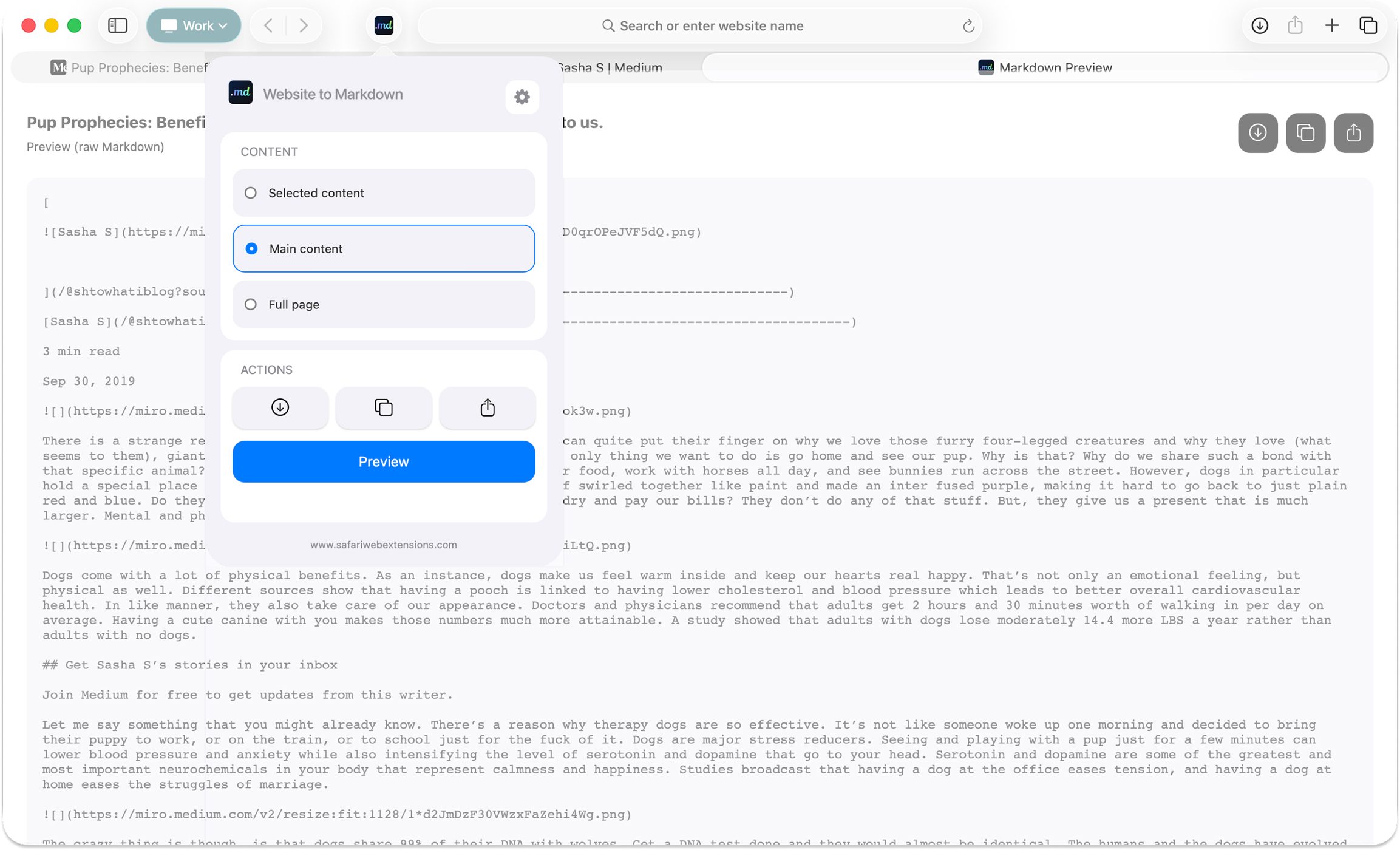
From there, use the output action that matches your next step. If you’re moving quickly, copy and paste Markdown directly into your destination. If you want a quick sanity check, preview the Markdown before you commit it to your notes or documentation. And if you’re building a personal archive, downloading the Markdown can provide a durable artifact you can store alongside other research materials.
How “Website to Markdown for Safari” Boosts Productivity
A good website to markdown workflow isn’t just about format—it’s about momentum. Website to Markdown for Safari reduces the friction between reading and doing something useful with what you read. That matters because the cost of “I’ll save this later” is often that you don’t—tabs pile up, links get lost, and the valuable bits disappear into browser history.
Consider a few productivity scenarios. If you’re a student gathering sources, you can convert articles into Markdown and drop them into a research notebook, keeping excerpts and citations organized in a consistent, editable format. If you’re a developer or technical writer, html to markdown conversion is a daily reality when pulling notes from docs, specs, or issue threads into a README or internal documentation—Markdown is often the final destination, so converting early saves time. If you’re managing a project, capturing a set of requirements or a how-to guide as Markdown makes it easy to paste into tickets, planning docs, or team notes without the formatting chaos that comes from rich-text copying.
The bigger win is consistency. When your captured content arrives in clean Markdown, it becomes easier to search, diff, quote, and edit. Over time, that consistency turns a chaotic “web clip” habit into a reliable personal knowledge system—one conversion at a time, inside Safari.
Who Can Benefit from “Website to Markdown for Safari”?
Website to Markdown for Safari is broadly useful, but it shines for people who repeatedly move information from the web into Markdown-friendly destinations. If your day includes research, writing, documentation, or structured note-taking, it fits naturally.
Writers and editors can capture references and background reading in a clean, reusable format. Students and academics can save sources and excerpts without hauling along distracting layout elements. Developers, product managers, and support teams can convert web-based documentation or guides into Markdown for internal docs, troubleshooting playbooks, or project notes. And multilingual users benefit from the extension’s support for multiple languages, which can make a difference when research spans regions and publications.
In short, if you’ve ever searched for a safari extension that handles website to markdown or html to markdown tasks without turning the process into a project, this is squarely aimed at your workflow.
Security and Privacy of “Website to Markdown for Safari”
Browser add-ons naturally raise privacy questions, especially when they interact with webpages. Website to Markdown for Safari explicitly positions itself as privacy-first, stating that there is no data collection, tracking, or logging—so your browsing stays completely private.
As with any Safari extension, it’s still wise to review what permissions you grant during setup and confirm the extension’s privacy details on its App Store listing. That quick check helps you understand what the extension can access (for example, which websites it can read) and ensures the behavior matches your comfort level—particularly if you plan to convert content from sensitive accounts or internal tools.
Where to Download “Website to Markdown for Safari”
You can download Website to Markdown for Safari from the App Store at the official listing: Website to Markdown for Safari. Once installed, enable it in Safari and you’ll have a dedicated website to markdown and html to markdown tool built directly into your browsing workflow.
Conclusion: Simplify Your Workflow with “Website to Markdown for Safari”
Safari extensions are at their best when they remove friction from everyday work, and Website to Markdown for Safari is a clear example of that philosophy. With one-click conversion, flexible extraction options (selection, main article, or full page), and quick ways to copy, download, preview, or share, it turns the messy reality of web pages into clean Markdown you can actually use.
If your notes, docs, or personal knowledge system runs on Markdown—or you simply want a faster way to capture web content without formatting headaches—install Website to Markdown for Safari and try it on your next round of reading. It’s a small change inside Safari that can have an outsized effect on how efficiently you collect and reuse information.