
The World of Safari Extensions
Modern browsing isn’t just about loading pages quickly—it’s about managing attention. Between work dashboards, research sources, shopping comparisons, travel plans, and the inevitable “I’ll read this later” tabs, Safari can turn into a sprawling workspace. That’s where Safari extensions come in: lightweight add-ons that enhance Safari with specialized tools, streamlining everything from how you navigate tabs to how you handle repetitive tasks.
At a practical level, a Safari extension adds functionality directly into your browsing experience. Some focus on productivity, others on convenience, accessibility, or customization. The best ones feel native—small improvements that compound into real time savings. If you routinely keep many tabs open, for example, even shaving seconds off “find the right tab” becomes meaningful when repeated dozens of times per day.
The benefits are straightforward: Safari extensions can reduce friction, help you stay organized, and minimize the mental overhead that comes with multitasking online. They can also provide faster ways to complete common actions—like switching between resources, finding what you were just reading, or cleaning up tab clutter before it slows you down.
Where do you find them? Most users discover a Safari extension through Apple’s App Store listings (especially when an extension also includes a companion app) and curated directories. It’s worth browsing reputable catalogs that specialize in Safari extensions, because they make it easier to compare tools designed specifically for Safari rather than general browser add-ons.
Installation is typically simple. On macOS, you download the app or extension container from the App Store, then enable it in Safari settings. On iPhone and iPad, you install the app and then toggle the extension on in Safari’s Extensions settings. In both cases, Safari will guide you through permissions and activation, and most extensions place their controls in the Safari toolbar or the browser’s extensions menu for quick access.

What is “Tab Finder for Safari”?
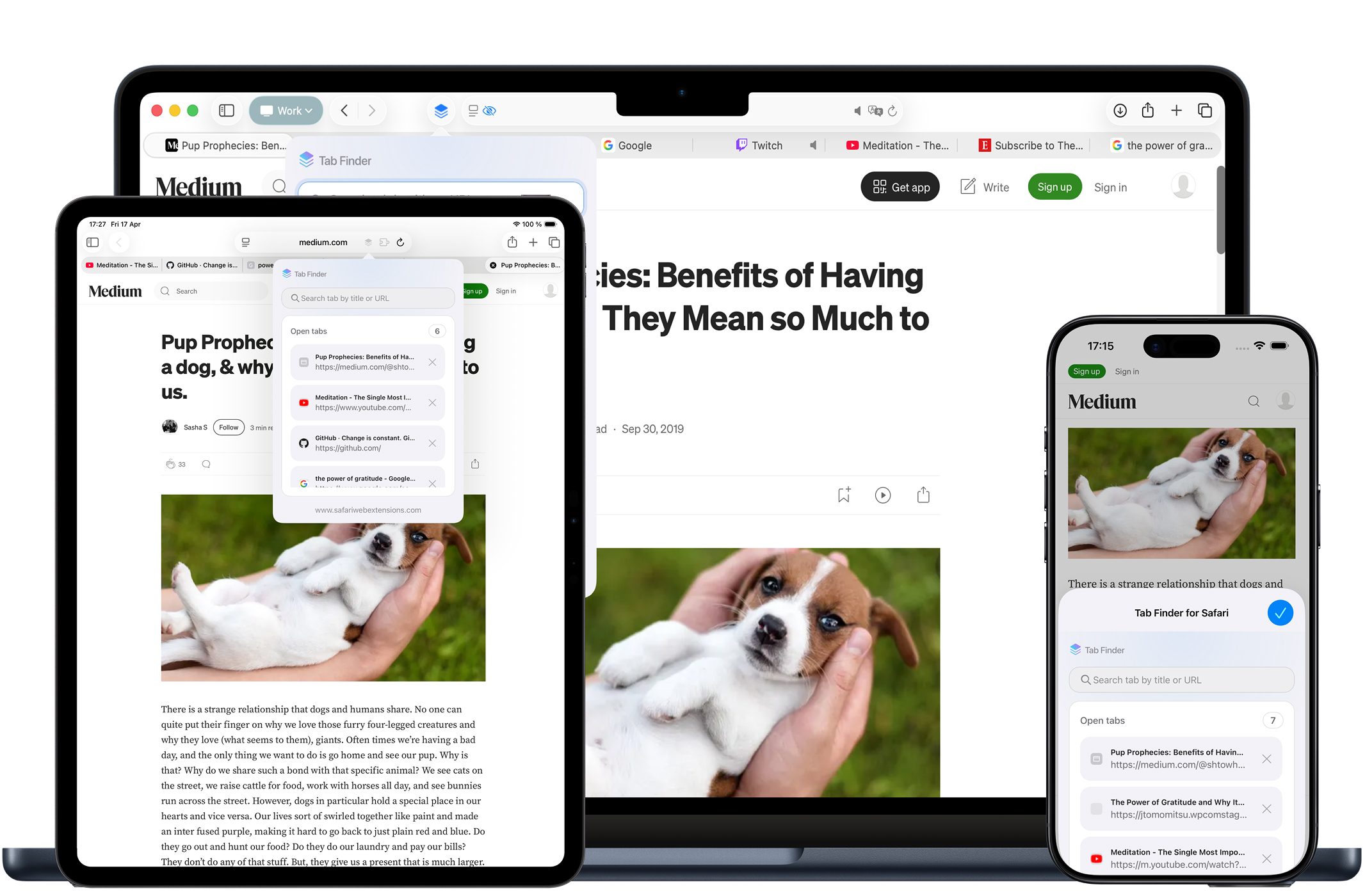
Tab Finder for Safari is a Safari extension designed to help you instantly search, switch, and close Safari tabs faster. If your browsing style involves opening lots of pages—whether you’re deep in a research rabbit hole, juggling multiple work tasks, or simply comparison shopping—this tool is built to keep your tab set navigable and under control.
The core problem it solves is universal: as tab count grows, finding the exact tab you need becomes slower and more error-prone. Visual scanning doesn’t scale well, tab titles get truncated, and similar pages blur together. When you need to search tabs quickly or find tabs by a fragment of title or URL, Tab Finder for Safari focuses on getting you to the right page in seconds—without hunting through a crowded tab bar.

Why “Tab Finder for Safari” is a Must-Have for Safari Users
For many people, tabs are a working memory system: you keep them open because they represent tasks in progress. But that system breaks down when switching between them becomes tedious. Tab Finder for Safari brings order to that chaos by making tab discovery and tab management feel instantaneous. Instead of manually checking each open page, you can search tabs by what you remember—part of a headline, a domain name, or a URL snippet—and jump straight there.
The value proposition is simple and strong: less time searching, more time doing. Whether you’re moving between a project brief and a design reference, switching from documentation to a testing environment, or trying to return to a key article you opened earlier, Tab Finder for Safari reduces tab friction. It’s the kind of safari extension (and one of the more practical safari extensions) that pays for itself in tiny productivity gains that add up across the day.
Top Features of “Tab Finder for Safari”
What makes Tab Finder for Safari stand out is that it doesn’t just list your tabs—it helps you act on them quickly. The feature set is geared toward real-world tab overload: searching, filtering, prioritizing the most relevant window, switching immediately, and closing clutter without breaking flow.
- Find Any Safari Tab in Seconds: Quickly locate the tab you need without manually checking each open tab—ideal when you’re trying to find tabs under time pressure.
- Instant Tab Filtering: Type to search tabs by tab title or URL, with results updating as you type, so you can narrow down options in a couple of keystrokes.
- Search Tabs Across All Windows (macOS): View and search tabs from all open Safari windows in one place, a huge help if your work is spread across separate window contexts.
- Search Tabs in Your Current Window (iOS and iPadOS): Quickly find tabs within the Safari window you are currently using, keeping mobile and tablet workflows focused and fast.
- One Click Tab Switching: Jump directly to the tab you want from the popup, minimizing the “where was it again?” delay.
- Close Tabs Faster: Close any tab directly from the list using the built-in close button—an efficient way to clean up without changing your active page.
- Current Window First: Prioritizes tabs from your current window so the most relevant tabs appear first, which makes everyday switching feel more predictable.
- Privacy-first design: No data collection, tracking, or logging—your browsing stays completely private, a reassuring stance for a tool that interacts with tab information.
- Multilingual support: Use the extension in multiple languages, useful for international teams or multilingual users.
- Clean, user-friendly UI: A streamlined design that integrates smoothly into your workflow, reducing the learning curve.
- Seamless Safari integration: Built to work across Safari on macOS, iOS, and iPadOS, so your tab-management habits can stay consistent across devices.
How to Install “Tab Finder for Safari”
Installing Tab Finder for Safari is straightforward, and the process will feel familiar if you’ve enabled any Safari extensions before.
On macOS: First, download Tab Finder for Safari from the App Store link. After installation, open Safari and go to Safari settings, then navigate to the Extensions section. Find Tab Finder for Safari in the list and enable it. If Safari presents permission prompts during activation, review them and approve what you’re comfortable with to complete setup.
On iOS and iPadOS: Install Tab Finder for Safari from the App Store. Then open the Settings app, scroll to Safari, and find Extensions. Enable Tab Finder for Safari and confirm any options Safari provides. Once enabled, you’ll be able to access it from Safari’s extension controls while browsing.
How to Use “Tab Finder for Safari” for Maximum Efficiency
The fastest way to get value from Tab Finder for Safari is to treat it like a command palette for your browser. Instead of scanning your tab bar, open the extension’s popup and start typing what you remember. Because it supports instant filtering by title or URL, even partial cues—like “invoice,” “docs,” “github,” or a site name—are often enough to surface the right match.
In real-world use, this changes how you keep tabs. You can afford to leave reference material open because retrieving it later is quick. For instance, if you’re researching a purchase and have ten product pages open across multiple stores, you can search tabs for a brand name or model number and jump straight to the relevant listing. If you’re working on a project and have several tools open—tickets, docs, dashboards—you can find tabs by domain and switch immediately without breaking concentration.
Another practical habit: use the built-in close controls for cleanup in the same moment you’re searching. If your search results show outdated or duplicate pages, close them right there. This keeps your workspace lean without forcing you to visit each tab just to close it.
How “Tab Finder for Safari” Boosts Productivity
Productivity isn’t only about doing more—it’s about reducing context switching. Tabs are a form of context, and the overhead of locating the right one is a quiet time sink. Tab Finder for Safari boosts productivity by turning tab retrieval into a quick search action: open, type, switch. That’s particularly valuable in sessions where you’re frequently moving between sources.
Consider a few scenarios. A student writing a paper might keep journal articles, citation guides, and a drafting tool open; being able to search tabs by keywords from a title saves repeated scanning. A professional handling multiple clients might have separate windows for different accounts; the ability to search across all windows on macOS helps find tabs even when you can’t remember where you opened them. And if you’re on iPad or iPhone, staying within the current window’s tab set can make quick retrieval feel less cramped on smaller screens.
There’s also a subtler benefit: fewer “tab hoarding” penalties. When finding something later is easy, you can keep relevant pages open without fear of losing them in the crowd. And when closing is just as quick, you can prune aggressively when a task ends. The result is a healthier tab ecosystem—less clutter, less indecision, and faster navigation.
Who Can Benefit from “Tab Finder for Safari”?
Tab Finder for Safari is broadly useful, but it shines for people who treat Safari as a daily work environment. Researchers, students, journalists, analysts, and developers often keep many sources open at once and need a reliable way to search tabs and jump between them. It’s equally helpful for anyone who multitasks across personal admin—banking, travel plans, email, documents—where the right page is often “somewhere in the middle of the pile.”
It also fits users who work across devices. Because it’s designed to integrate across Safari on macOS, iOS, and iPadOS, it can support a consistent habit: quickly find tabs and manage them without adopting a new system or moving your workflow to another browser.
Security and Privacy of “Tab Finder for Safari”
Privacy is a legitimate concern for any Safari extension that interacts with your browsing activity, even if it’s “only” reading tab titles or URLs to help you search tabs. Tab Finder for Safari explicitly positions itself as privacy-first, stating that it has no data collection, tracking, or logging and that your browsing stays completely private.
Even with strong privacy claims, it’s smart practice to verify details yourself. Before enabling any of the many Safari extensions available, review the App Store privacy information and pay attention to what permissions the extension requests in Safari. If something doesn’t match your expectations, you can adjust settings or disable the extension at any time.
Where to Download “Tab Finder for Safari”
You can download Tab Finder for Safari from the App Store here: https://apps.apple.com/app/tab-finder-for-safari/id6762413095. If your daily browsing involves frequent tab switching—or you regularly need to find tabs quickly—this is one of those Safari extensions that can improve your workflow immediately.
Conclusion: Simplify Your Workflow with “Tab Finder for Safari”
Safari extensions are at their best when they remove small points of friction that quietly drain time and focus. Tab Finder for Safari does exactly that by giving you a fast way to search tabs, switch instantly, and close clutter in place—turning tab overload into something manageable.
If your Safari sessions tend to sprawl across many pages and windows, Tab Finder for Safari is worth trying. Install it, build the habit of typing to find tabs, and you’ll likely notice the difference within the first day: fewer wasted seconds, fewer lost pages, and a cleaner, calmer browsing workspace powered by a focused Safari extension.